Finding your way around
The system has a lot of features, but they're all reached the same two ways: the menu down the left side, and the bar across the top. Once these two click into place, you'll never feel lost.
Overview
Every screen in the system shares the same frame: a tall sidebar menu on the left and a thin top bar along the top. The middle is where the actual page — your products, sales or reports — appears. Learn the frame once and it stays the same everywhere.
The left sidebar
The sidebar is your main map. Version 1.1.1 keeps daily actions directly visible and places only three configure-once or report-heavy sets inside expandable groups: Product Setup, Inventory Reports and Accounting Setup. No permitted destination was removed.
- Operations — the Dashboard, the POS checkout screen, and shift and cash-drawer history.
- Sales — your sales history, customer payments and return reasons.
- Customers — your customers and customer groups.
- Products — your products and barcode labels, plus a Product Setup menu for categories and brands and units.
- Inventory — adjustments, reconciliation and transfers, plus an Inventory Reports menu for stock levels, low stock, batches and stock activity.
- Purchasing & Expenses — purchases, suppliers, purchase returns, supplier payments and expenses.
- Reports — All reports, Saved reports, Scheduled reports and Sync log. Individual reports open from All reports or Ctrl+K instead of repeating down the sidebar.
- Accounting — the journal and chart of accounts, plus an Accounting Setup menu for business mappings, fiscal periods and opening balances.
- Tax Management — tax components and groups and drug schedules.
- Administration — users and roles, stores and terminals, sales channels, hardware, system health, languages and general settings.
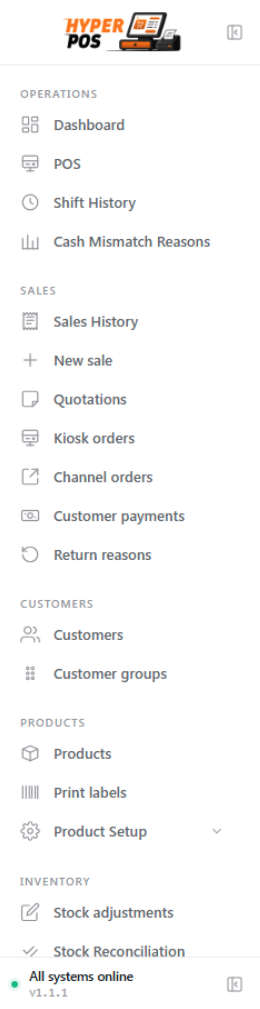
The sidebar only shows the screens your account is allowed to use. If a colleague can see a menu you can't, it's because their role grants that permission. This keeps each person's view focused on their job.
The top bar
The top bar stays in place wherever you go. From one side to the other it holds the tools you reach for most often.
Quick search (the command palette)
The search box — also opened by pressing Ctrl K (or ⌘ K on a Mac) — is the fastest way to get anywhere. Start typing the name of a screen, product or customer and pick it from the list. Reports and setup pages that no longer repeat as individual sidebar rows remain searchable here, subject to your permissions.

Notifications
The bell icon collects important messages — things like a stock item running low, a backup that needs attention, or an available update. A small dot or number means there's something new. Click it to read the list.
Dark mode
The sun/moon button switches between the light and dark colour themes. Dark mode is easier on the eyes in dim shops and in the evening. Your choice is remembered on that device.
Language
If more than one language is set up, you can switch the screen's language from the top bar (or in your profile). The whole interface, including right-to-left languages, follows your choice. See Languages.
Your profile menu
Your name or picture opens the profile menu, where you can edit your details, change your password, set personal preferences and sign out.
Switching between stores
If your business runs more than one store (shop location), you can move between them without logging out. Use the store switcher in the top bar to choose which store you're looking at — the dashboard, stock and reports then show that store's figures. If you only have one store, there's nothing to switch and this control simply won't appear.
A store is a whole location; a terminal is one till within it. You switch stores from the top bar, but you choose a terminal when you open the checkout screen. See Stores & terminals.
On a phone or small tablet
On a narrow screen the sidebar tucks away to save room. Tap the menu button at the top-left to slide it open, and tap outside it (or pick an item) to close it again. Everything else works just the same.
Tips & best practices
- Learn the Ctrl K shortcut. It's by far the quickest way around once you know the names of a few screens.
- Check the bell regularly. It's how the system tells you about low stock, backups and updates without interrupting your work.
- Pick the right store first. If you run several, confirm which store you're in before reading numbers or making changes.
- Use dark mode in low light. It reduces glare during evening shifts and is gentler on the eyes.
Notes & warnings
Changing store changes what you're working on. If you switch stores mid-task, you may be looking at different stock and sales than you expected — double-check the store name in the top bar before making changes.
Missing a menu isn't a fault. If a screen you need isn't in your sidebar, your account probably lacks that permission. Ask whoever manages your users and roles to grant it.
Related: Dashboard tour · Getting started · Stores & terminals · Users & roles