Units of measure
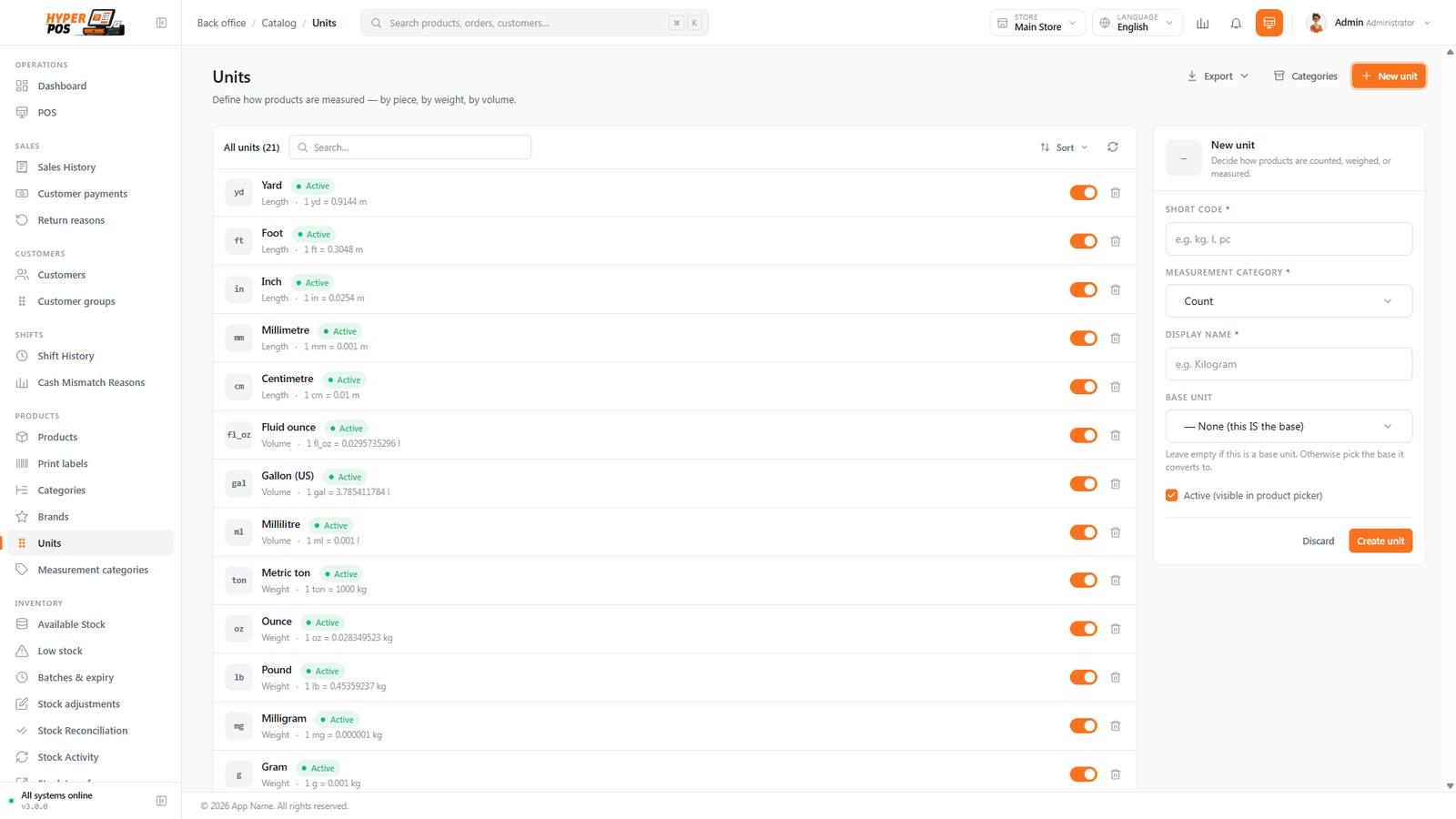
A unit is how you count or measure a product — by the piece, the kilogram, the litre, the box. Every product has one, and it shows up on the cart, the receipt and your reports so quantities always read the way your customers expect.
Overview
The system arrives with the everyday units already set up — piece, pack, box, dozen, kilogram, gram, litre, millilitre, metre and more — so most shops never need to add anything. Each unit belongs to a measurement category that says what kind of thing it measures: count (pieces, boxes), weight (kg, g), volume (litre, ml), length (metre, cm) and so on. Grouping units this way keeps related ones together and lets the system convert between them safely.
You pick a product's unit on its form (see Products). From then on, that unit appears wherever the product's quantity is shown.
Why it's useful
- Quantities read naturally. Loose tomatoes show as 0.750 kg, bottled water as 6 pieces — never a confusing mismatch.
- Weighed selling works. A weight unit (kg or g) is what lets a product be sold by weight at the scale — see Weighed & scale items.
- Buy and sell in different sizes. Conversions let you receive stock in boxes but sell it by the piece, without doing the maths in your head.
- Consistent everywhere. The same unit follows the product onto receipts, stock counts and reports.
Adding a unit, step by step
-
Open Units
Under Products in the sidebar, click Units. Check the list first — the unit you need may already be there.
-
Click "Add unit"
Give the unit a name (for example Tray) and a short code (for example tray) that shows next to quantities.
-
Choose its measurement category
Pick the category it belongs to — count, weight, volume, length, time or other. This keeps it grouped with similar units and controls which units it can convert to.
-
Set a conversion (optional)
If the new unit is just a bigger or smaller version of an existing one, link it to a base unit and enter how they relate — for example a gram is 0.001 of a kilogram. Leave this blank for standalone units.
-
Save
Click Save. The unit is now available to choose on any product.
Measurement categories
Measurement categories are the buckets that hold related units. They keep the unit list organised and, more importantly, they tell the system which units can convert into each other — you can convert grams to kilograms because both are weight, but never grams to litres. The standard categories are already set up; you'll rarely need to add one.
Buying in boxes, selling in pieces
A common case: you buy cola by the box of 24 but sell it by the single can. There are two simple ways to handle this:
| Approach | How it works | Best for |
|---|---|---|
| Sell in the unit you stock in | Set the product's unit to piece and, when receiving a box, enter the quantity as the number of pieces it contains (24). | Most shops — it keeps stock counts in the unit customers actually buy. |
| Use a conversion | Define box as 24 pieces, so the two units are linked. You can then think in whichever unit suits the task. | When you frequently switch between bulk and single quantities. |
In this version the system doesn't automatically break a received box into loose pieces on the shelf — you tell it how many pieces a box holds when you receive stock. Keeping a product's everyday unit as the one you actually sell in is the simplest, most reliable approach.
Tips & best practices
- Use the unit you sell in. Set each product's unit to whatever the customer buys — pieces, kg, litres — and your stock and receipts stay clear.
- Reach for the seeded units first. The built-in units cover most shops; only add your own when there's a genuine gap.
- Pick weight units for weighed goods. A product can only be sold on a scale if its unit is a weight unit like kg or g.
- Keep codes short. The code shows next to every quantity, so kg reads better than kilograms.
Notes & warnings
Changing a product's unit doesn't recalculate past sales. Switching a product from pieces to kg after you've been selling it will make old records read oddly. Choose the right unit at the start.
Conversions only work within one measurement category. You can convert between weights, or between volumes, but not from weight to volume — they measure different things.
Related: Products · Weighed & scale items · Purchases