Purchases
A purchase is your record of buying stock from a supplier — what you bought, how many, and what it cost. When the goods arrive you receive the purchase, which adds the items into your stock and updates how much you owe.
Overview
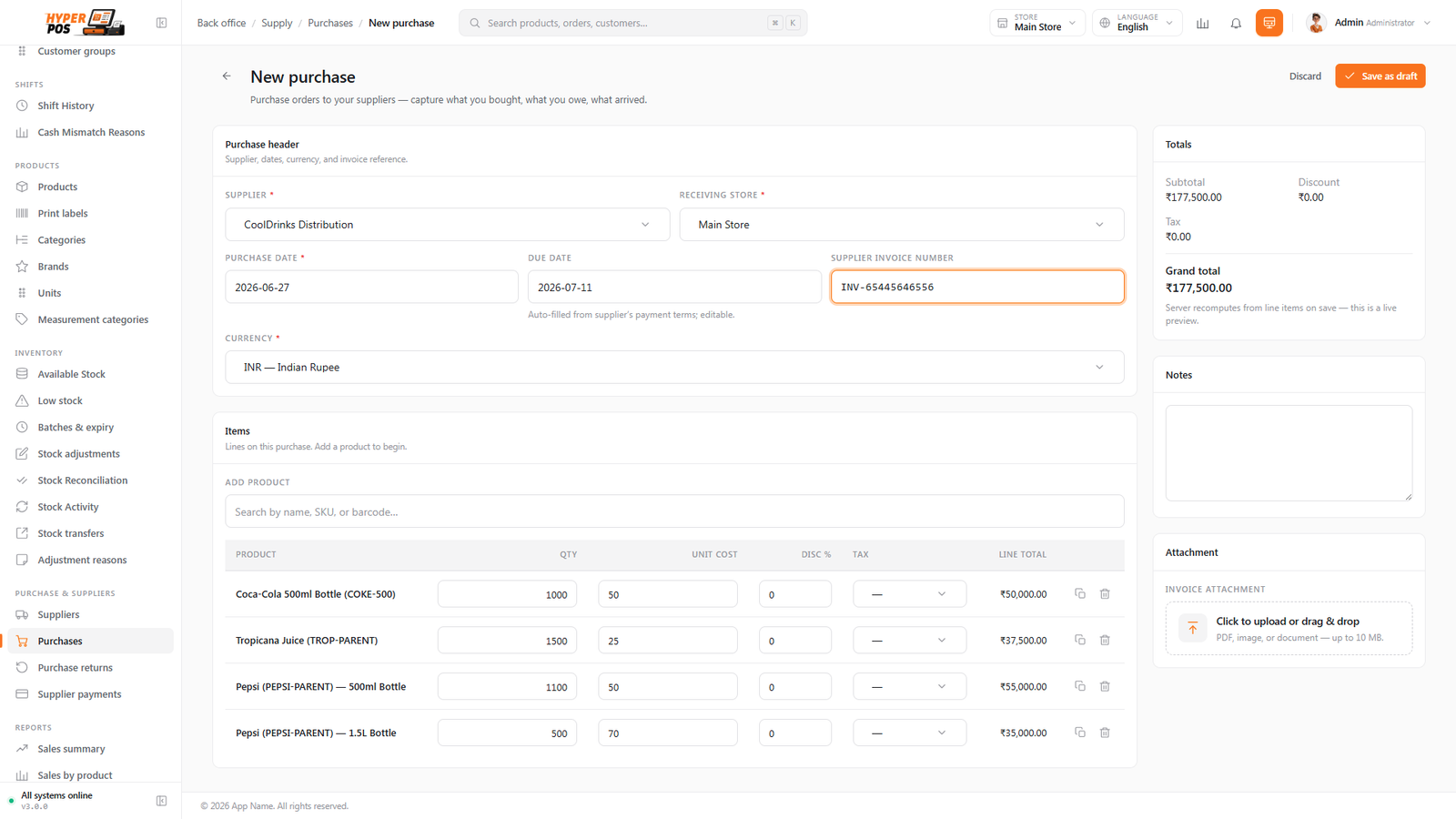
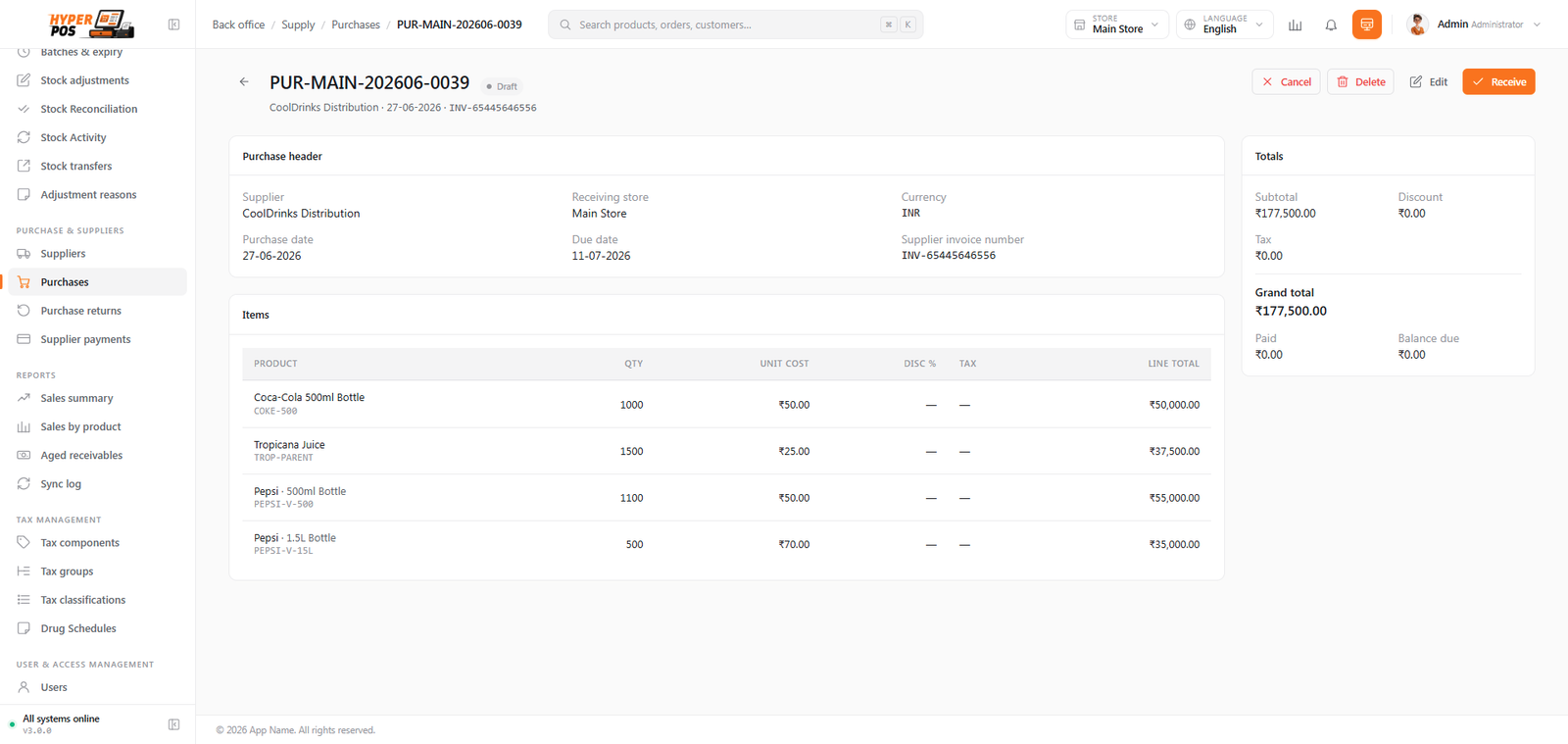
A purchase moves through two simple stages. First it's a Draft — a list you're still building, with no effect on your stock. When the goods physically arrive, you receive it and it becomes Received. At that moment three things happen automatically: the items are added to your stock, your average cost per item is recalculated, and the purchase total is added to what you owe the supplier.
You can do both stages at once. If your delivery is already in hand, just create the purchase and click Save & receive — there's no need to save a draft first.
Why it's useful
- It keeps your stock honest. Receiving a purchase is what actually adds stock to the shelf in the system — no separate step needed. See Inventory.
- It works out your real cost. Each receipt updates the average cost of each item, so your profit figures stay accurate even when prices change between deliveries.
- It can set your selling prices for you. With markup-on-receive switched on, the system suggests new selling prices based on what you just paid.
- It tracks what you owe. Every received purchase is added to the supplier's balance, ready to be cleared with a payment.
How to create and receive a purchase, step by step
-
Open the Purchases screen
In the sidebar, open Purchase & Suppliers and click Purchases, then choose New purchase.
-
Choose the supplier
Pick the supplier you're buying from. If they aren't on the list yet, you can add them first on the Suppliers screen. The date defaults to today, and a due date is suggested from the supplier's payment terms.
-
Add the items you're buying
Add a row for each product. For every line enter the quantity and the cost price (what the supplier charges you per unit). The line and overall totals are worked out as you type. If you have a barcode scanner, you can scan products straight onto the order instead of searching — press F8 to jump to the scan box. It's the same scanning used across inventory; see Scanning items in for how it works. Scanning is available when receiving a purchase too.
-
Record batch and expiry if needed
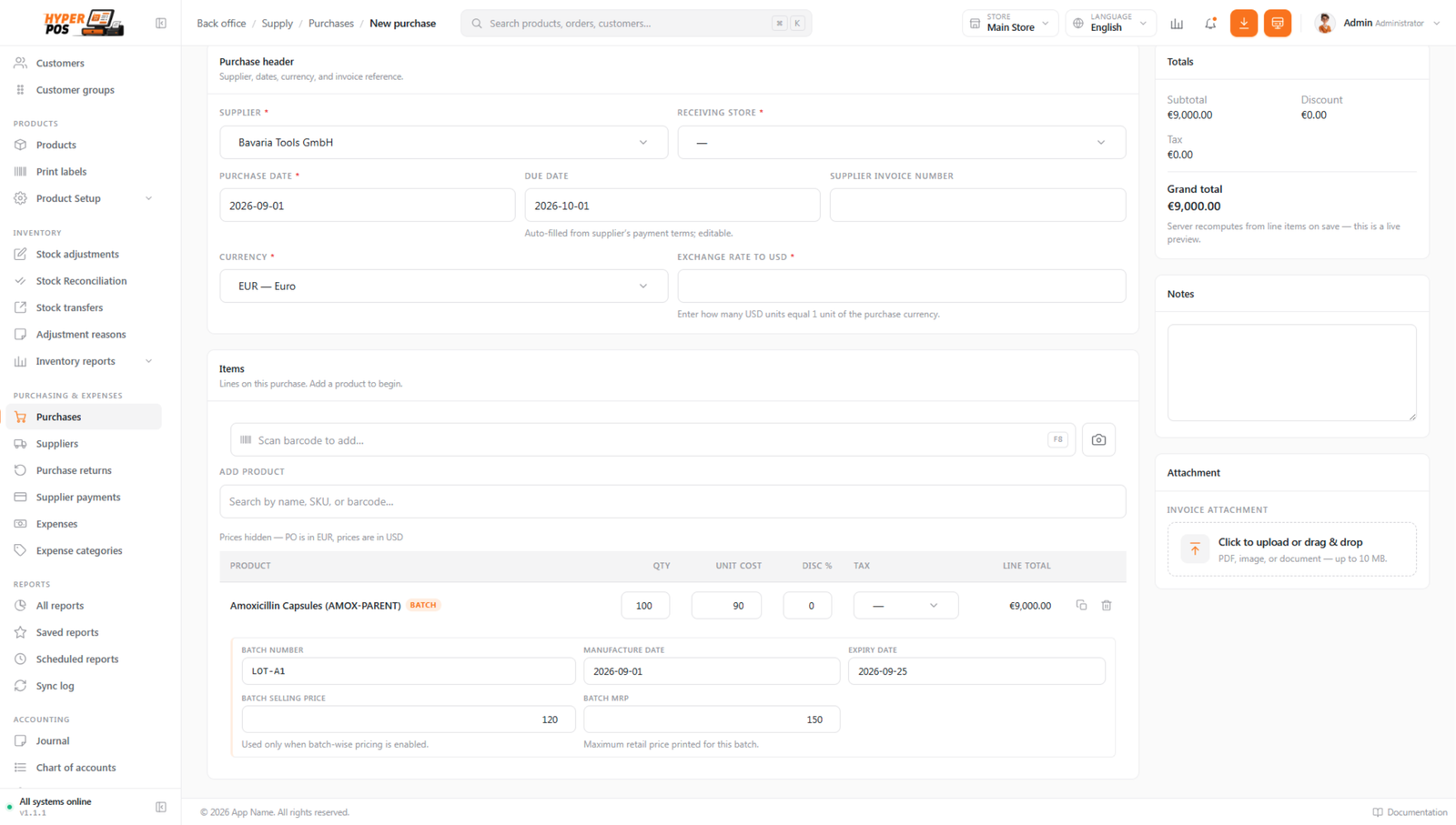
For products that track batches (common in pharmacy), enter the batch number, manufacture and expiry dates on the line. When Batch-wise pricing is active, also enter that batch's selling price and MRP alongside its purchase cost. Saving a draft keeps these values without moving stock; receiving creates or updates the exact batch.
-
Save as draft, or receive straight away
If the goods haven't arrived yet, click Save as draft. If they're already here, click Save & receive to book them straight into stock.
-
Receive a saved draft when stock arrives
Open the draft and click Receive. Confirm the quantities that actually turned up (you can adjust them if a delivery is short), then confirm. Each line shows a Put away at hint — the product's shelf location at this store — so whoever unpacks the boxes knows where everything belongs without asking.
Checking your margins as you order
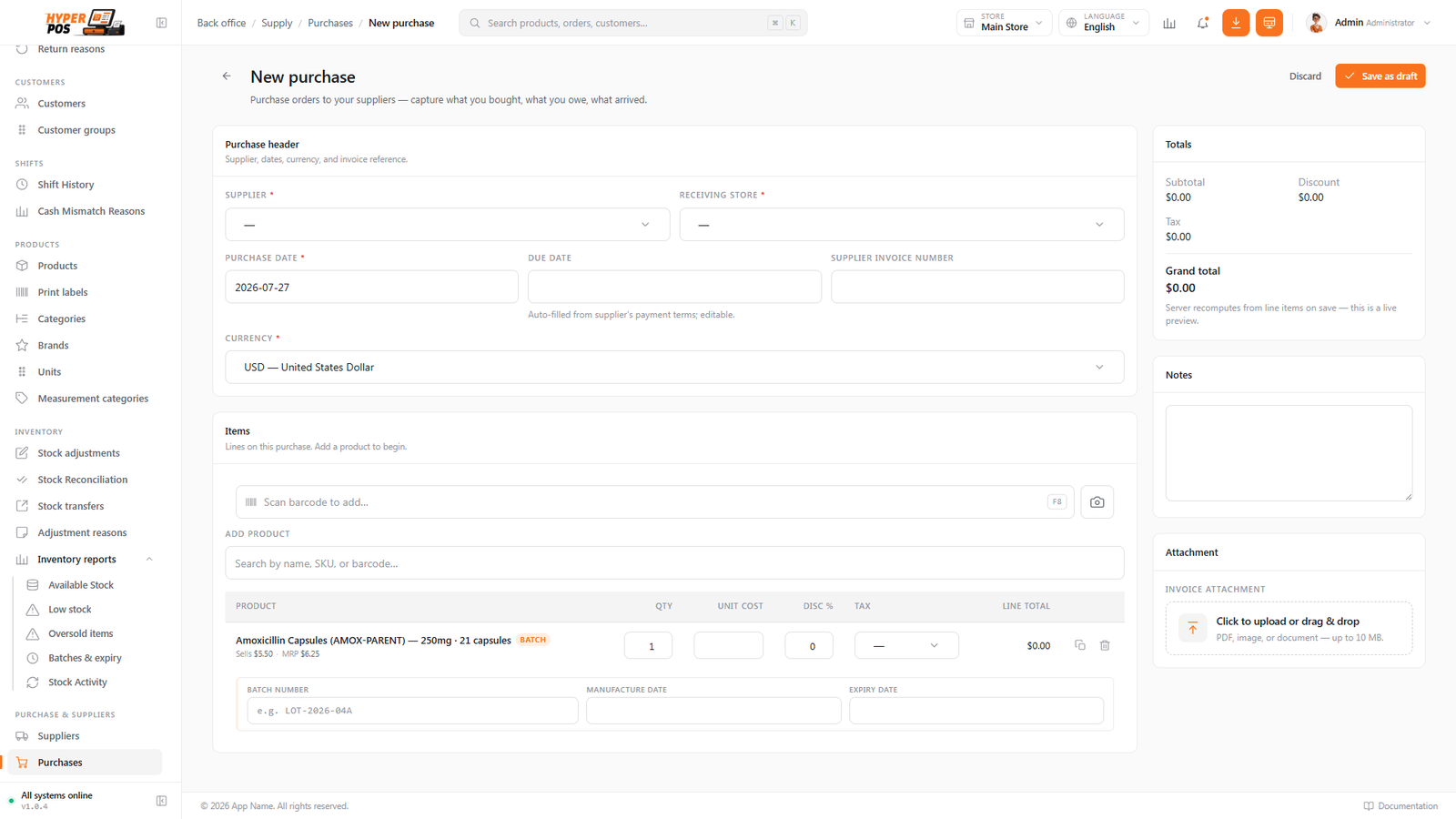
To help you sanity-check a deal while you build the order, each line quietly shows two extra figures next to the cost you're entering: the product's current selling price (what you sell it for) and its MRP (the maximum retail price). Seeing all three side by side makes it easy to spot when a supplier's cost has crept up too close to your shelf price, so you can renegotiate or re-price before the goods even arrive.
These figures are for reference only — they're read-only and the purchase never changes your shelf prices. (Re-pricing on receipt is handled separately by markup on receive, below.)
Markup on receive
There's an optional helper that can set your selling prices for you when you receive a purchase. If you turn on auto-apply markup on receive (in settings) and give a product a markup percentage, receiving the goods will set its selling price to the cost you just paid plus that markup.
For example, if you pay 100 for an item with a 40% markup, its selling price becomes 140. After receiving, the screen lists every product whose price changed, so you can check the new prices at a glance before they go live.
Cancelling a purchase
A purchase that hasn't been received yet — one that's still a Draft — can be cancelled with a reason. Because nothing was added to stock, cancelling has no effect on your inventory or your supplier balance, and the purchase is marked Cancelled.
If goods have already been received and you need to undo it, you don't cancel — you send the goods back with a purchase return instead. That correctly removes the stock and reduces what you owe.
Tips & best practices
- Receive only what arrived. If a delivery is short, lower the received quantity on those lines so your stock matches the shelf exactly.
- Enter accurate cost prices. Your average cost and profit reports are only as good as the costs you type in.
- Use "Save & receive" for deliveries in hand. No point saving a draft for stock that's already on the counter.
- Check the price-change list after receiving if you use markup, so no item goes on sale at the wrong price.
Notes & warnings
Receiving is what adds the stock. A draft purchase does not change your inventory — the items only land on the shelf (in the system) once you receive it.
Receiving increases what you owe. The full purchase total is added to the supplier's outstanding balance. Clear it later with a supplier payment.
You can't simply cancel a received purchase. Once stock has been booked in, the correct way to undo it is a purchase return, which reverses the stock and the balance properly. Cancelling is only for drafts.
Related: Suppliers · Inventory · Supplier payments · Batches & expiry · Shelf locations