Batches & expiry
Some products — medicines, food, cosmetics — come in batches that expire. POS can track stock by batch, with a manufacture date and an expiry date for each one, so you always sell the oldest stock first and never accidentally sell something that's out of date.
Overview
A batch (sometimes called a lot) is a quantity of the same product that was made together and shares an expiry date. When a product has batch tracking turned on, POS doesn't just count "20 boxes" — it knows you have, say, 12 from one batch that expires in March and 8 from another that expires in August.
You switch batch tracking on per product (it's a toggle on the product's Inventory tab, and it's on automatically for pharmacy products). After that, every delivery you receive asks for the batch number and dates, and the system takes care of the rest.
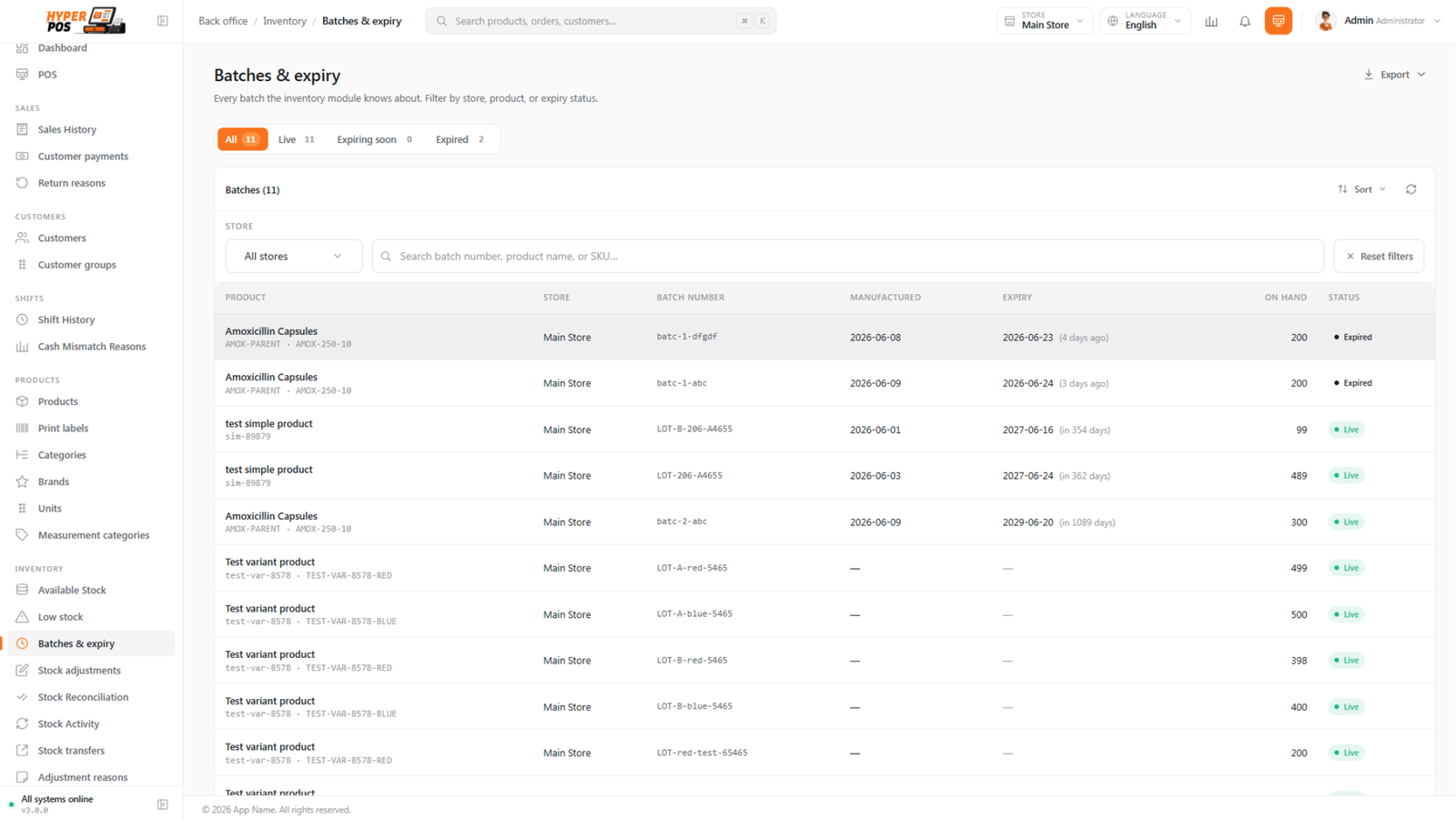
The Live, Soon and Expired tabs
The Batches & expiry screen sorts your batches into tabs so you can act on the urgent ones first:
| Tab | What's in it |
|---|---|
| Live | Batches with plenty of time left before they expire. |
| Soon | Batches expiring within your warning window — sell or move these first. |
| Expired | Batches that are past their expiry date and should be pulled from sale. |
Each row also shows the product's shelf location at that store, which turns an expiry check into a walk list: filter to Soon, sort by location, and pull the short-dated stock in one lap of the shop rather than criss-crossing the aisles.
You can export the list to CSV or Excel from this screen for stocktakes or supplier returns — the location comes out in the export too.
Why it's useful
- Nothing goes to waste unnoticed. The Soon tab flags stock before it expires, giving you time to sell, discount or move it.
- The right stock sells first. Checkout always suggests the soonest-to-expire batch, so older stock clears before newer stock.
- You stay compliant. For pharmacies and food shops, selling expired stock can be illegal — POS can block it for you.
- Every batch keeps its own price and cost. If the same product arrives at a different price next month, that's recorded against the new batch.
Give each batch its own selling price and MRP
Open Settings → Pricing and choose Batch-wise pricing when the same product can arrive at different costs or retail prices. Each batch then keeps its own cost, selling price and MRP. Selecting another batch at the till changes the line price and recalculates discount, tax and totals from that batch's selling price.
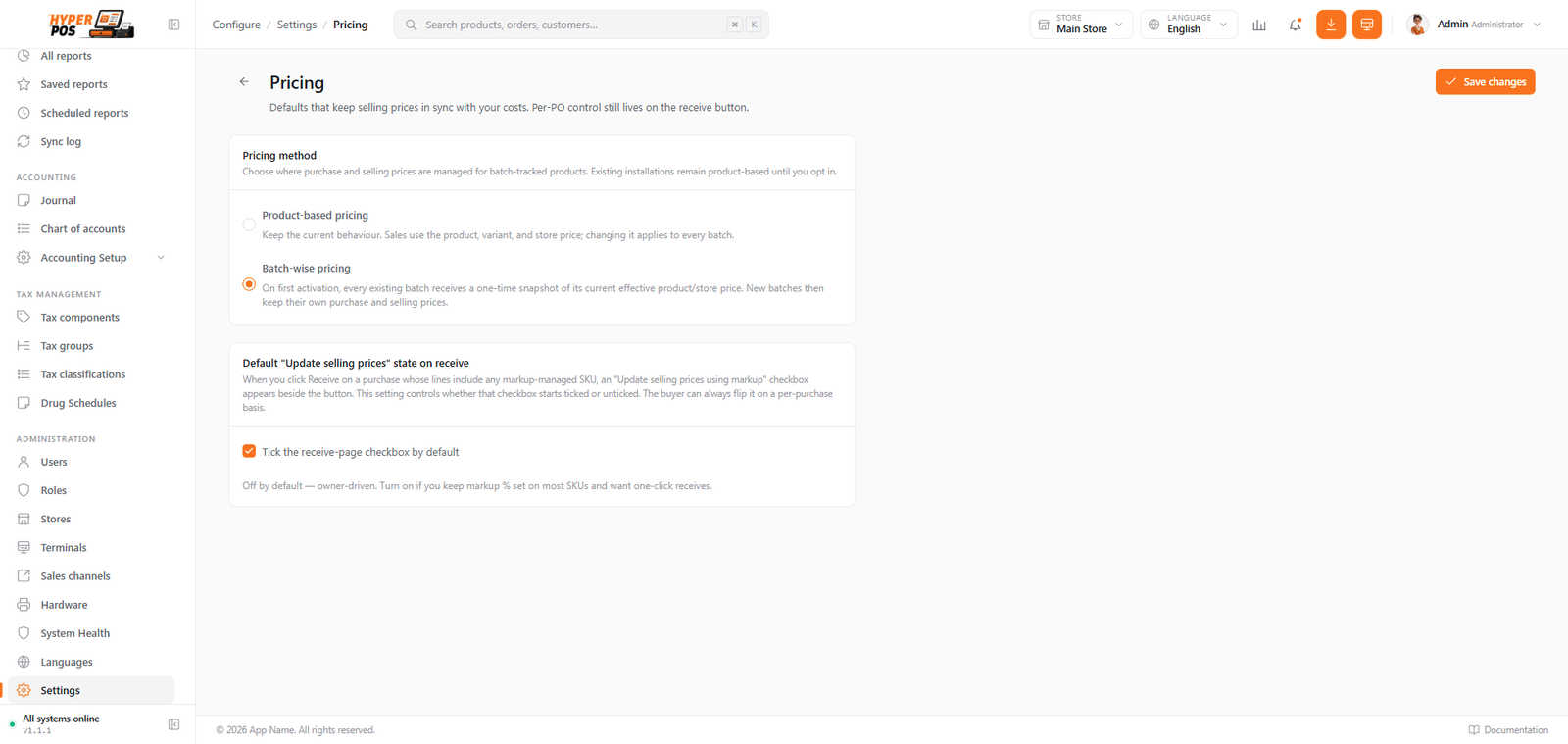
- Existing installations are not repriced by the update. Product-based pricing stays active until an authorized user changes it.
- The first switch is safe for existing stock. Missing batch values are initialized from the current effective product, variant or store price and supported cost fallback; valid batch values are preserved.
- Switching back does not erase history. Product-based pricing becomes authoritative again, while saved batch prices remain available if batch-wise pricing is enabled later.
- MRP cannot be below selling price. Purchases and stock adjustments validate the values before creating or updating stock.
The right batch is picked for you
You never have to work out which box to sell from. POS follows FEFO — "first expiry, first out" — so the batch with the soonest expiry date goes out first, even if it arrived later than another. For stock with no expiry date, it falls back to the oldest batch you received. Either way: freshest shelves, least waste, nothing for the cashier to remember.
Better still, the choice is made automatically. Scan a batch-tracked product and it drops straight into the cart with the earliest eligible batch that can cover the requested quantity already attached — it never silently combines batches or oversells a smaller lot. The batch is shown on the cart line, and a change control sits next to it if you need a different one.
This applies everywhere a sale can happen: the till, a back-office sale, a kiosk order paid at the counter, and sales that were rung up offline and synced later. Whatever the route, batch counts and your overall stock figure always agree.
Selling a batched product at the counter
-
Add the product as usual
Scan or tap the product on the POS screen. It goes into the cart immediately, with the soonest-to-expire batch already chosen and shown on the line.
-
Change the batch only if you need to
Click change on that cart line to open the batch picker — for example when the customer asks for a specific lot, or you're deliberately clearing one. Choosing another batch swaps it in place and keeps the quantity you'd already entered.
-
If nothing can be sold, you're told why
When every batch is empty or expired, the picker opens and explains the problem instead of silently adding the line.
-
Finish the sale
Take payment as normal. POS reduces the count of the exact batch you sold, so the next sale sees the right remaining quantities.
Prefer the old behaviour, where the cashier confirms every batch by hand? Turn Pick the batch automatically at checkout off under Settings → Cashier (POS) and the picker opens on every scan again.
Blocking the sale of expired stock
In Settings you can turn on an option that stops expired batches being sold. With it on, the checkout batch picker dims and disables any expired batch, so a cashier can't pick it by accident. If a genuine exception is needed, a manager with the special "sell expired" permission can override on a case-by-case basis — and that override is recorded. See Settings to switch this on.
Once batch tracking is on, the only thing you do differently is enter a batch number and expiry date when a delivery arrives. Everything after that — picking, warnings, blocking — is automatic.
Deleting a batch
Sometimes a batch is no longer needed — one you created by mistake, or one that's fully sold or expired and cleared off the shelf. From the Batches & expiry list you can tidy it away using the Archive action on that batch's row.
Archiving is safe and reversible. The batch is simply hidden from this list and from the checkout batch pickers — its full history stays intact on every sale, purchase and ledger entry that ever used it. Archived batches move to an Archived tab, where you can Restore them at any time; receiving the same batch number again also brings it straight back.
You can only archive an empty batch. The Archive action appears only once a batch's quantity has reached zero — archiving a batch that still holds stock would strand that stock with no batch behind it. If a batch still has units left, adjust them out first (that leaves a proper record), then archive the now-empty batch.
Tips & best practices
- Enter expiry dates carefully when receiving. The dates you type are what drives the Soon/Expired tabs and the block — a wrong date undermines all of it.
- Check the Soon tab weekly. Catching items a few weeks early gives you room to discount and sell through.
- Trust the suggested batch. Unless a customer asks otherwise, taking the highlighted batch keeps your stock rotating correctly.
- Turn on the expired-sale block if you handle medicines or food — it removes the risk of human error entirely.
Notes & warnings
Turn batch tracking on before you receive stock. Stock received while tracking was off won't be split into batches — only deliveries taken in with tracking on get batch and expiry information.
An expired batch still counts as stock until you remove it. Pull it physically and adjust it out so your counts match the shelf.
Related: Products · Settings · Stock overview · Stock adjustments · Shelf locations