Stock overview
Inventory is the part of POS that answers one simple question at any moment: how much of each product do I have, and where? It keeps a live count for every product at every store, warns you when something is running low, and records the reason behind every increase and decrease.
Overview
Inventory is mostly automatic. You almost never type stock numbers in by hand — they go up when you receive a purchase, and down when you sell. POS adds it all up for you so the counts you see are always current. The Inventory menu gives you three views that answer different questions:
- Available Stock — the current quantity (how many you have right now) of each product, at the store you're looking at.
- Low stock — a short list of items that have dropped to or below their reorder level (the point at which you should buy more).
- Stock Activity — the running history (the "ledger") of every change, with the reason for each one.
The other menu items handle specific jobs: Batches & expiry, Stock adjustments, Stock reconciliation, Stock transfers, and Adjustment reasons.
See batch prices inside Available Stock
When Batch-wise pricing is active, expand a batch-tracked product in Available Stock to see each positive-stock lot separately. The breakdown shows its batch number, manufacture and expiry dates, on-hand quantity, cost, selling price and MRP for the active store.
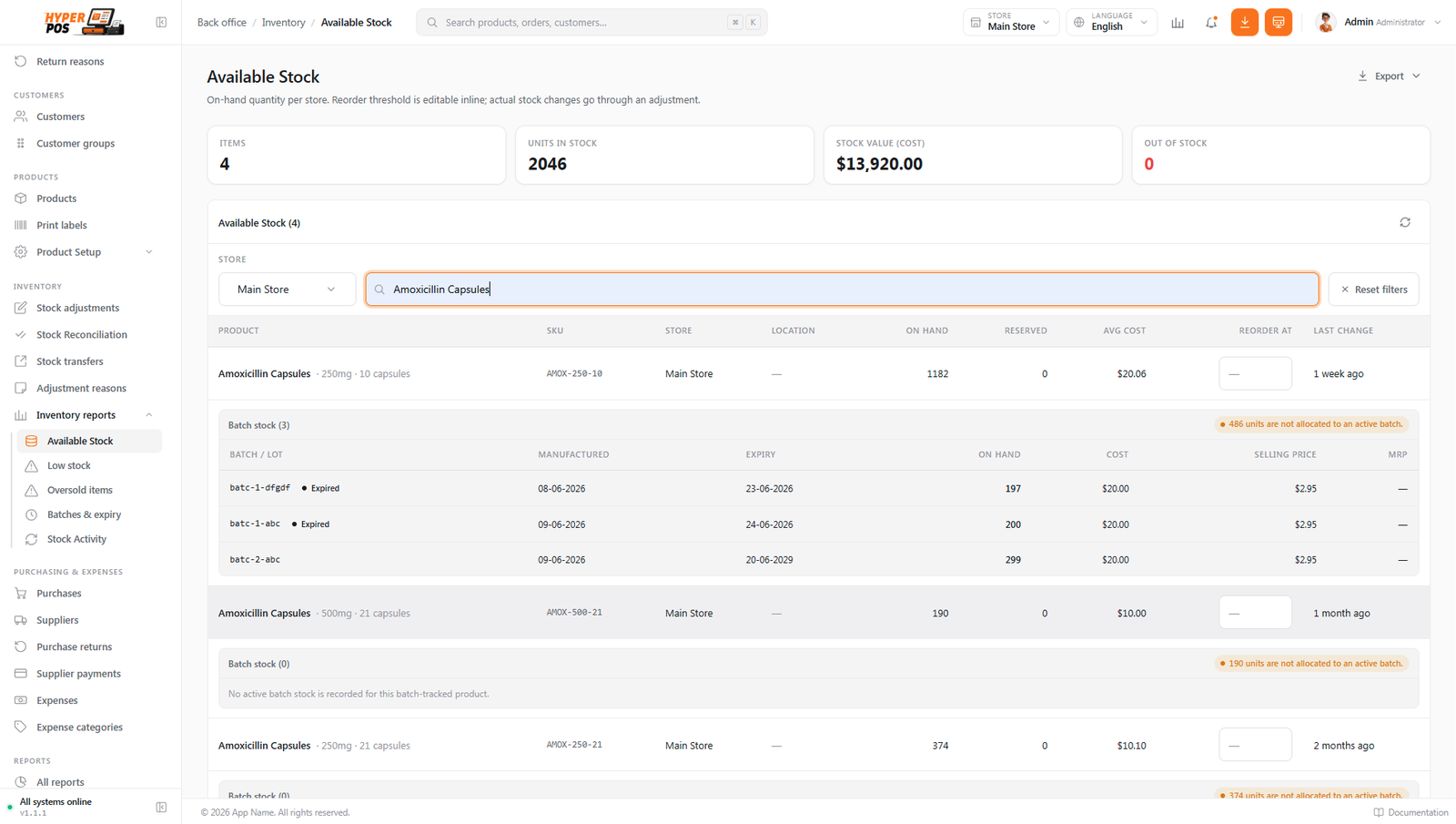
CSV and Excel exports follow the same view: each positive batch becomes its own row with batch cost, selling price and MRP, while products without batch tracking keep their normal stock row. Filters, permissions and the active store still apply to every exported row.
Why it's useful
- You always know what you have. No more walking the shelves to guess — the count on screen reflects every sale and delivery.
- It tells you when to reorder. The low-stock list catches items before they run out, so you don't lose a sale.
- It explains every change. If a number ever looks wrong, the activity history shows exactly what happened and who did it.
- It's per store. Each location keeps its own counts, so a busy branch and a quiet one never get mixed up.
Checking your stock, step by step
-
Open Available Stock
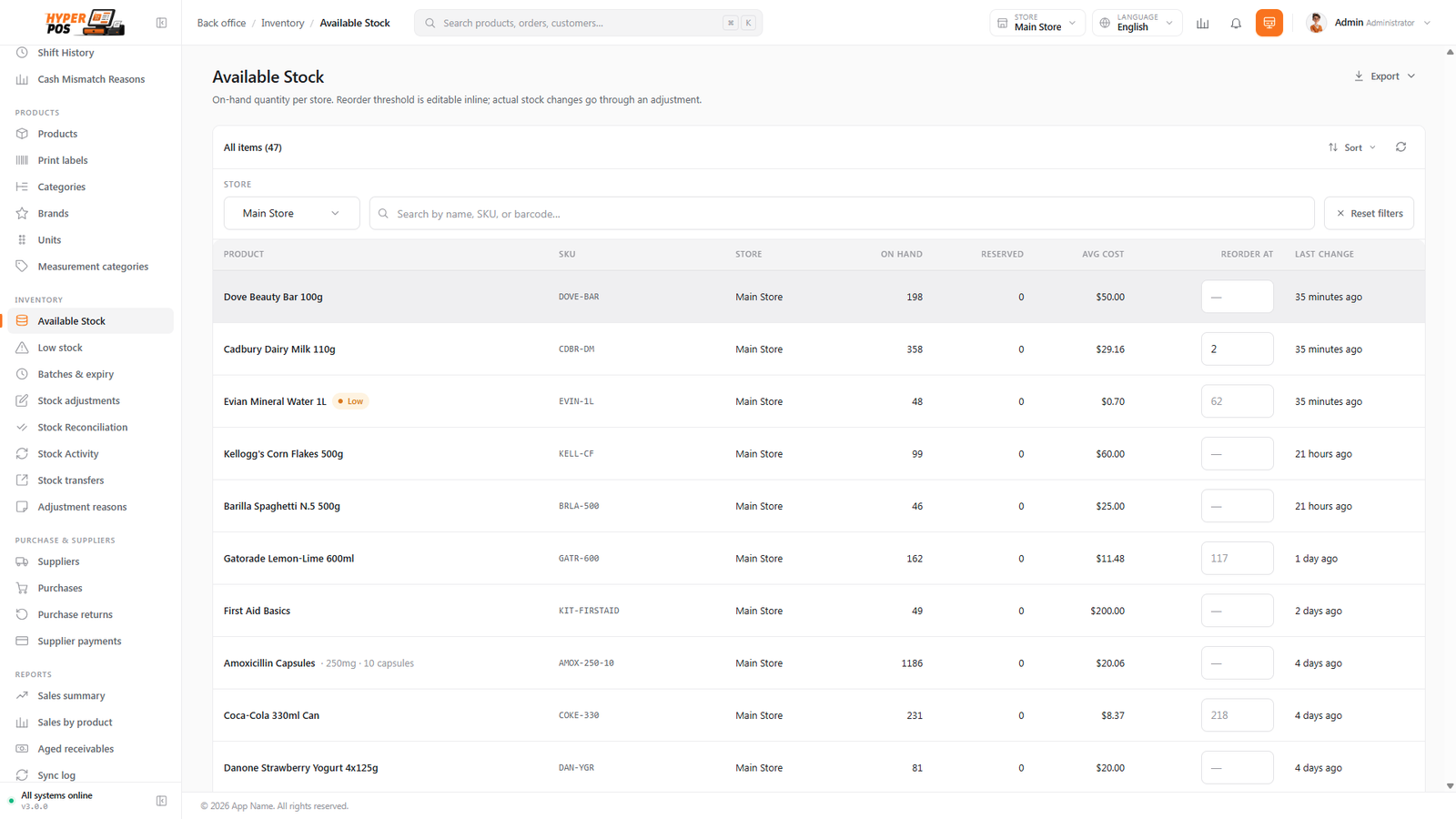
In the sidebar, open Inventory → Available Stock. You'll see every product you're allowed to view, with its current quantity for the store shown in the top bar. Use the search box and the category/brand filters to narrow the list.
-
Read the numbers
Each row shows the on-hand quantity and the resolved reorder level. Rows sitting at or below their reorder level are flagged so they stand out.
-
Set a reorder level (optional)
You can edit the reorder level directly on this screen for a single product at this store. This is the only number you change here — actual stock counts are never typed in directly (that's what adjustments and stock takes are for).
-
Check Low stock
Open Inventory → Low stock to see only the items that have reached their reorder point, sorted with the most urgent (out of stock) first. This is your shopping list for the next purchase.
-
Use the Location column to walk the shop
Both screens show each product's shelf location — aisle, rack, bin — for the store you're looking at, and it comes out in the export. Sort or filter by it and a re-order check becomes a single lap of the aisles instead of a treasure hunt.
-
Trace a change in Stock Activity
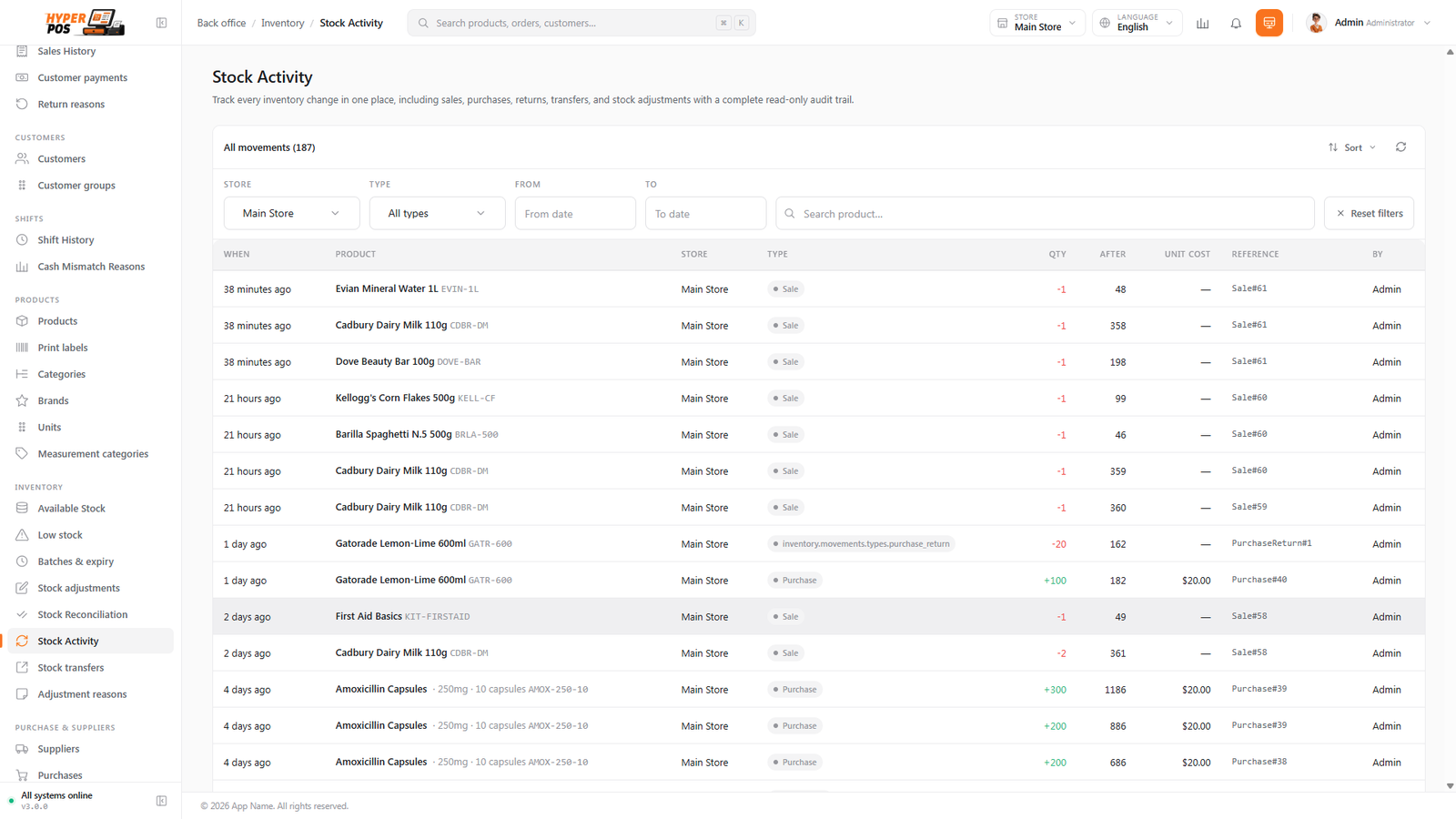
If a quantity looks off, open Inventory → Stock Activity. Filter by product, date or type to see every movement: each row shows the change amount, the quantity afterwards, the type (sale, purchase, adjustment, transfer, return), who did it, and a link back to the document that caused it.
For most shops, selling and receiving stock keeps the counts accurate on their own. You only step in when something needs correcting — and even then, there's a tidy tool for it.
Stock Activity (the history)
Stock Activity is a complete, time-ordered record of every quantity change. Nothing is ever deleted from it — corrections are added as new entries rather than rubbing old ones out. That's what makes it trustworthy: whenever the on-hand number and your gut feeling disagree, the answer is in here.
| Type | What caused it | Direction |
|---|---|---|
| Sale | An item was rung up at the counter | Decrease |
| Return | A customer brought something back | Increase |
| Purchase | A delivery was received from a supplier | Increase |
| Purchase return | Goods were returned to a supplier | Decrease |
| Adjustment | A manual correction (damage, found stock, count) | Either |
| Stock take | A completed physical count corrected the variance | Either |
| Transfer | Stock moved to or from another store | Either |
| Opening | The starting count when you first set up a product | Increase |
The Reference is a direct link when the source document is still available and you have permission to open it. Follow it to the exact sale, purchase, return, transfer, adjustment or stock take that created the movement. Older/manual records without a resolvable source remain readable text rather than pointing to a guessed document.
Tips & best practices
- Set sensible reorder levels. Pick a number that gives you time to restock before you run out, based on how fast each item sells.
- Check Low stock before each supplier order. It's the fastest way to build a purchase without missing anything.
- Mind the store you're viewing. Stock is per store — if a count surprises you, confirm you're looking at the right location in the top bar.
- Use Stock Activity to settle disputes. Before assuming a number is wrong, read its history — the explanation is almost always there.
Notes & warnings
You can't type the on-hand quantity in directly on the Available Stock screen. To change a count you make a stock adjustment or run a stock reconciliation — that way every change is recorded with a reason.
The reorder level is a reminder, not a block. Dropping below it warns you to reorder; it never stops you selling.
Related: Stock adjustments · Stock reconciliation · Stock transfers · Batches & expiry · Shelf locations