Stock transfers
If you run more than one store or location, a stock transfer is how you move products from one to another. You create the transfer at the sending store, send it, and the receiving store confirms it — stock comes down at the source and up at the destination, automatically.
Overview
One store runs low while another has plenty? Instead of guessing or adjusting counts by hand at both ends, you create a transfer. It's a single document that the two stores share. It keeps both locations' counts honest because the stock leaves one and arrives at the other as a recorded, matched movement — never a manual fudge.
A transfer is a journey with stages. It starts as a draft, then it's sent (stock leaves the source), and finally it's received (stock arrives at the destination). Each side does its part, and you can always see where a transfer is up to.
Why it's useful
- Both stores stay accurate. Stock drops at the sender and rises at the receiver in one matched action — no double entry, no drift.
- You move stock to where it sells. Shift slow-moving items from a quiet branch to a busy one before they expire or tie up cash.
- There's a clear paper trail. Every transfer is a document you can look back on, and each end appears in Stock Activity.
- Stock in transit is visible. You can see what has left one store but not yet arrived at the other.
The stages of a transfer
| Stage | What it means | Effect on stock |
|---|---|---|
| Draft | Being prepared at the source store. | None yet. |
| In transit | Sent — stock has left the source and is on its way. | Lowered at the source. |
| Received | The destination has confirmed what arrived. | Raised at the destination. |
Making a transfer, step by step
-
Create the transfer
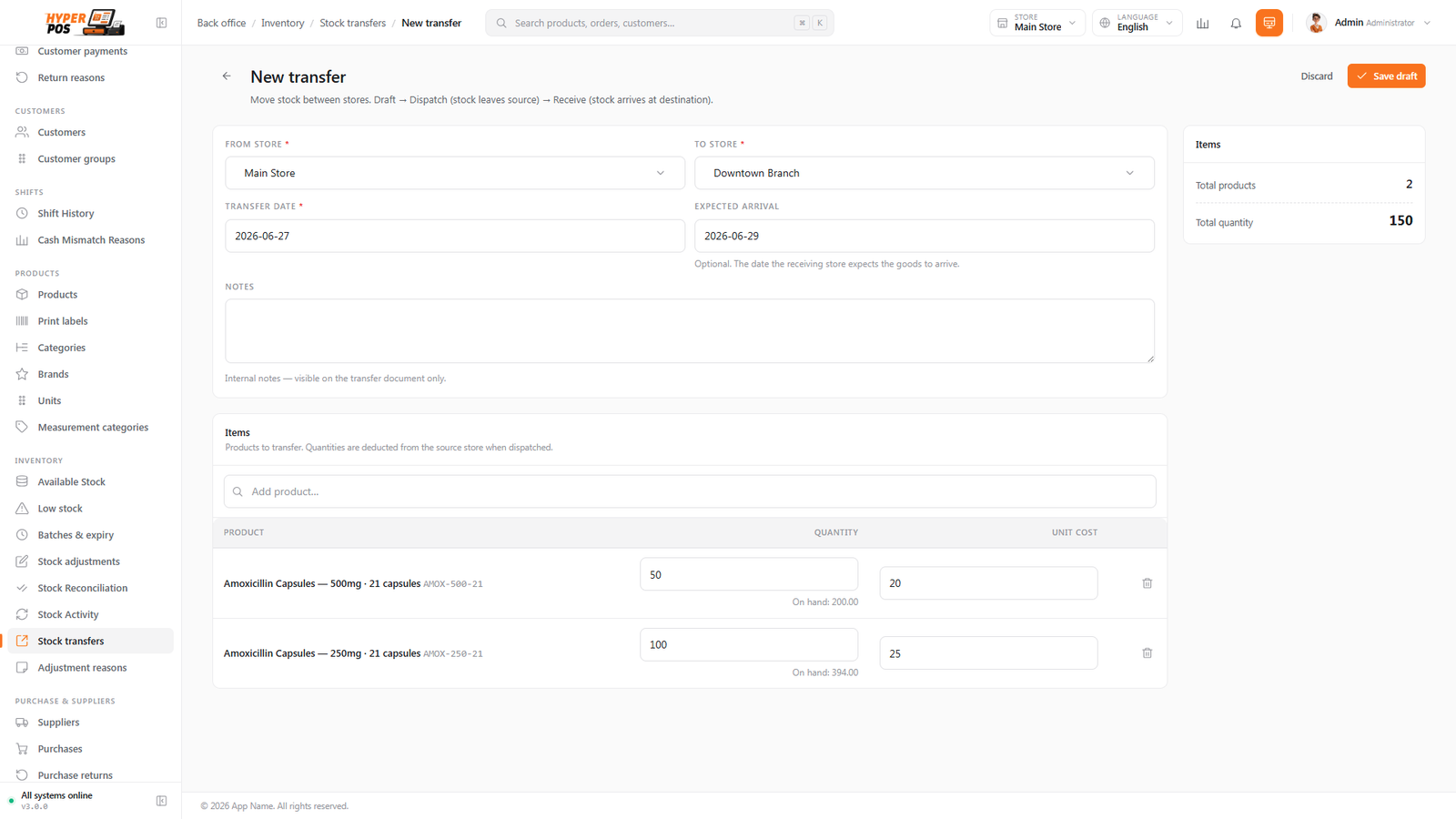
At the sending store, open Inventory → Stock transfers and start a new one. Choose the destination store (one of the locations you have access to), and optionally an expected arrival date.
-
Add the products
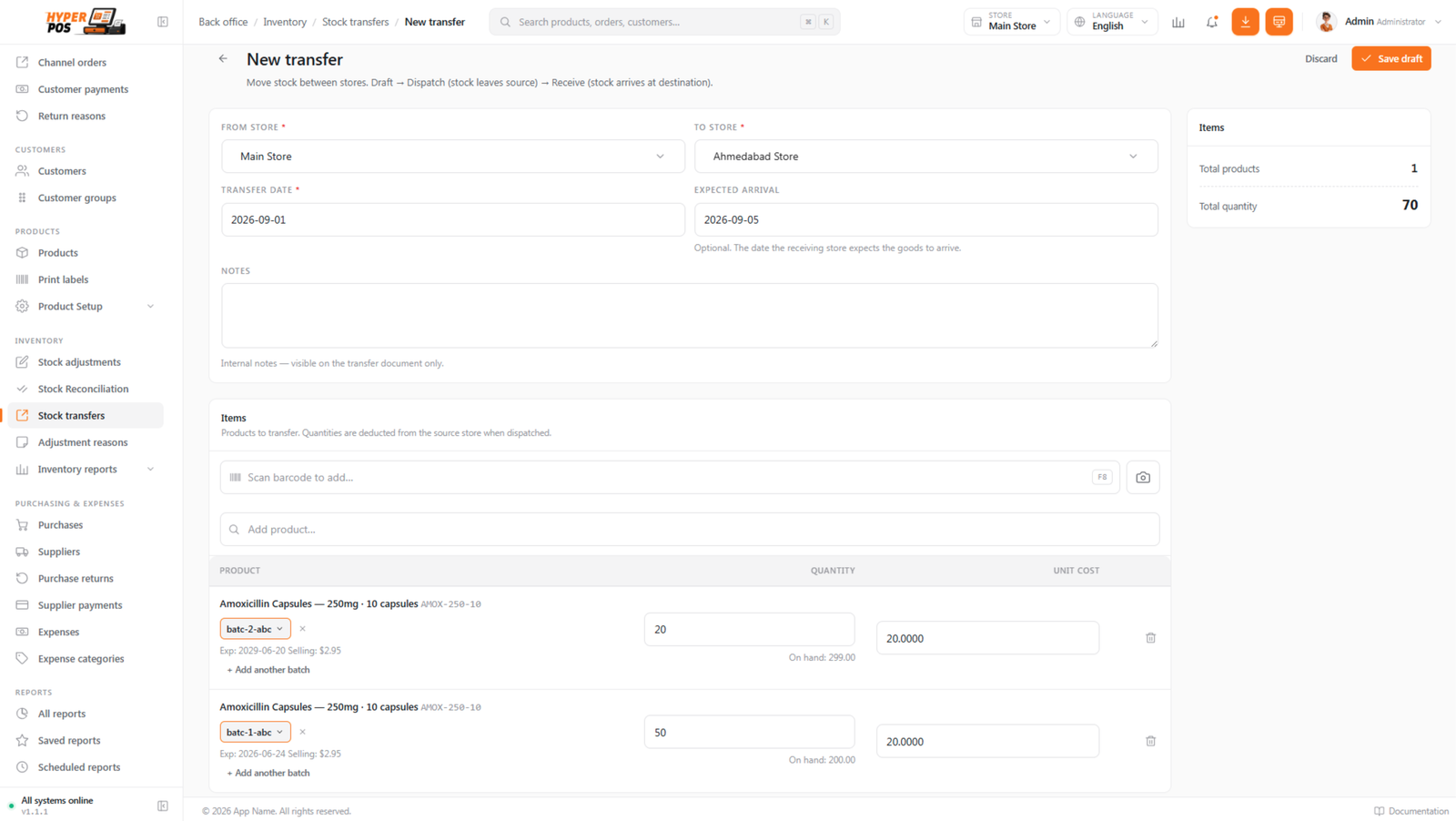
Search for each product and enter how many to send. For batch-tracked products, pick the specific source batch you're moving. The picker shows useful expiry, cost, selling-price and MRP context where available. Split one product across separate lines when units must come from different batches.
-
Send it
When you dispatch the transfer, the stock is removed from the source store and the transfer becomes In transit. The items are now on their way and accounted for as in transit.
-
Receive it at the other end
At the destination store, open the transfer and confirm what arrived, entering the received quantity per line. This adds the stock to the destination store and marks the transfer Received.
-
Handle any shortfall
If less arrived than was sent (a box went missing, something was damaged), enter the smaller number and give a reason. Only what actually arrived is added to the destination; the shortfall is returned to the exact source batch so neither store's figures drift.
Batch values travel with the stock
When the transfer is received, the destination creates or reuses the matching batch with the source batch number, dates, cost, selling price and MRP. The destination can then sell the received lot at the correct batch-wise price without re-entering it.
Knowing where to pick from and where to put away
A transfer names both ends of the journey. If your products have shelf locations recorded, each line shows Pick from — where the item sits at the sending store — and Put away at, where it belongs once it arrives. The receiving screen shows only the destination, which is all the person unpacking the box needs to know.
Because locations are recorded per store, the two are genuinely different answers: rack 12 at the branch you're sending from, aisle B at the branch receiving it.
Scanning items in
Instead of searching for each product, you can build a transfer with a barcode scanner. Press F8 to jump to the scan box, then scan away: a product that isn't on the transfer yet gets a new line, and one that's already there has its quantity bumped by one. Scanning a product's variant barcode picks that exact variant, and on a tablet or phone you can scan with the camera instead of a hardware scanner. It's the same scan box you'll find on stock adjustments — see Scanning items in for the full walkthrough.
The sender and receiver can be different people at different locations. If you have access to both stores, you can do both ends yourself — but you never have to coordinate counts by hand.
Tips & best practices
- Receive promptly. Until the destination confirms, the stock shows as in transit rather than on the shelf — confirm it the day it arrives.
- Count what arrives. Check the boxes against the transfer; recording an honest shortfall keeps both stores accurate.
- Set an expected arrival date. It helps the receiving store know when to look out for the delivery.
- Use transfers, not adjustments, between stores. Adjusting stock down at one store and up at the other by hand breaks the link — a transfer keeps them matched.
Notes & warnings
Stock leaves the source as soon as you send. Once a transfer is in transit, those items are no longer available to sell at the source store — make sure you're sending the right quantities.
Transfers need more than one store. If your company has a single location there's nowhere to transfer to; use adjustments for corrections instead.
Related: Stock overview · Stores · Batches & expiry · Shelf locations