Suppliers
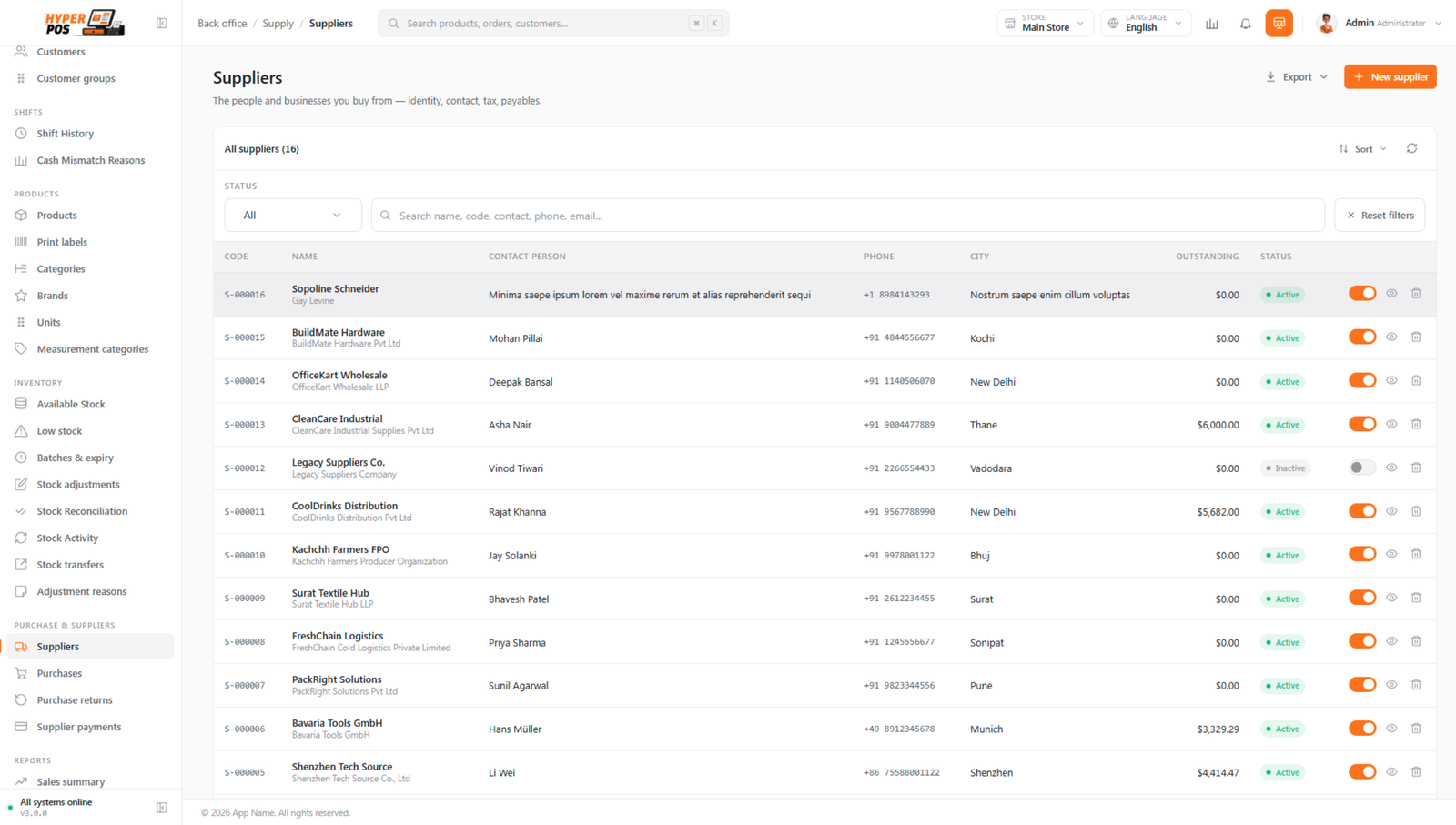
Suppliers are the businesses you buy your stock from — your wholesalers, distributors and manufacturers. This page is where you keep their contact details and, importantly, a running tally of how much money you owe each one.
Overview
The Suppliers screen shows a list of everyone you buy from. For each supplier you can see their code, name, contact person, phone and — the figure most people care about — their outstanding (the total amount you still owe them). Click any row to open that supplier and edit their details or look at their history.
A supplier is shared across your whole company, so if you have more than one store they all draw on the same supplier list. You only enter a supplier once.
Why it's useful
- One place for every contact. Phone numbers, email and address are all kept together, so reordering is quick.
- It tracks what you owe. Every purchase you receive adds to a supplier's balance, and every payment you record reduces it — so you always know where you stand.
- It speeds up buying. When you create a purchase you just pick the supplier from a list instead of retyping their details.
- It moves with you. You can bring an existing supplier list in from a spreadsheet, or export yours to share with your accountant.
How to add a supplier, step by step
-
Open the Suppliers screen
In the sidebar, open Purchase & Suppliers and click Suppliers.
-
Click "New supplier"
Use the New supplier button at the top of the list to open a blank form.
-
Fill in the basics
Enter the supplier's name, and a contact person, phone and email if you have them. A short code is created for you automatically — you don't need to invent one.
-
Add tax and address details (optional)
If the supplier is tax-registered, switch on that option and enter their tax registration number. You can also record their address, which is handy on printed purchase orders.
-
Set payment terms (optional)
If you've agreed to pay within a number of days (for example "Net 30"), enter that here. The system will use it to suggest a due date whenever you buy from them.
-
Save
Click Save. The supplier now appears in your list and is ready to use on a purchase.
You don't need to fill in everything. Add the name and save — you can always come back and complete the rest later.
Seeing what you owe
The Outstanding column shows, at a glance, how much you currently owe each supplier. Open a supplier to see the detail: a history of the purchases you've received from them and the payments you've made. To pay one of them, head to Supplier payments.
Everything about one supplier, in one place
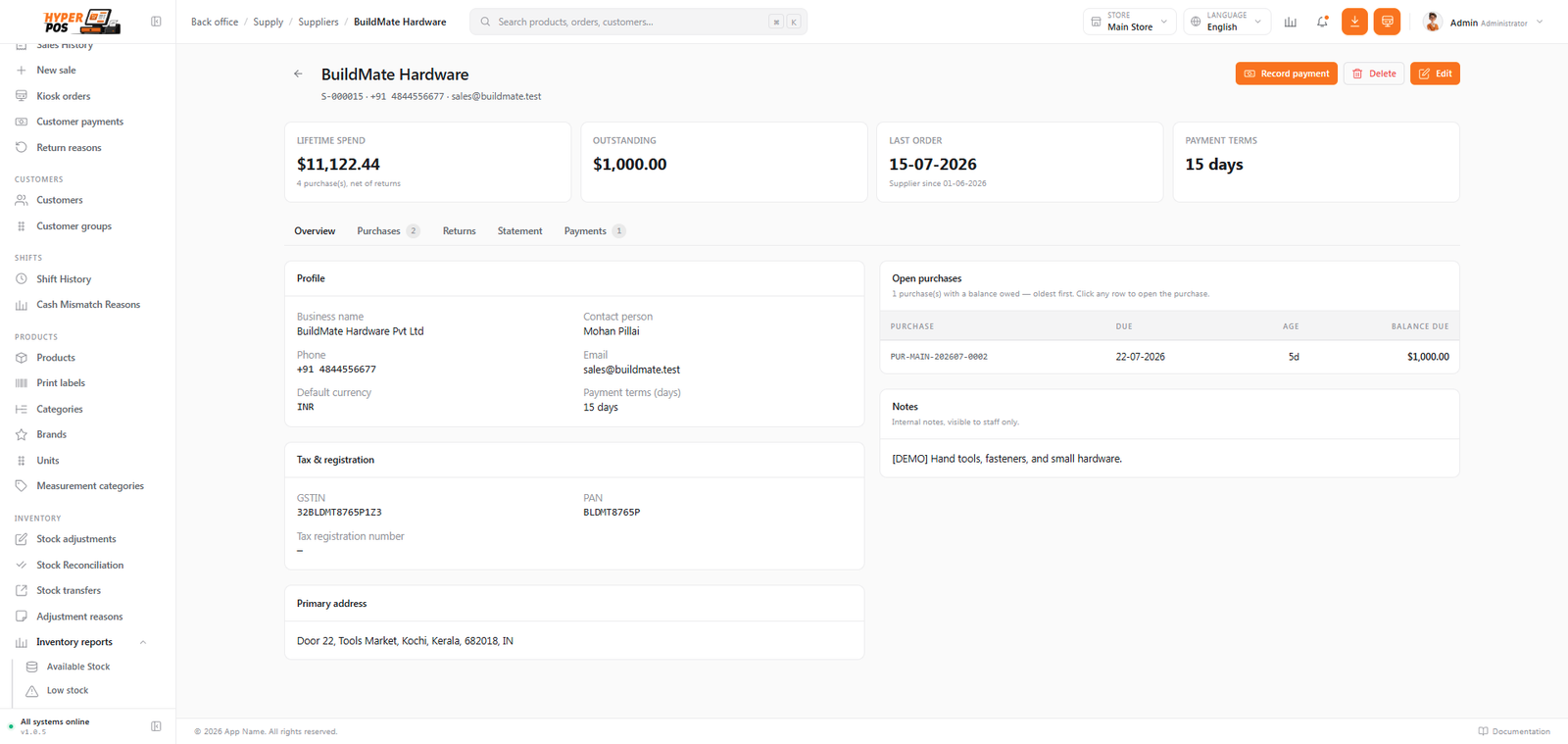
A supplier's page is split into tabs, so their whole trading history is a click away instead of spread across several screens. Choosing a tab loads just that part — the page never reloads.
| Tab | What it shows |
|---|---|
| Overview | Their profile, contact person, tax details, payment terms and current outstanding balance. |
| Purchases | Every purchase order raised with them, newest first. Click a row to open it. See Purchases. |
| Payments | What you've paid them and which invoices each payment settled. See Supplier payments. |
| Returns | Goods you've sent back to them. See Purchase returns. |
| Statement | A running-balance ledger — bills, payments and returns in date order, ending at exactly what you owe today. Print or send this when a supplier queries the account. |
Each tab has its own web address, so you can bookmark a statement or link a colleague straight to it. Tabs your role can't see aren't shown. Customers work the same way — everyone you do business with is handled identically, whether they're buying or selling.
Importing and exporting
Like every list in the app, the supplier list supports import and export as CSV or Excel.
- Import lets you bring a list of suppliers in from a spreadsheet — perfect when you're moving over from another system. You match your spreadsheet's columns to the app's fields, and it checks each row before saving.
- Export downloads your current suppliers as a spreadsheet, useful for backups or sharing with your accountant.
Tips & best practices
- Add a contact person and phone. When a delivery is late, you'll be glad the right number is one click away.
- Set payment terms once. Recording "Net 30" on the supplier means every purchase gets the right due date without you doing the maths.
- Don't worry about the code. The system generates a unique supplier code for you — leave it alone unless you have a reason to change it.
Notes & warnings
The outstanding balance is maintained for you. It goes up when you receive a purchase and down when you record a payment. Avoid editing it by hand — let the purchases and payments keep it accurate.
Suppliers are company-wide. A supplier you add is visible to every store, so there's no need to add the same wholesaler twice.
Related: Purchases · Supplier payments · Purchase returns