Supplier payments
A supplier payment is your record of money going out to a supplier to clear what you owe. You choose how much you paid and which unpaid purchases it covers, and the app keeps the supplier's balance up to date for you.
Overview
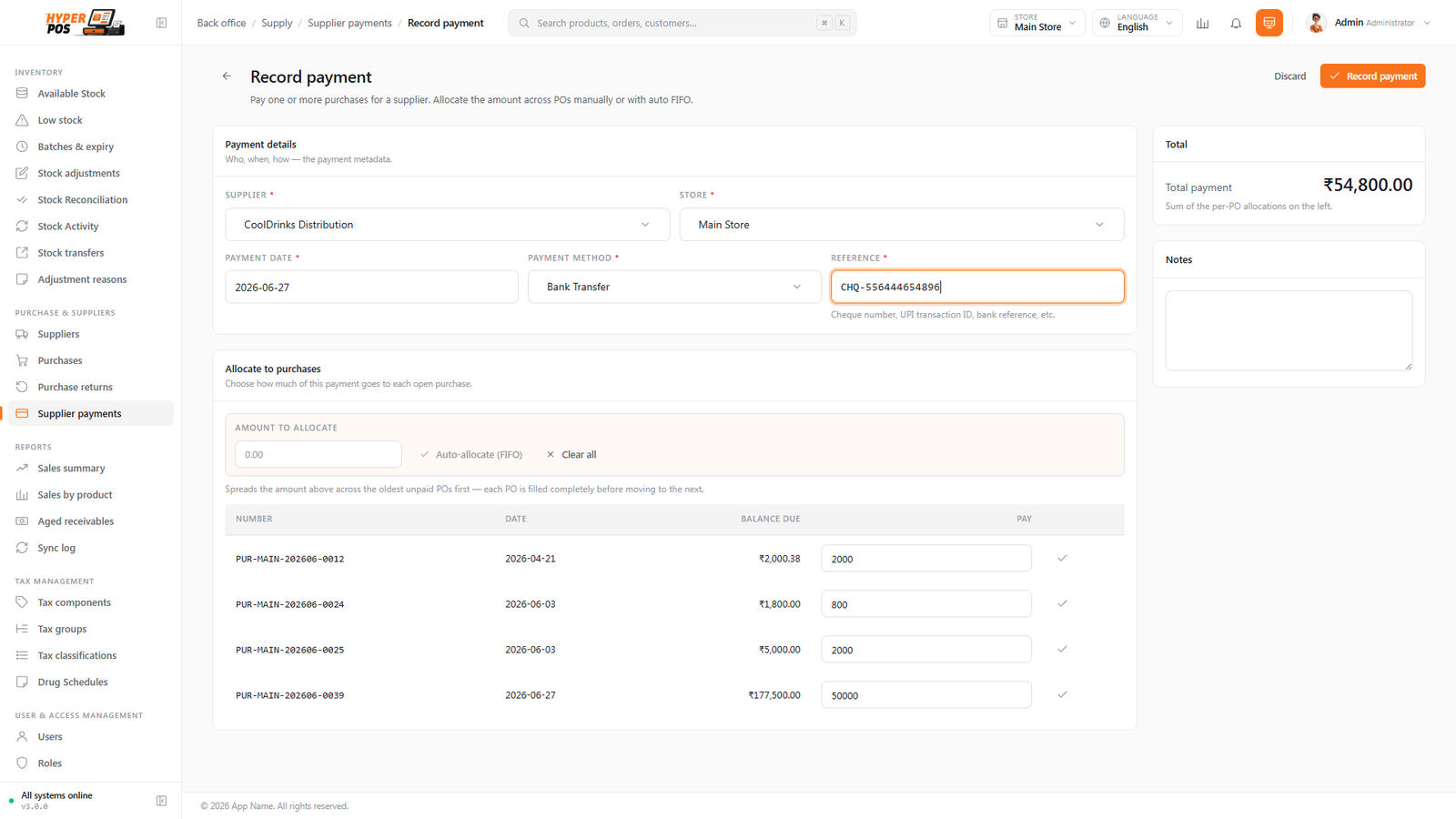
When you pay a supplier — by cash, bank transfer, cheque or any other method — you record it here. You enter the amount, then allocate it: that means choosing which unpaid purchases the money pays off. As each purchase is paid, it moves from Received to Partly paid and finally to Paid, and the supplier's outstanding balance drops by the amount you paid.
You can record a payment from this screen, or directly from a supplier or a purchase — they all do the same thing.
Why it's useful
- It keeps your balances honest. Each payment automatically reduces what you owe the supplier — no manual sums.
- It links money to bills. Allocating a payment to specific purchases tells you exactly which ones are still unpaid.
- It handles part payments. Paid half a bill? The purchase shows as partly paid with the balance still owing.
- It copes with overpayments. Pay more than you owe and the extra is kept as credit against the supplier for next time.
How to record a payment, step by step
-
Open Supplier payments
In the sidebar, open Purchase & Suppliers and click Supplier payments, then choose Record payment.
-
Pick the supplier and date
Choose who you paid and the date you paid them. (If you started from a supplier or purchase, the supplier is already filled in.)
-
Enter the amount and method
Type the amount you paid and how you paid it — cash, bank transfer, cheque and so on. Add a reference like a cheque or transaction number if you have one.
-
Allocate it to purchases
Decide which unpaid purchases the money clears. Choose automatic to let the app pay off the oldest bills first, or manual to type how much goes against each purchase yourself.
-
Save
Confirm the payment. The purchases you covered update their status, and the supplier's outstanding balance drops accordingly.
Partial payments & unallocated credit
You don't have to pay a bill in full. If you pay only part of a purchase, it becomes Partly paid and keeps the remaining balance owing until your next payment.
You can also pay a supplier without pointing the money at any particular purchase — for example, an advance before they've invoiced you. That's an unallocated payment: it sits on the supplier as credit (their balance goes below zero), and it's used up automatically against future purchases.
Voiding a payment
If you recorded a payment by mistake — wrong amount, wrong supplier, or it was never actually made — you can void it. Voiding undoes everything cleanly: the supplier's outstanding goes back up by that amount, and any purchases the payment had settled return to their previous unpaid status. The void is kept in the records, so there's always a clear trail of what happened.
Tips & best practices
- Add a reference. A cheque or transaction number on the payment makes matching your bank statement painless.
- Let automatic allocation handle the order. Paying the oldest bills first keeps your supplier relationship healthy and your ageing clean.
- Void instead of editing. If a payment was wrong, void it and record a fresh one — it keeps an honest history.
Notes & warnings
Allocation is what marks a bill as paid. A payment that isn't allocated reduces the overall balance but leaves individual purchases showing as unpaid — allocate it to keep both in step.
An overpayment becomes credit, not a refund. Paying more than you owe leaves the supplier holding credit for you; it's applied to your next purchase automatically.
Related: Suppliers · Purchases · Purchase returns · Send the payment voucher