Weighed & scale items
Some things aren't sold one-at-a-time — they're sold by weight, like fruit, vegetables, loose grains or deli meats. The POS handles these with a quick weight prompt at the counter, or by reading a barcode that a weighing scale prints with the weight already inside it.
Overview
A normal product is priced "per item" — one tin of beans costs the same every time. A weighed product is priced "per kilogram" (or per gram), so the price depends on how much the customer is buying. The POS needs to know the weight to work out the price.
There are two ways it learns the weight:
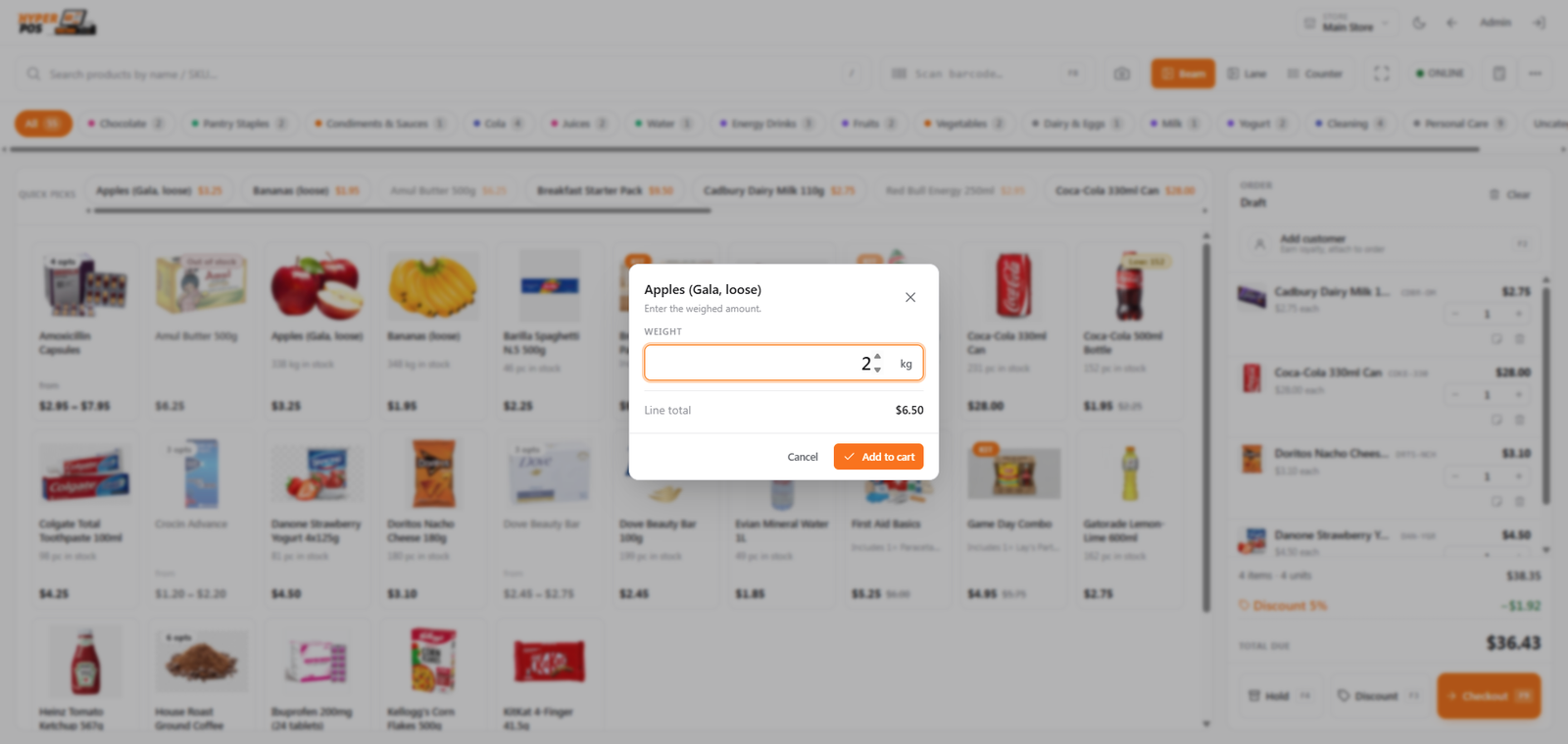
- You type it in. When you add the product, a small weight prompt appears and you enter the weight.
- A scale barcode carries it. A weighing scale weighs the item and prints a barcode label with the weight built into it. When you scan that label, the POS reads the weight automatically — no typing.
The owner decides which products are sold by weight (set on the product) and configures how scale barcodes are read in Settings. As a cashier, you just add the item the same way you always do.
Why it's useful
- It prices loose goods correctly. Fruit, veg and grains are charged by exactly what's on the scale — fair to you and the customer.
- It removes mental maths. No multiplying price-per-kilo by weight in your head — the POS does it instantly.
- Scale labels make it one scan. If items are weighed and labelled in the aisle or at a counter, checkout is as fast as any other product.
- It keeps stock accurate. The POS records the fractional quantity, so your weight-based stock stays right.
Selling a weighed item, step by step
When you enter the weight by hand
-
Add the product
Scan its barcode or tap its tile on the POS screen as usual.
-
Enter the weight when prompted
Because it's sold by weight, a weight prompt opens. Type the weight (for example
0.450kg) from your counter scale. -
Confirm
The POS multiplies the weight by the price-per-unit and adds the line with the correct amount. The cart line shows the weight and the price.
-
Continue the sale
Add more items or take payment — see Taking payments.
When a scale barcode does it for you
-
Scan the scale label
Items weighed at a scale come with a printed barcode label. Scan it like any barcode.
-
The POS reads the weight automatically
The label's barcode encodes the product and the weight together. The POS recognises it, pulls out the weight, and adds the line with the right price — no prompt, no typing.
-
Carry on
The line appears in the cart exactly as a hand-entered one would. Finish the sale as normal.
What a scale barcode is
A weighing scale with a label printer doesn't just weigh an item — it prints a special barcode that contains a product code and the measured weight (or the price). When that barcode reaches the POS, the system knows it's a scale label, splits out the parts, and uses the weight to price the line.
For this to work, two things are set up once by the owner:
| Set on | What it does |
|---|---|
| The product Products | Marks the item as sold by weight and gives it a short scale code that the scale and the POS share. See Products. |
| Settings → Scale Settings | Tells the POS how your scale's barcodes are laid out, so it reads the weight from the right place. See General settings. |
Once that's done, a cashier never thinks about it again — scanning a scale label simply works.
Tips & best practices
- Read the weight from the scale, not by eye. When typing manually, copy the exact figure your counter scale shows.
- Mind the units. If a product is priced per kilogram, enter the weight in kilograms (for example
0.250, not250). - Prefer scale labels for busy counters. Weighing and labelling before checkout turns a weighed item into a single fast scan.
Notes & warnings
If scanning a scale label adds the wrong item or no weight, the scale settings may not match your scale's barcode layout. Ask the owner to check Settings → Scale — the cashier screen can't fix this on its own.
A weight of zero won't sell anything. Make sure the prompt shows a real weight before confirming.
Related: The POS screen · Products · General settings · Units of measure