Customer payments
When a customer buys on credit (takes goods now, pays later), the unpaid amount is added to what they owe you. A customer payment is how you collect that money afterwards — and the system works out which sales it clears.
/admin/customer-payments.Overview
Only a sale attached to a saved customer (with a credit limit) can be left partly or fully unpaid at checkout. When that happens, the unpaid part is added to the customer's outstanding balance — the running total of what they owe.
Later, when the customer settles up, you record a customer payment. The system automatically applies it across their unpaid sales, starting with the oldest, and lowers their outstanding balance. If they pay more than they owe, the extra is kept on file as store credit for next time.
Why it's useful
- Collect debts cleanly. One payment can settle many old invoices without you tallying them by hand.
- Always know who owes what. Every payment immediately lowers the customer's outstanding balance.
- No money is lost. Overpayments become store credit instead of being mishandled.
- Clear records. Each payment is logged with its method and the sales it cleared, ready for your reports.
How a customer comes to owe you
It starts at the counter. When you ring up a sale for a customer who has credit, you can take less than the full amount — or nothing at all — at payment time:
-
The customer buys on credit
On the POS screen, the sale is attached to the customer and left partly or fully unpaid. The sale still completes normally.
-
Their balance goes up
The unpaid amount is added to the customer's outstanding balance, and the sale records a balance due.
-
You collect later
When the customer pays — that day, that week, or that month — you record a customer payment, covered below.
Recording a customer payment, step by step
-
Open Customer payments
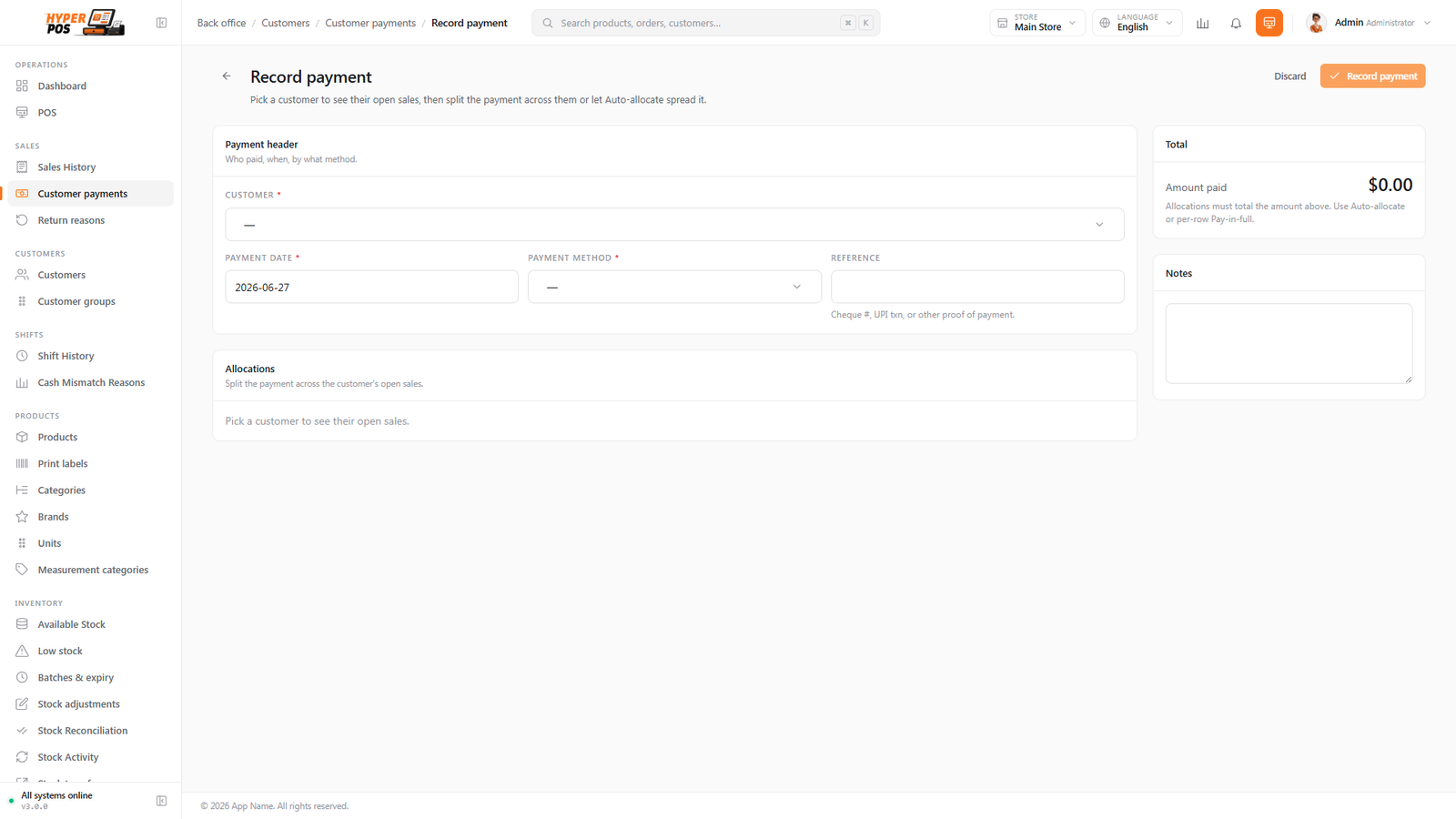
Go to Sales → Customer payments in the sidebar, then click Record payment. (You can also start from a customer's own record.)
-
Pick the customer
Search for and select the customer who is paying. Their current outstanding balance is shown so you know how much is owed.
-
Enter the amount and method
Type the amount they're handing over and choose how they paid — cash, card, or another method. Add a note or reference if you like.
-
Let it auto-allocate
The system spreads the payment across the customer's unpaid sales, oldest first (this is called FIFO — first in, first out). You'll see which sales get cleared before you confirm.
-
Save
Confirm the payment. The customer's outstanding balance drops by the amount paid, and any fully-settled sales are marked as paid.
How the money is spread out
You don't decide which invoice each rupee or dollar goes to — the system does it for you, in the fairest and simplest order: the oldest unpaid sale gets paid off first, then the next oldest, and so on, until the money runs out.
For example, if a customer owes 300 across three sales and pays 250:
| Unpaid sale | Owed | Paid from this payment | Still owed |
|---|---|---|---|
| Oldest sale | 100 | 100 | 0 Settled |
| Middle sale | 100 | 100 | 0 Settled |
| Newest sale | 100 | 50 | 50 Part paid |
The customer's outstanding balance falls from 300 to 50.
What happens with overpayment
If a customer pays more than they owe, the extra isn't lost. After clearing all their unpaid sales, the leftover amount becomes store credit on their account — money you're holding for them. At a future checkout, the cashier can apply all or part of that credit before collecting any remaining amount.
Example: a customer owes 200 but hands over 250. The 200 clears their debt, and the remaining 50 sits as store credit for their next visit.
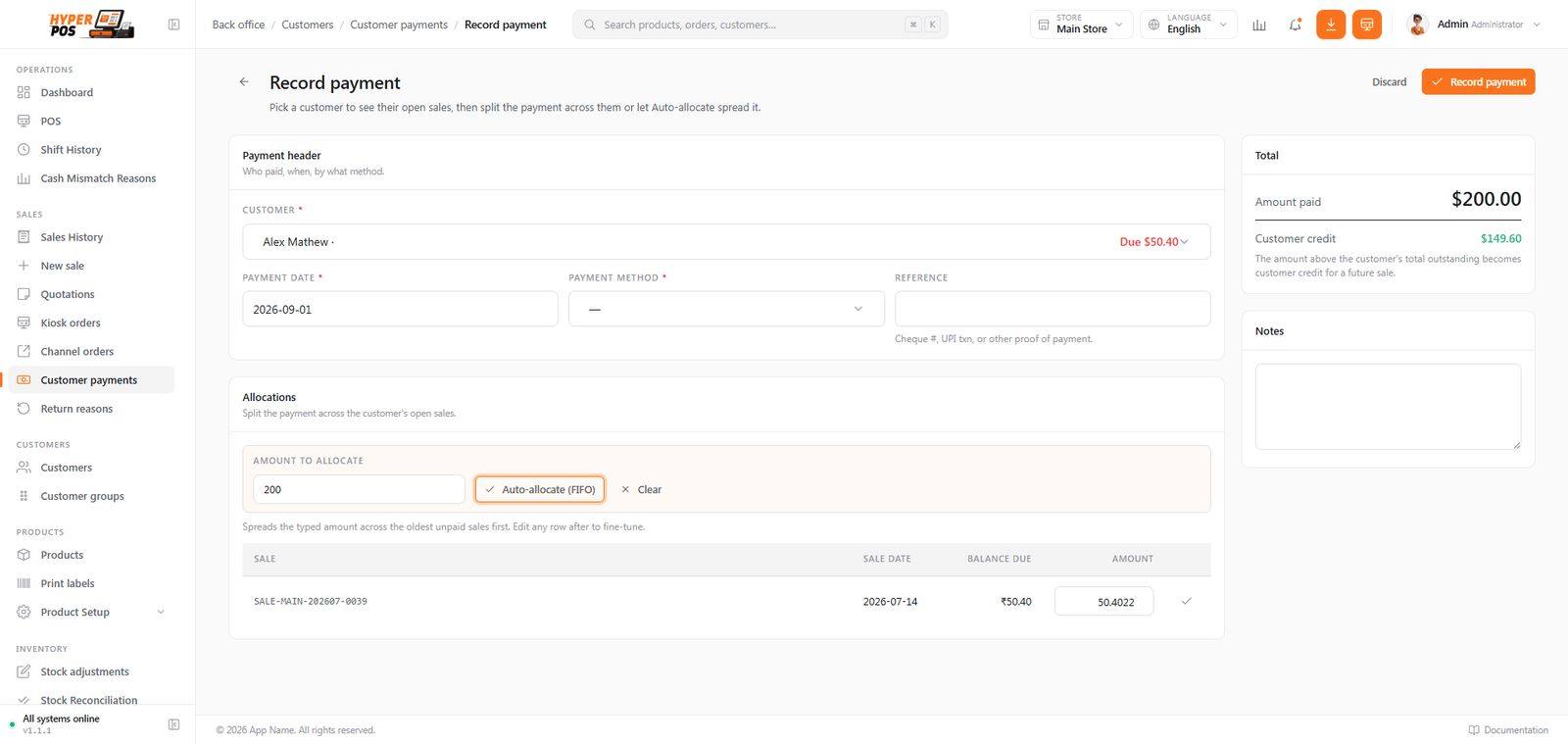
The customer overview and statement keep outstanding balance and store credit separate: one is money they owe the business, while the other is money the business already holds for them. See Using store credit at checkout.
Seeing who owes you
To see all the money owed across your customers, open the Aged receivables report under Reports. It lists each customer's outstanding balance and how long it's been owed — so you know who to chase first.
Tips & best practices
- Record the payment when the cash arrives. Don't wait — entering it straight away keeps balances accurate.
- Add a reference for non-cash payments. A cheque number or transfer reference makes reconciling your bank far easier.
- Trust the oldest-first order. It matches normal bookkeeping and keeps the aged-receivables report tidy.
- Check the aged receivables report weekly so no debt is forgotten.
Notes & warnings
Customer payments are for credit customers only. A normal walk-in sale is paid in full at the counter and never appears here.
Overpayment becomes credit, not change. Unlike a cash sale, paying extra against an account doesn't return change — it's kept as store credit. Only collect what you mean to.
Related: Customers · Using store credit · Send the payment voucher · Reports · Sales history · The POS screen