Loyalty points
Give your regulars a reason to come back. Switch the programme on and every sale with a customer attached quietly earns them points — which they can later spend as money off at the counter. You decide how fast points build up, what they're worth, and when they run out.
Overview
A loyalty programme is a simple bargain: the customer keeps shopping with you, and you give a little of it back. In POS that works in two halves.
- Earning. When a sale is rung up with a customer attached, the system awards points automatically — for example 1 point for every 10 spent. Nobody has to remember to do anything.
- Redeeming. Later, that customer can spend their points at the counter. The cashier types in how many to use and the value comes off the bill — for example 100 points = 10 off.
The settings are system-wide: one programme for your whole business, not a different one per store. Walk-in sales never earn — the cashier has to attach a customer first.
Why it's useful
- It brings people back. A balance sitting on a customer's account is a small reason to choose your shop over the one next door.
- It costs you nothing until it's used. Points are only worth money when a customer actually redeems them.
- It's completely automatic. Cashiers don't calculate anything — points are awarded when the sale finishes and clawed back if it's voided.
- It tells you who your best customers are. The points history shows who buys often and how much you're giving back.
Setting up the programme, step by step
-
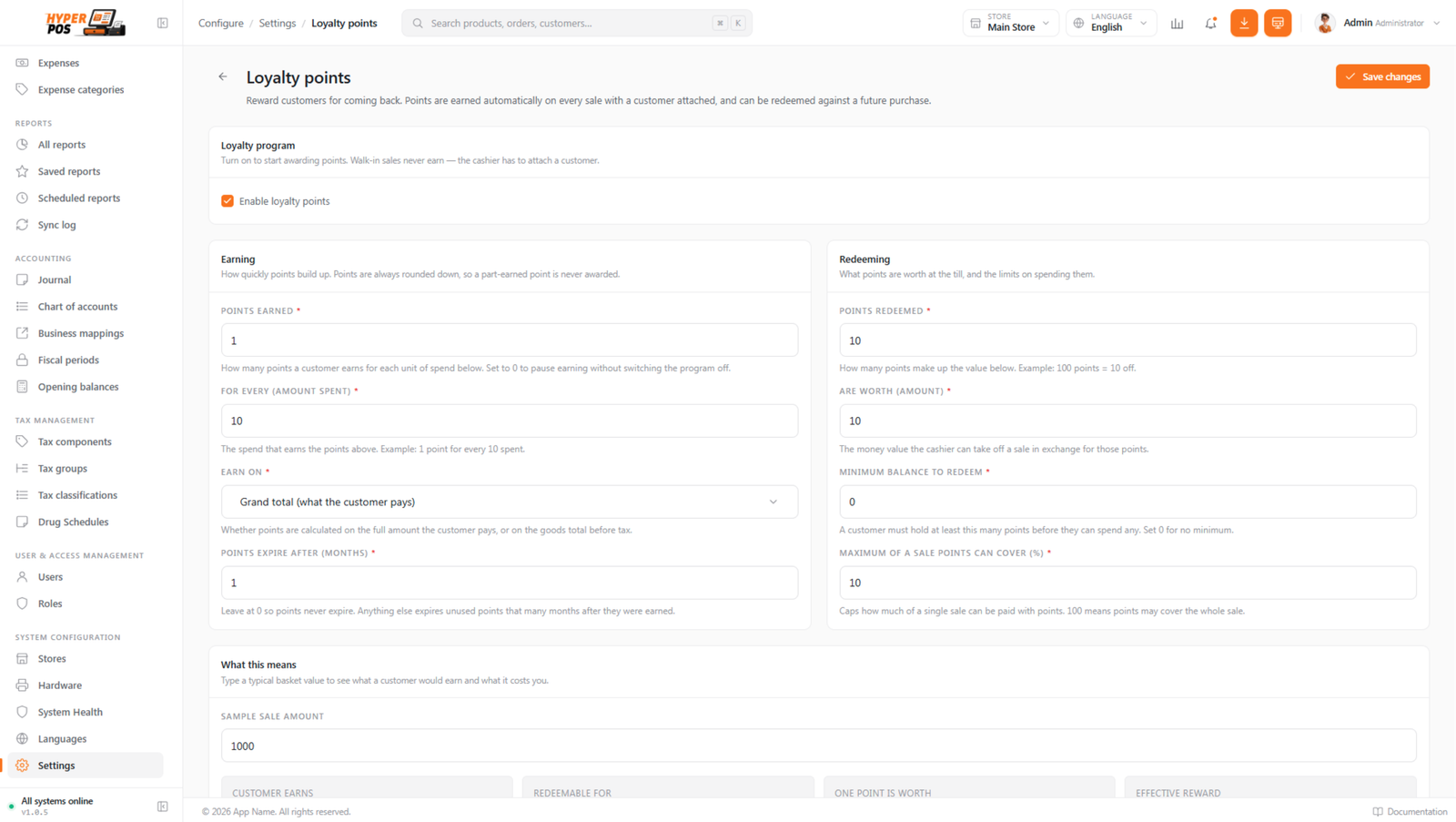
Open Settings → Loyalty points
Click Settings in the sidebar, then the Loyalty points card. The programme is off on a new install — while it's off, no loyalty options appear anywhere in the app.
-
Turn on Enable loyalty points
The earning and redeeming sections become editable.
-
Decide how points are earned
Set Points earned and For every (amount spent) — for example
1point for every10spent. Then choose whether to earn on the grand total (what the customer actually pays, tax included) or the subtotal (goods only, before tax). -
Decide what points are worth
Set Points redeemed and Are worth (amount) — for example
100points are worth10. Keep an eye on the What this means panel: it shows the effective reward as a percentage of the sale, which is the number that matters to your margin. -
Set your limits
Minimum balance to redeem stops customers spending five points at a time. Maximum of a sale points can cover (%) caps how much of one bill can be paid with points — set it to 50 so at least half of every sale is still real money, or 100 to allow a fully-points sale.
-
Choose whether points expire
Points expire after (months) — leave it at
0and points never lapse. Set 12, for example, and unused points disappear a year after they were earned. See Expiry below. -
Save
The programme is live immediately. The next sale with a customer attached earns points.
What each setting does
| Setting | What it means | Typical value |
|---|---|---|
| Points earned / For every | The earning rate. "1 point for every 10 spent." | 1 per 10 |
| Earn on | Whether the rate is applied to the grand total (with tax) or the subtotal (before tax). | Grand total |
| Points redeemed / Are worth | The cash value of points at the till. "100 points = 10 off." | 100 = 10 |
| Minimum balance to redeem | How many points a customer must hold before they can spend any. 0 = no minimum. | 100 |
| Maximum of a sale points can cover | The share of one bill that points may pay for. 100 allows the whole sale. | 50% |
| Points expire after | Months before unused points lapse. 0 = never expire. | 12 months |
Setting Points earned to 0 pauses earning without switching the whole programme off — existing balances stay spendable. That's the gentle way to wind a programme down.
Earning faster for some customers
Customer groups can earn at a different speed. Open Customers → Customer groups, edit a group and set its Loyalty points multiplier:
- Blank — the normal rate (1×).
- 2 — that group earns double points. Good for a "Premium" or "Club" tier.
- 0 — that group earns nothing. Good for a wholesale tier that already gets a trade discount.
See Customer groups for how groups work generally.
How points are earned
- A customer must be attached to the sale. Walk-in sales earn nothing — that's not an error, there's simply nobody to credit.
- Points are always rounded down. A part-earned point is never awarded, so a customer can't collect fractions.
- Each sale earns once. Reloading, reprinting or re-syncing a sale never awards a second helping.
- Points paid for with points don't earn again. The part of a bill covered by a redemption is excluded, so points can't breed more points.
- Offline sales earn too — just later. A sale rung up with no internet earns its points the moment it syncs. See Selling offline.
Redeeming points at the till
-
Attach the customer
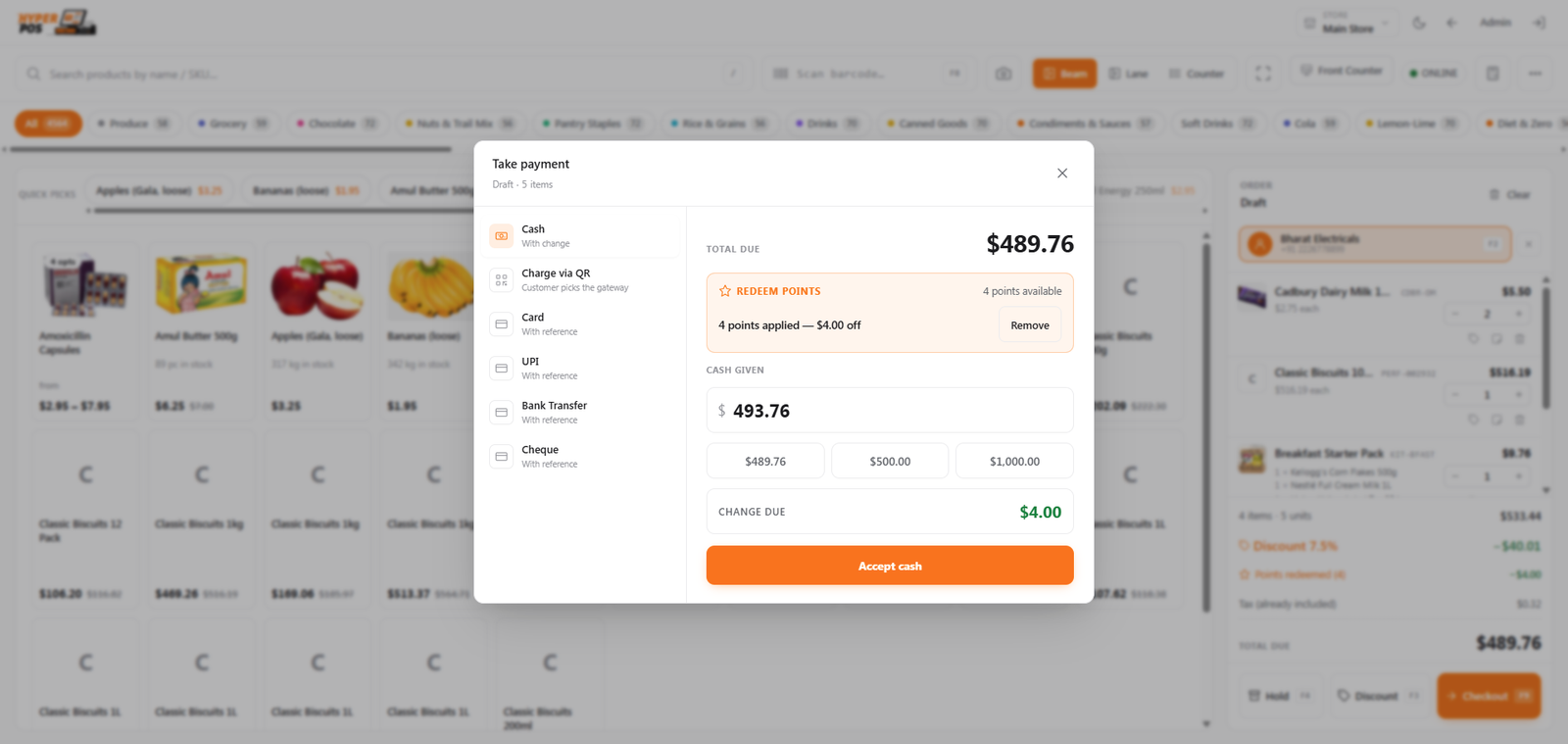
Ring up the basket as normal and pick the customer on the POS screen. If they hold enough points, a Redeem points panel appears with their balance and what it's worth.
-
Enter the points to spend
Type the number of points, or press Max to use as many as the rules allow on this bill. Press Apply.
-
Check the total
The redeemed value comes straight off the amount due and shows as its own line — Points redeemed — so it's never confused with a discount you gave.
-
Take the rest as usual
Collect whatever is still owed by cash, card or any other method. See Taking payments.
If a cashier tries to redeem below the minimum, or more than the sale's cap allows, they're told clearly and no points are taken. Pressing Remove before payment puts the points straight back.
A cashier who isn't allowed to give discounts can still redeem a customer's points — they're spending something the customer already earned, not giving your money away. Any extra discount on top still follows your usual approval rules. See Discounts & pricing.
The customer's Loyalty tab
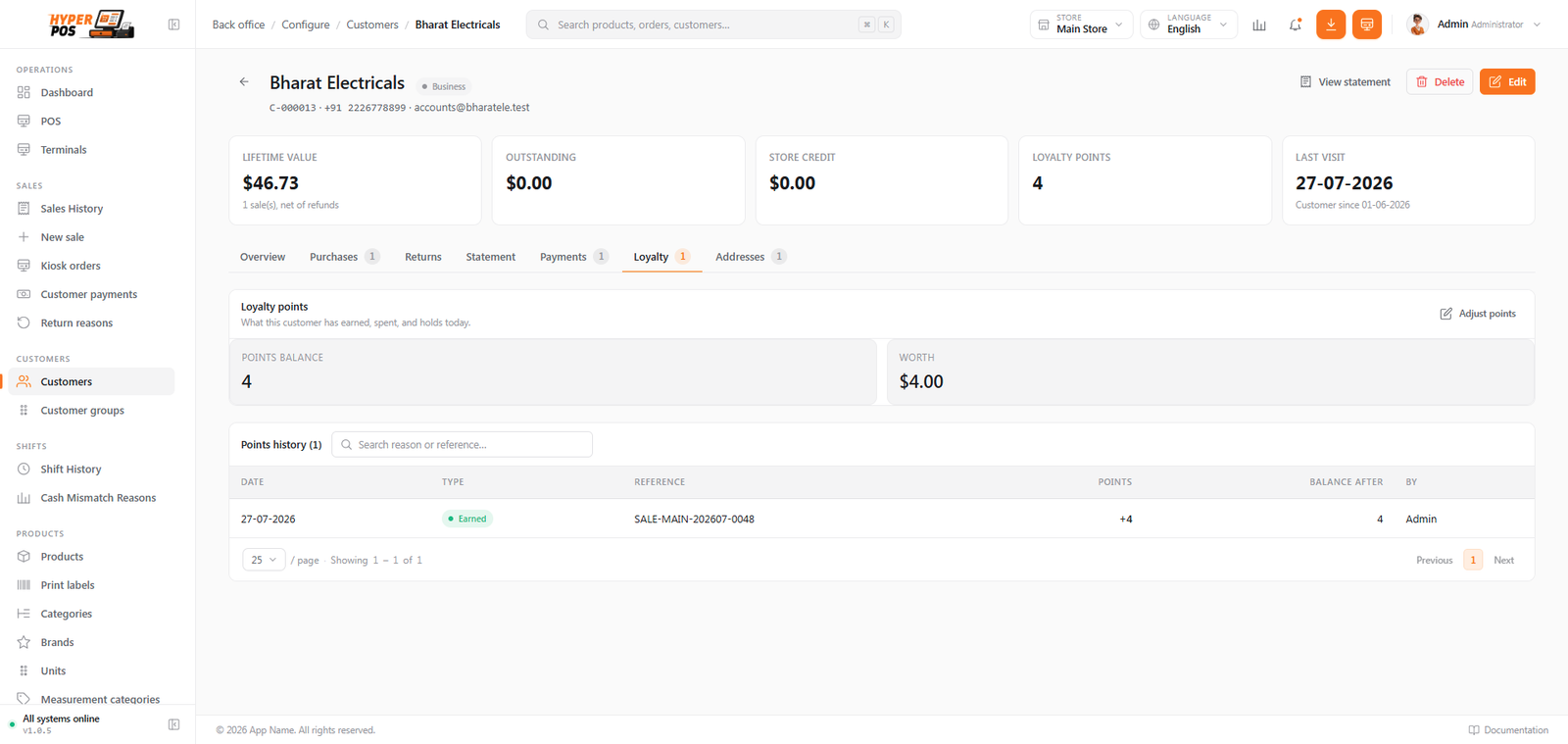
Open any customer and choose the Loyalty tab to see their points balance, what it's worth in money, and a full history of every point earned, spent, adjusted or expired — each row showing the date, the reason or sale it came from, and the balance afterwards.
Adding or removing points by hand
Click Adjust points on that tab to correct a balance — a goodwill gesture, a complaint, points promised in a promotion, or a mistake to undo.
- Choose add or remove
Use the direction toggle, then type a positive number of points.
- Give a reason
The reason is required, and it's kept forever alongside your name — so anyone reading the history later knows why the balance changed.
- Save
The new row appears at the top of the history immediately.
Removing more points than the customer holds isn't possible — a balance can never go below zero. Manual top-ups have no expiry date, so they stay until they're spent.
Adjusting needs the Add or remove loyalty points manually permission. Staff without it can still see the tab, they just can't change the balance — see Users & roles.
Voids, refunds and returns
| What happens | Effect on points |
|---|---|
| A sale that earned points is voided | Those points are taken back in full. |
| A sale that redeemed points is voided | The redeemed points are given back to the customer. |
| A sale is partly refunded | A matching share of the earned points is taken back. |
| A sale that redeemed points is refunded (not voided) | The redeemed points stay spent — the customer already received their value. |
A balance never goes negative. If a claw-back is bigger than what the customer currently holds, it simply stops at zero. See Voiding a sale and Returns & refunds.
Expiry
If you set an expiry, points lapse that many months after they were earned. Two things are worth knowing:
- Oldest points are spent first. When a customer redeems, their earliest points go first — so only genuinely untouched points ever expire.
- It runs overnight. Expiry is handled by the nightly housekeeping job, which needs your cron job to be running. If the cron isn't set up, points simply never expire.
The same nightly job double-checks every balance against its history and corrects any drift, letting an administrator know if it found some.
Seeing what the programme costs you
Open Reports → Loyalty points for the whole picture over any date range: points earned, redeemed and expired, plus the headline figure — your outstanding liability, which is what every unspent point would cost you if it were all redeemed tomorrow. Rows break the same numbers down per customer, and the whole thing exports to CSV, Excel or PDF like every other report. See Reports.
Tips & best practices
- Watch the effective reward, not the point numbers. The preview panel turns your rates into a percentage of every sale. Anything much above 2–3% is expensive for most retail.
- Round numbers are easier to advertise. "1 point per 10 spent, 100 points = 10 off" is something a customer can repeat. Odd rates confuse people.
- Set a maximum percent. Without it, a customer can pay for a whole basket with points and your till takes nothing that day.
- Use group multipliers instead of a second programme. One programme with a 2× tier is far simpler to run than two sets of rules.
- Train cashiers to ask for the customer first. Points can't be added to a finished walk-in sale, and that's the most common complaint.
Notes & warnings
Points can't be redeemed while offline. The redemption panel is hidden when the till has no internet, because only the server knows the true balance. Offline sales still earn once they sync.
Refunds don't hand redeemed points back. Only voiding does. If a customer redeems and then returns the goods, the points are gone — adjust their balance by hand if you want to be generous.
Changing rates doesn't rewrite history. New rates apply to sales from that moment on. Points already earned keep the value they're redeemed at today, so raising the redeem value makes every existing balance more expensive.
Turning the programme off doesn't erase balances. Earning stops, but customers keep the points they hold and the Loyalty tab still shows them.
Related: Customers · The POS screen · Discounts & pricing · Reports · Cron job setup