Discounts & pricing
Sometimes you need to drop a price — a regular customer, a damaged box, a manager's "just give it to them for ten." The POS lets you take money off a single item or off the whole basket, as a percentage or a flat amount, right at the counter.
Overview
A discount is money taken off a price before the customer pays. In the POS there are two places you can apply one:
- On a single line in the cart — for example, 20% off one shirt that has a small mark on it.
- On the whole basket — for example, a flat amount off the entire sale, or a "10% off everything" promotion.
Either way, you choose whether the discount is a percentage (a share of the price, like 15%) or a fixed amount (a set sum, like $5 off). The POS does the maths, recalculates tax correctly, and shows the new total instantly.
Why it's useful
- It keeps regulars happy. A quick price drop for a loyal customer is easy and looks professional.
- It clears slow stock. Mark down a damaged or near-expiry item on the spot instead of writing it off.
- It's accurate. Tax and totals are recalculated for you, so the receipt is always correct — no manual sums.
- It's on the record. The discount is saved with the sale, so your reports show exactly how much you gave away and why.
Applying a discount, step by step
Discount a single line
-
Add the item to the cart
Scan or tap the product as usual so it appears as a line in the cart.
-
Open that line's discount
Click the line (or its price/discount control) to open the discount option for just that item.
-
Choose percentage or fixed amount
Pick % to take off a share of the price, or a fixed amount to take off a set sum. Type the number — for example
20for 20%, or5for five off. -
Confirm
The line price updates and the basket total drops to match. The original price stays visible so it's clear a discount was applied.
Discount the whole basket
-
Finish adding all items
Make sure everything the customer is buying is in the cart first, so the discount applies to the full amount.
-
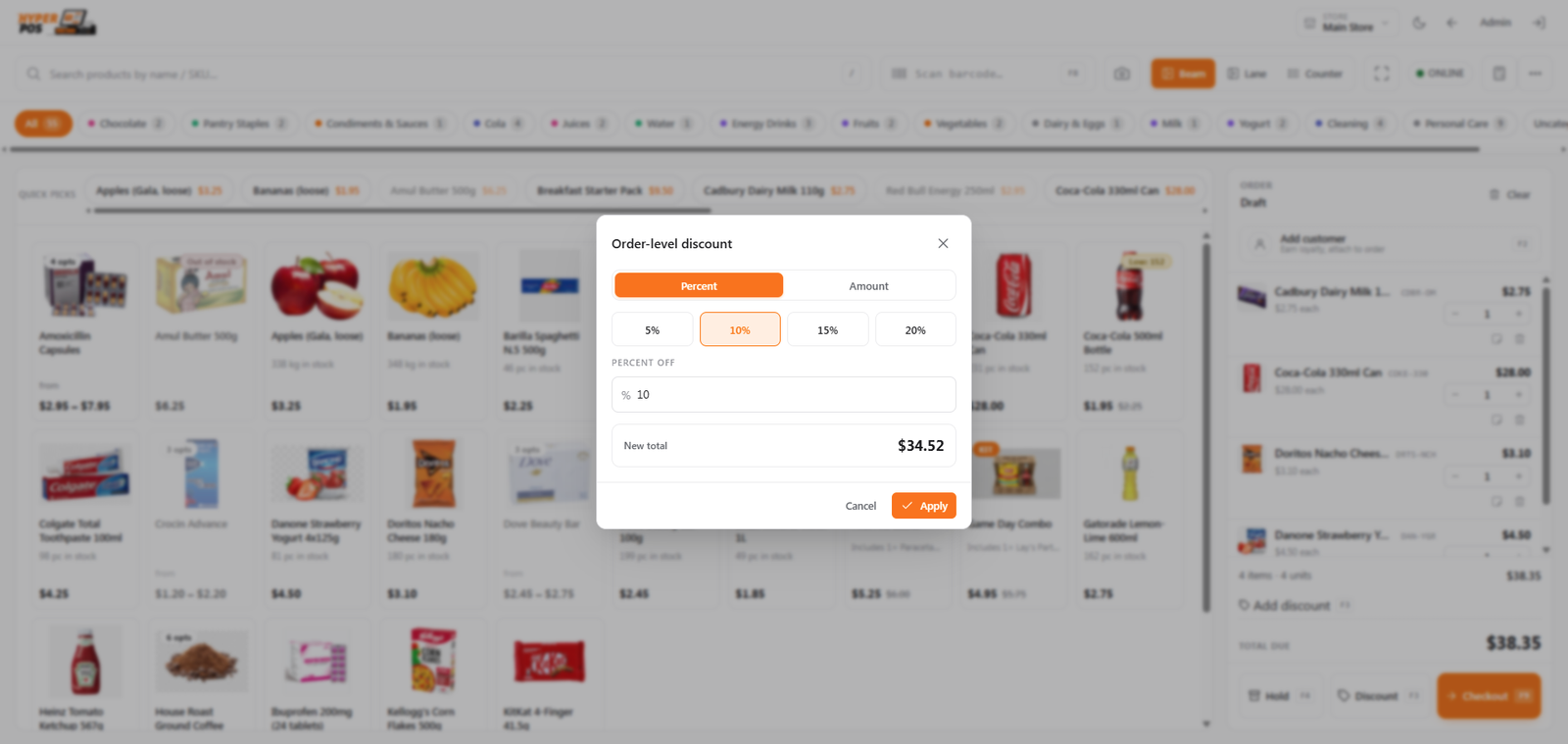
Open the order discount
In the totals area at the bottom of the cart, choose the discount option for the whole order.
-
Enter a percentage or fixed amount
The same choice applies: a percentage of the basket, or a flat sum off the total. The grand total updates straight away.
-
Take payment as normal
Press Pay and continue — see Taking payments.
Percentage vs fixed amount
| Type | What you type | Good for |
|---|---|---|
| Percentage | A number like 10 for 10% | "10% off everything", staff discounts, sales where the saving should scale with price. |
| Fixed amount | A set sum like 5.00 | "$5 off this jacket", rounding a total down to a tidy figure, goodwill gestures. |
A line discount only affects that one item. An order discount is spread across the basket, so the receipt and your tax records stay correct for every line.
Where prices come from
Before any discount, every item already has a starting price. That price is decided automatically, in this order:
- The product's selling price is the normal default, set on the product (see Products).
- A batch price can override it. If an item is tracked by batch (common in pharmacies) and that specific batch has its own selling price, the batch price wins. See Batches & expiry.
- A customer's group may set special pricing. If you attach a customer who belongs to a pricing group (for example "Wholesale"), their price can apply.
A discount you type at the counter is applied on top of whichever starting price the POS picked. You don't need to work out the base price yourself — the system always starts from the right one.
Tips & best practices
- Use a line discount for one item, an order discount for the whole sale. Mixing them up can over-discount — decide which level you mean.
- Pick fixed amount to land on a round total. It's the quickest way to knock a total down to a tidy figure for a customer.
- Add the customer first if their pricing group matters — the starting price changes, and so does the effect of a percentage.
- Check the new total before taking payment. The displayed grand total already includes the discount and tax.
Notes & warnings
Large discounts may need a manager. Your shop can set a limit above which a manager has to approve the discount. If you hit that limit, you'll be asked for approval before the sale can finish.
A discount lowers your margin. The saving comes straight off your profit on that sale, so use bigger discounts thoughtfully.
Related: The POS screen · Taking payments · Customers · Products