Selling offline
Internet drops happen — and they always seem to happen at the busiest moment. The POS is built to keep selling without a connection. Your sales are saved on the device and quietly sync to the server the moment you're back online.
Overview
When the POS screen first loads online, it quietly copies your product catalog onto the device. That local copy means the checkout can keep working even if the connection later drops — you can scan items, build a cart, take cash and print receipts with no internet at all.
Any sale you make offline is queued (held safely on the device). As soon as the connection returns, those sales sync automatically to the server. You don't press anything — it just catches up, usually within seconds.
Why it's useful
- You never stop selling. A dropped connection doesn't close your till — the queue moves and customers get served.
- Nothing gets lost. Offline sales are saved on the device and sync the instant you reconnect.
- It's invisible to customers. No errors, no waiting — checkout feels exactly the same offline.
Reading the connectivity dot
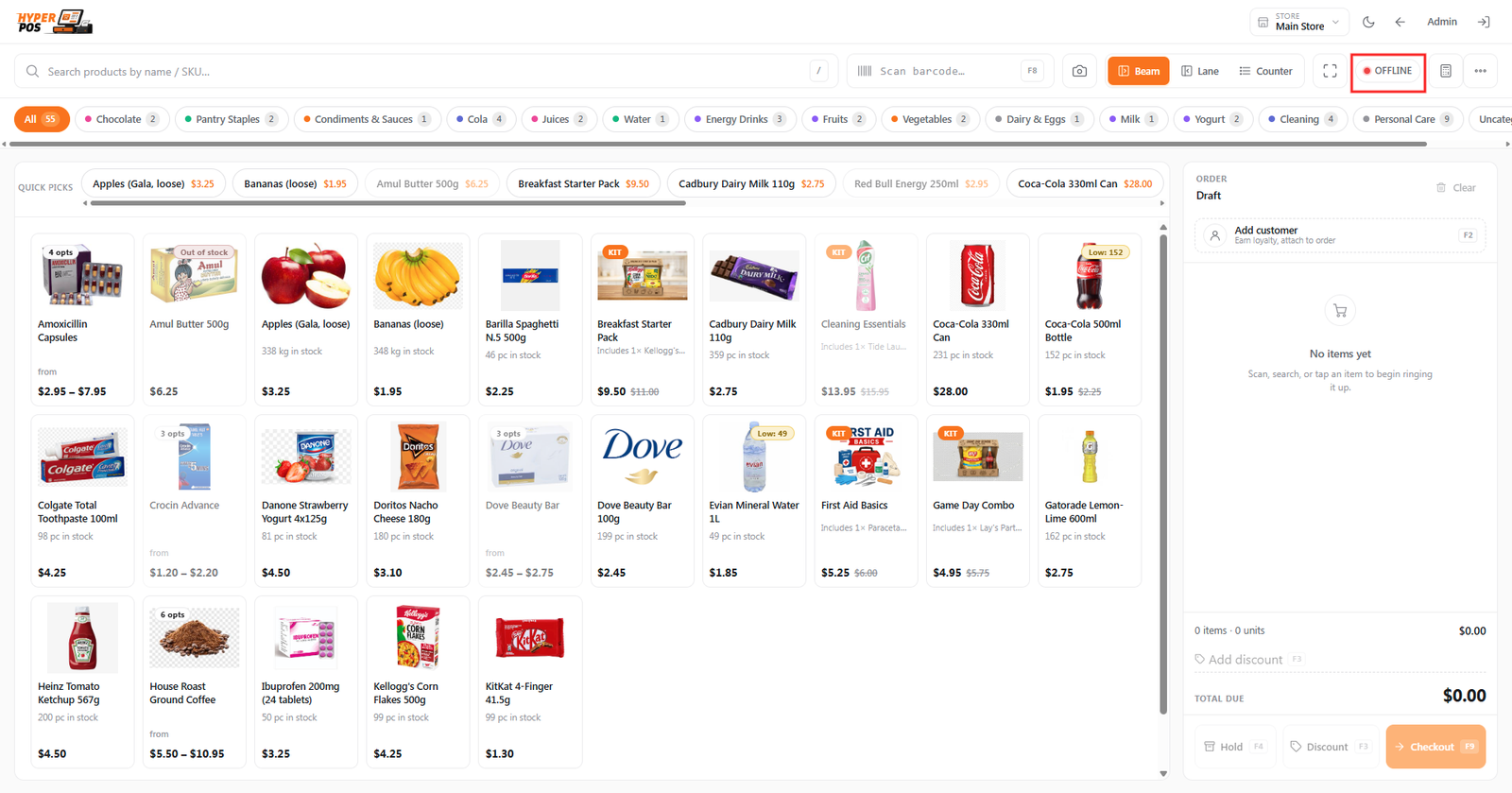
A small coloured dot in the POS top bar always tells you the connection state. Click it for a short popover with more detail and a couple of actions.
| Dot | Means | What to do |
|---|---|---|
| Online | Connected; sales save to the server straight away. | Nothing — carry on as normal. |
| Degraded | The connection is shaky and being checked. | Keep selling; it usually recovers on its own. |
| Offline | No connection; sales are being queued on the device. | Keep selling. Sales sync once you're back online. |
What happens when the internet drops
-
The dot turns red
The top-bar dot shows Offline. There's no pop-up and no error — just the quiet indicator.
-
Keep ringing up sales
Scan items, take cash, print receipts exactly as before. Each completed sale is added to the offline queue.
-
Watch the queue, if you like
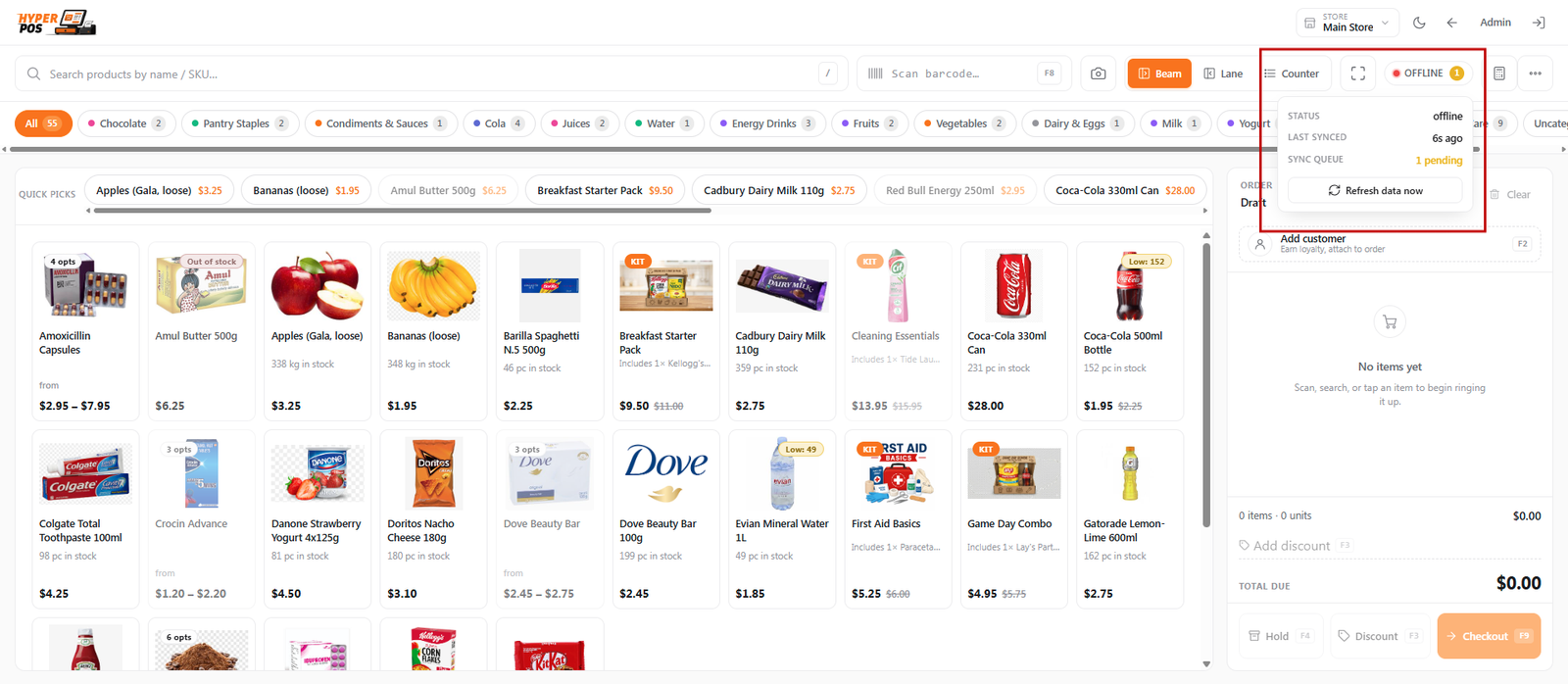
Click the dot to open the popover. It shows how long you've been offline and how many sales are waiting to sync.
-
Reconnect — and it catches up
When the internet returns, the dot turns green and the queued sales sync automatically. You'll see the waiting count fall to zero.
When a sale won't sync
Nearly every queued sale syncs the moment you're back online. Occasionally the server refuses one — the last unit of something was sold on another till while you were offline, or the cashier's shift has since been closed. POS doesn't silently keep retrying forever; it stops, tells you, and gives you two ways to put it right.
From the till
Click the connectivity dot. Any sale that hasn't synced is listed with the reason the server gave, and two buttons:
- Retry — put it back in the queue and try again. Use this once you've fixed the cause (reopened the shift, corrected the stock).
- Discard — drop it from this terminal's queue. Only do this if the sale genuinely shouldn't exist, or you've already re-rung it by hand.
POS retries a failing sale a handful of times on its own; after that it parks it and waits for you, rather than looping quietly in the background where nobody would notice.
From the back office
Owners and managers can see everything that synced — and rescue what didn't — in the sync log under Insights → Sync log. Each entry keeps the sale exactly as the till recorded it, with All, Successful, Failed and Conflicts tabs.
- Retry sync re-sends the stored sale to the server. It's safe to repeat — a sale that already landed is never duplicated.
- Dismiss is for an entry that can never succeed. Nothing is deleted — the record and its details are kept for audit, it just stops counting as outstanding. You can un-dismiss it later.
This matters because a queued sale otherwise lives only on the terminal it was rung up on. If that tablet is flat, broken or at another branch, the back office can now replay the sale without it.
However you retry it, the sale is recorded against the cashier who actually rang it up — not the manager clicking the button — so takings and shift totals stay honest. The side effect: if your store enforces shifts and that cashier's shift has closed, reopen a shift for them before retrying.
Tips & best practices
- Open the POS online at least once a day. That refreshes the catalog copy so offline prices and products are up to date.
- Reconnect before you finish your shift so all queued sales sync and your end-of-day totals are complete.
- Glance at the dot now and then. It's the quickest way to know whether you're saving to the server or to the queue.
- Check the sync log's Failed tab after an outage. Two minutes there beats discovering a missing sale at month end.
Notes & warnings
Some things need the internet. Online card and QR payments can't be taken offline — use cash or record a card on your bank machine. Adding a brand-new customer on the fly may also be limited until you're back online.
Sales queued on a device stay on that device. Don't clear the browser data or wipe the device while sales are still waiting to sync, or they could be lost. Once a sale has reached the server — even as a failed entry — it can be retried from the back office instead.
Related: The POS screen · Taking payments · Reports