Returns & refunds
A customer brings something back. The POS lets you find their original receipt, pick exactly what's coming back, record why, and give the money back — all from the counter. Returned goods go back into your stock automatically.
Overview
A return is when goods come back and money goes out. The POS handles it as a small, guided flow: you look up the sale the customer is returning against, tick the items and quantities they're bringing back, choose a reason, and confirm. The customer gets their money back, and the stock count goes back up for the returned items.
You can return a whole sale or just part of it (some items, or fewer than they bought). The POS makes sure you can never refund more than was actually sold.
Why it's useful
- It keeps customers happy. A quick, confident refund turns a problem into goodwill.
- It protects your books. The refund is recorded against the original sale, so your sales totals and tax stay correct.
- It fixes your stock. Items returned for resale go straight back into available stock — no separate step.
- It captures the reason. Knowing why things come back (wrong item, damaged, changed mind) helps you spot patterns.
Processing a refund, step by step
-
Open Refund / Return
On the POS screen, open the ⋯ More menu and choose Refund / Return.
-
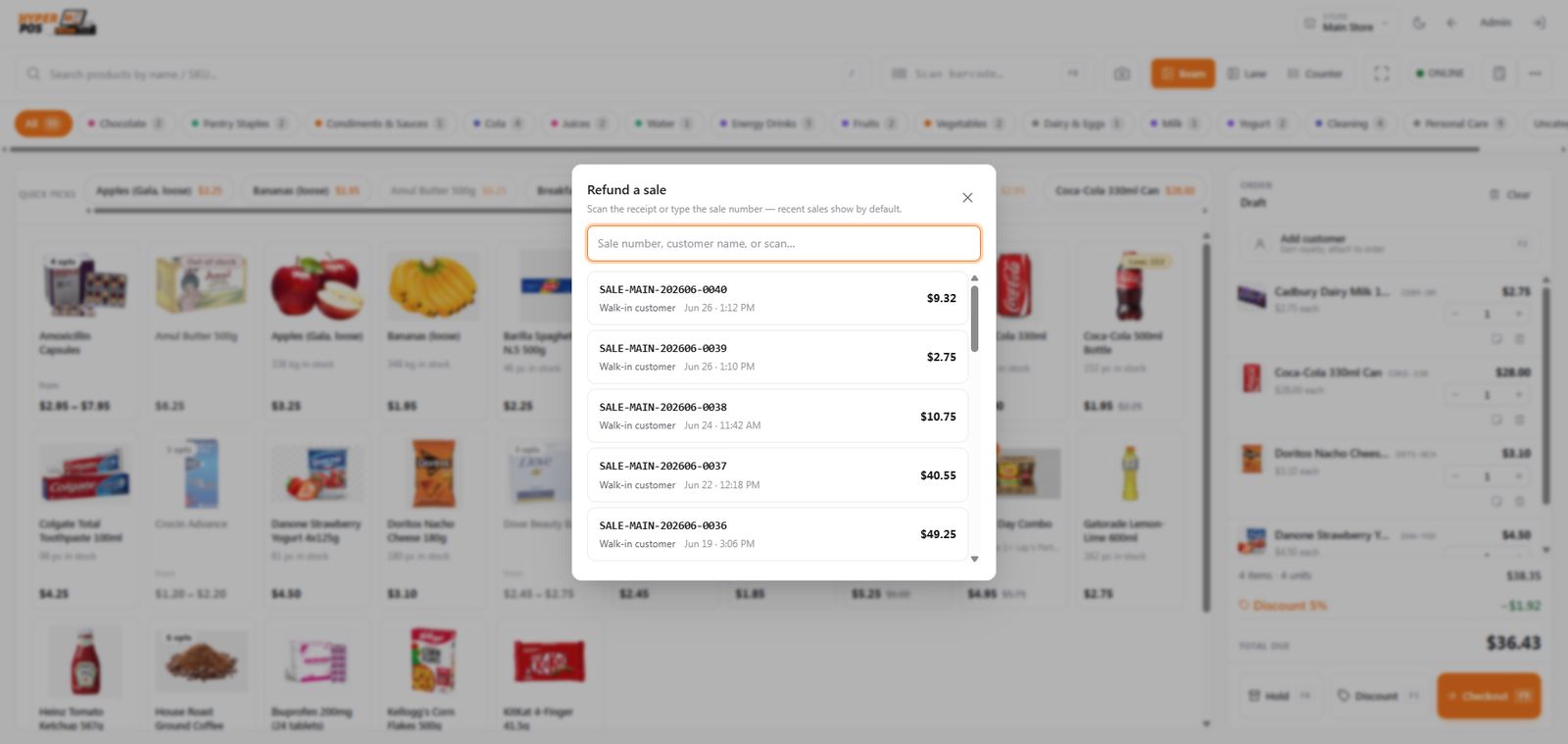
Find the original receipt
A lookup window opens. Search for the sale by its receipt number (or scan the receipt). This links the refund to the correct sale so the amounts and tax are exactly right.
-
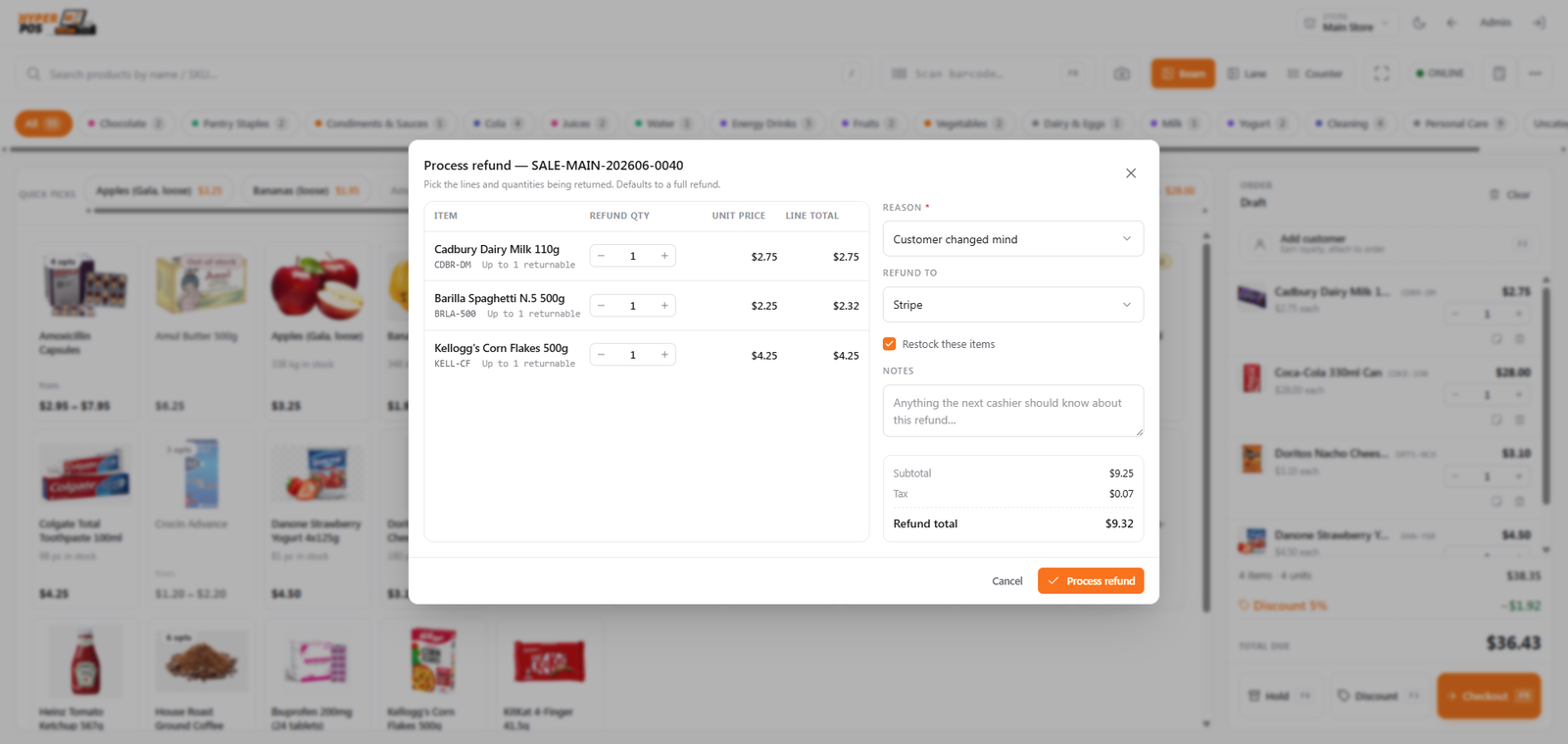
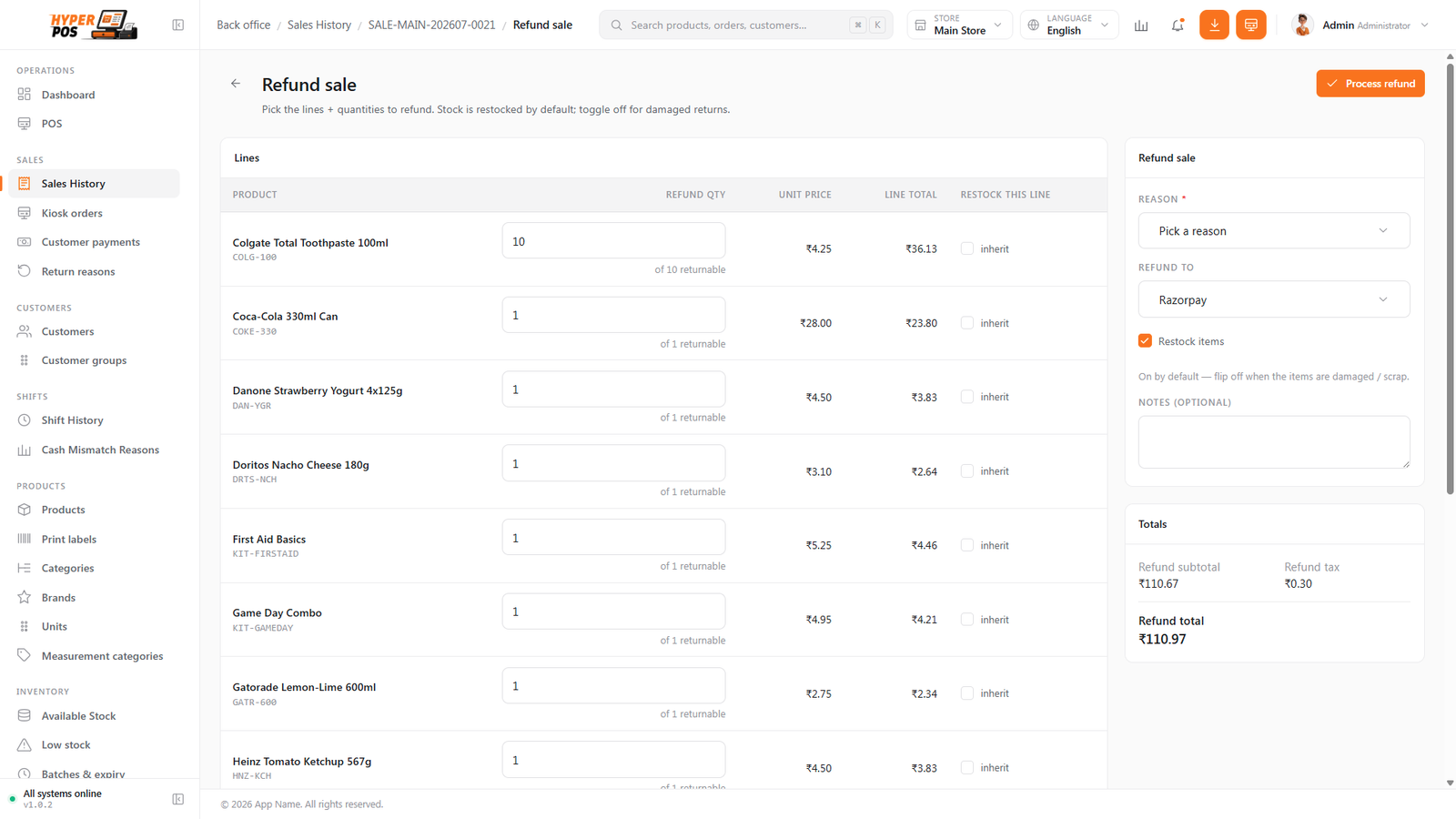
Choose the items and quantities
The sale's items appear. Tick the ones coming back and set the quantity for each — you can return some or all. The refund total updates as you go.
-
Pick a return reason
Choose why the goods are being returned (for example wrong item, damaged, or changed mind). The reason is saved with the return.
-
Choose how to give the money back
Pick the refund method. The default is "Use original method" — if the customer paid by card or an online gateway, the money is sent back to that same card/account automatically (see below). You can also refund as cash or as store credit.
-
Confirm the refund
Review the refund total and confirm. The return is recorded, the returned items go back into stock, and a confirmation appears.
-
Hand the money back (cash refunds)
For a cash refund, take the cash from the drawer and give it to the customer yourself — the POS records the refund, but the physical cash is handed over by you. Card/online refunds need no cash — they're sent back electronically.
How partial, inclusive-tax and credit refunds are calculated
- Partial quantity: subtotal and original tax are reduced in the same proportion as the quantity being returned.
- Tax-inclusive price: tax already inside the selling price is not added a second time. For example, a gross price of 118.00 made from 100.00 subtotal and 18.00 tax refunds as 118.00—not 136.00.
- Customer balance: any unpaid part is settled against what the customer owes first. Only the amount that was actually paid can be paid back through cash/card/another refund method.
- Mixed case: if the refund exceeds the remaining outstanding balance, POS clears that balance and pays out only the remainder.
Example: a 118.00 customer sale has 50.00 paid and 68.00 still owed. A full refund first removes the 68.00 balance and pays out only 50.00. The drawer/gateway must never pay out the full 118.00.
What happens to the stock
When you confirm a return, the items you marked as coming back are added back into your available stock automatically, so they're ready to sell again. You can see the effect on the Stock overview. If an item can't be resold (for example it's damaged), choosing the right reason keeps it out of saleable stock — ask your manager how your shop prefers to handle damaged returns.
Refunding to the original card or online payment
When a customer paid by card or an online payment gateway (Stripe, Razorpay, Paystack, Flutterwave, Mercado Pago), you no longer have to give the refund as cash. Leave the refund method on "Use original method" and the POS contacts the same payment provider and reverses the charge back to the customer's card or account automatically — nothing comes out of your drawer.
You can see the outcome on the sale's page in Sales history:
| What you see | What it means |
|---|---|
| Reversed at gateway | The refund went back to the customer's card/account successfully. |
| Reversal failed + Retry reversal | The provider couldn't be reached. The refund still stands; the system retries automatically, and you can also press Retry reversal to try again now. |
The refund is recorded in your books immediately, but the money can take a few days to appear on the customer's statement — that timing is set by the card network or payment provider, not the POS. Cash and store-credit refunds never touch a gateway; only "original method" refunds on gateway payments are sent back electronically.
Who can give refunds
Refunds are gated by a permission (sales.refund). If you don't have it, the Refund / Return option won't be available to you — a manager or the owner grants this in Users & roles. This is deliberate: giving money back is a sensitive action, so only trusted staff should be able to do it.
Tips & best practices
- Scan the receipt to find the sale fast. It's quicker and more accurate than typing the number.
- Only tick what's actually coming back. Set the exact quantity per item — the refund total follows automatically.
- Pick the honest reason. Good reason data is what tells you if a product or supplier keeps causing returns.
- Count the cash back out loud to the customer so there's no dispute over change.
Notes & warnings
You need the original sale. The refund flow is built around finding the receipt it belongs to. If you genuinely can't find the sale, check Sales history to locate it first.
You can't refund more than was sold. The POS limits each item to the quantity originally bought (less anything already returned).
A cash refund is physical. The POS records the refund, but it does not open the drawer or count the money for you — you must hand the correct cash to the customer. Double-check the amount before giving it.
Related: The POS screen · Sales history · Taking payments · Send the credit note · Stock overview