Quotations
Prepare a formal priced offer for an existing customer or a new prospect, share a secure response link, record views and decisions, create revisions, print or download a PDF, then convert an accepted quotation into a real sale.
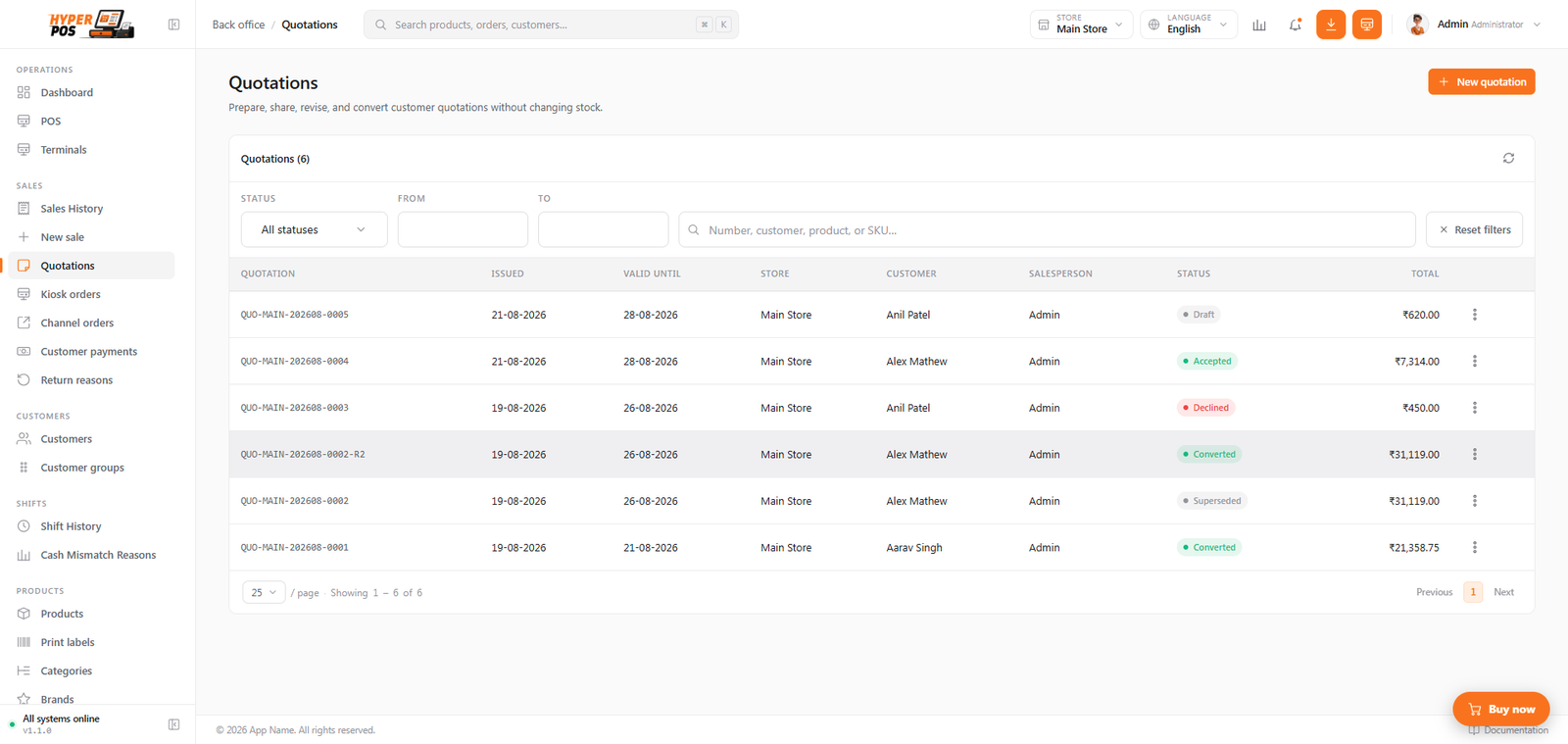
/admin/quotations.Understand the statuses
| Status | Meaning |
|---|---|
| Draft | Editable working copy that has not been prepared for customer sharing. |
| Sent | A secure share link is available and the customer can respond. |
| Accepted / Declined | The customer or authorized staff recorded the response. |
| Expired | The valid-until date passed; create a revision before continuing. |
| Cancelled | Closed by staff; the public response and conversion actions are unavailable. |
| Superseded | Replaced by a newer revision. Continue with the linked latest revision. |
| Converted | A real POS sale was created and linked to this quotation. |
Create a quotation
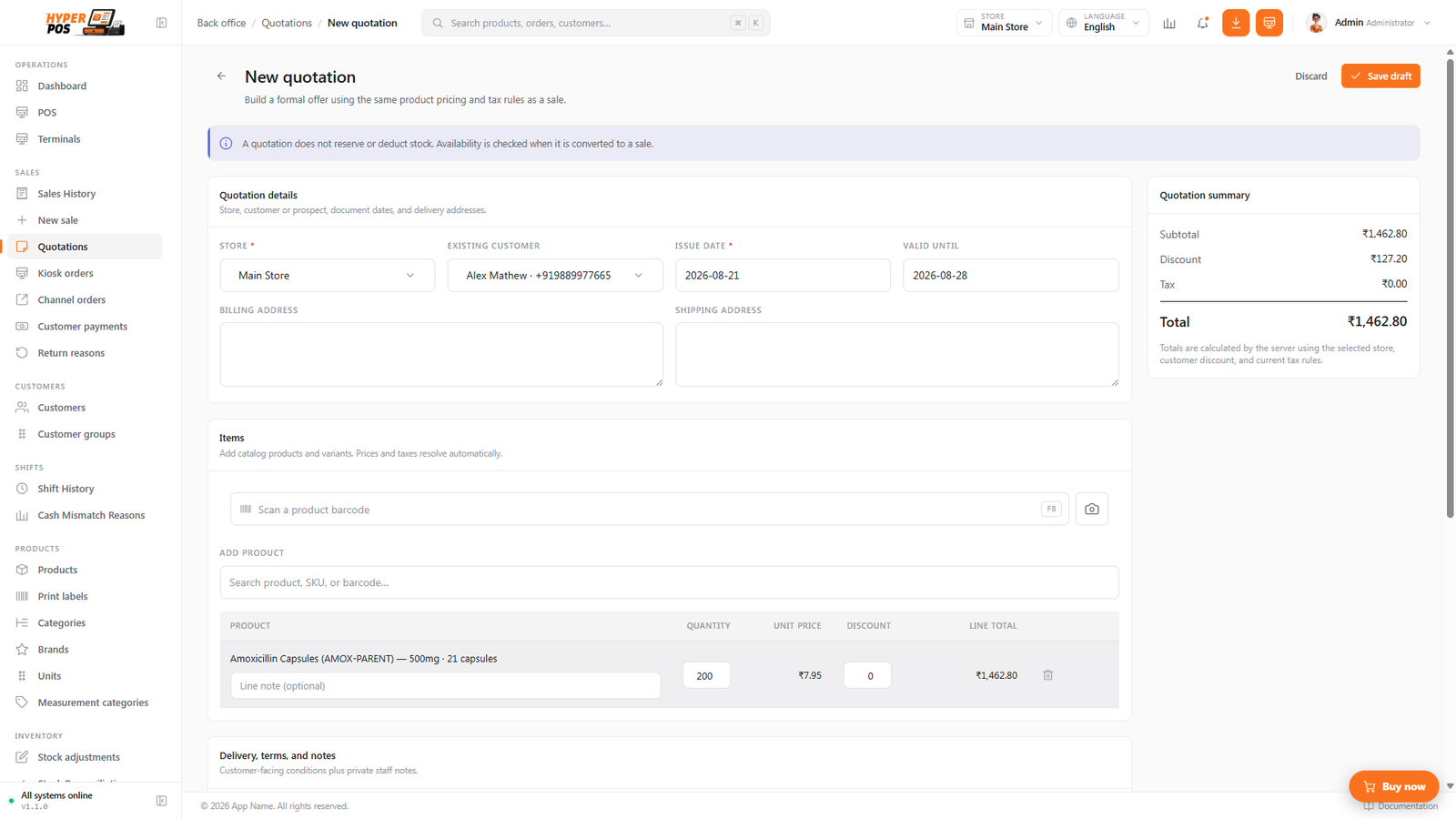
- Click "New quotation" and choose the store
The quotation number follows Settings → Numbering. Once issued, the store cannot be silently changed.
- Choose a customer or prospect
Select an existing customer and address, or use prospect details for someone not yet in your customer list. A prospect quotation does not silently create a customer account.
- Set the dates and delivery details
Enter issue date, valid-until date and optional expected delivery, billing and shipping details.
- Add products
Search by product name, SKU or barcode, type/scan a barcode, or use the camera. Select the exact variant, quantity, price/discount allowed by your permissions and optional line note.
- Add terms and notes
Customer terms and notes appear on the document. Internal notes remain staff-only and never appear on the public quotation or PDF.
- Review totals and save
The server calculates current pricing, customer discount and tax. Save as a draft; stock, reservations, batches, accounting, customer balance and cash drawer remain unchanged.
Share and record the customer's response
- Open the quotation and create its share link
Click Create share link. Copy the secure URL, or use Send via WhatsApp to prepare or queue a message with the quotation number, total and link. See WhatsApp sharing.
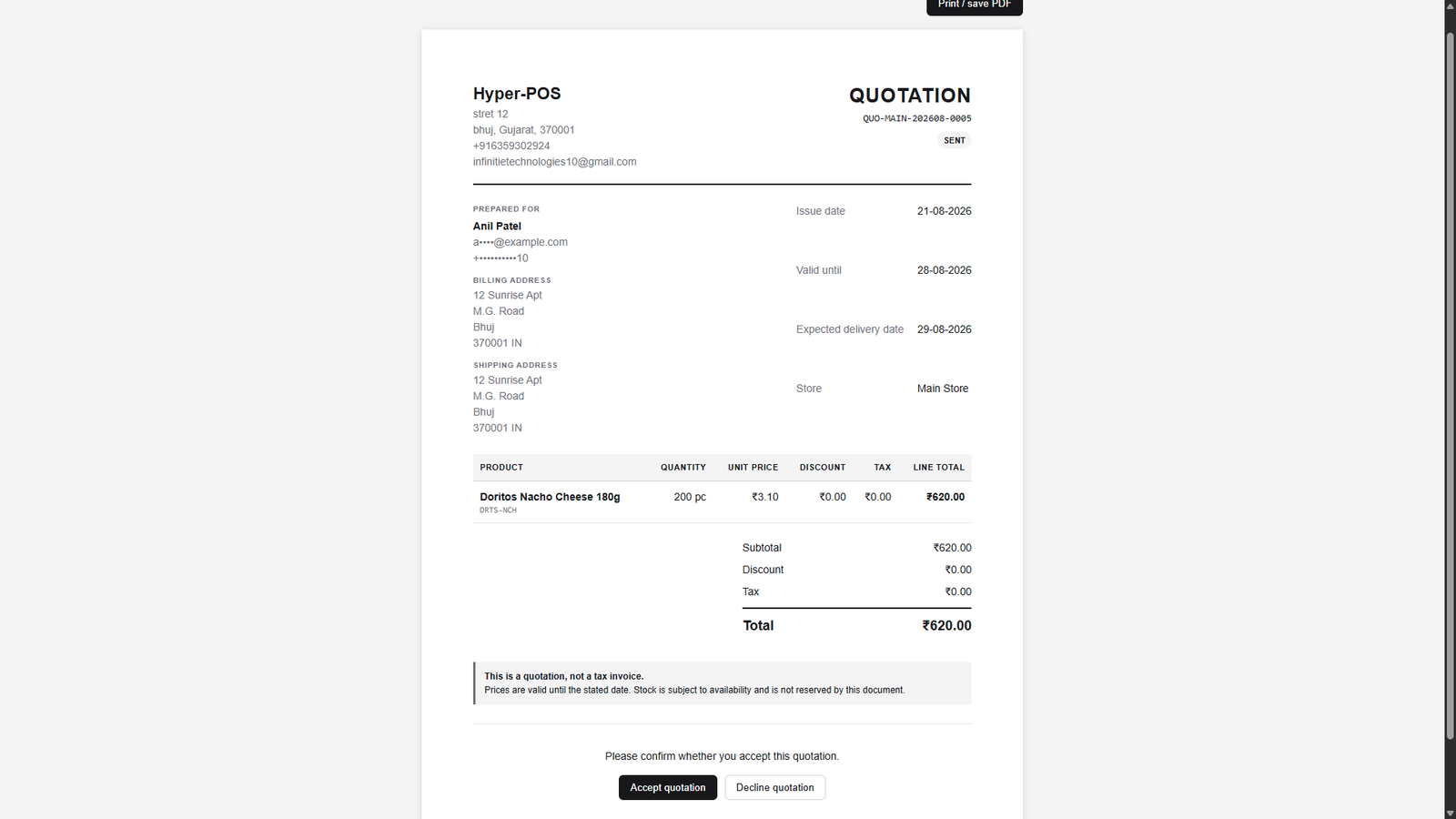
- The customer opens the public document
No POS login is required. The page shows company/customer details, items, tax, total, terms and validity, but never internal notes or admin navigation. Each genuine view is recorded in activity.
- The customer accepts or declines
The response is recorded once and updates the quotation. Expired, cancelled or superseded quotations cannot respond as though they were current.
- Print or download when needed
View / print and Download PDF provide a formal document marked as a quotation—not a tax invoice—and remind the customer that stock is not reserved.
Revise instead of overwriting history
Use Create revision for a sent, accepted or declined quotation that needs new quantities, prices, dates or terms. Hyper POS creates a new draft revision, marks the earlier document Superseded, and links the history. The superseded document cannot be converted even if its old link or conversion URL is opened directly.
Convert an accepted quotation to a sale
- Open the current accepted quotation
Expired, cancelled, declined, superseded or already converted records cannot be converted.
- Click "Convert to sale"
Quoted unit prices and discounts are honoured, but current tax rules are recalculated. If tax changed since quoting, the screen warns you and shows the current payable total.
- Review stock and payment
Hyper POS validates products, variants, eligible batches, current stock, credit limits and payment totals before posting anything. A walk-in/prospect conversion must be paid in full.
- Complete the sale
For an existing customer, leave payment empty only when the entire allowed amount should go to their customer balance. Otherwise add one or more payment rows and complete.
- Verify the linked sale
The quotation becomes Converted and links to exactly one sale. Stock, payments and accounting post through the normal sale workflow.
If stock, a variant or every eligible batch disappeared after quoting, conversion stops cleanly and leaves the quotation unconverted. Receive or transfer the correct stock, then try again.
Visibility and permissions
- View own shows quotations created by that user in accessible stores; View all follows the user's accessible stores.
- Creating, editing, discounting, responding, revising, cancelling and converting are separately permission-gated where applicable.
- The customer's detail page includes a Quotations tab for that customer's accessible documents.
- Store access and quotation state are enforced on the server, not only by hiding buttons.
Tips
- Set realistic validity dates and delivery expectations.
- Use customer-facing notes for conditions the buyer needs; use internal notes for private handover details.
- Revise a shared quotation rather than changing its historical version.
- Check the activity timeline before following up—it records sharing, views, responses, revisions and conversion.
- Cancel a quotation that should never be accepted or converted.
Related: Customers · Products · Sales history · Payments · Numbering settings