Expenses
Not every payment is to a supplier for stock. Rent, electricity, cleaning, tea for the staff — money leaves the shop for all sorts of reasons. Recording those as expenses keeps your cash drawer honest and your profit figure real.
Overview
An expense is any money paid out that isn't buying stock from a supplier (that's a Purchase). Recording it does three useful things at once: it takes the amount out of your expected cash drawer, it lands in your reports, and it posts to your books automatically — so your Profit & Loss reflects the true cost of running the shop, not just what you sold.
To keep expenses tidy, you can sort them into categories you define yourself — like "Rent", "Utilities", "Wages" or "Cleaning".
If you're buying things to resell (stock for the shelves), record it as a Purchase so it goes into inventory. If you're paying for running the business (rent, bills, repairs), record it here as an expense.
Why it's useful
- Your cash drawer balances. Cash paid out is accounted for, so the shift's expected cash matches what's really in the till.
- Your profit is real. Profit is sales minus all costs — expenses included — not just cost of goods.
- You can see where money goes. Categories show at a glance how much went on rent versus utilities versus supplies.
- Records for your accountant. Every expense carries a date, amount, category and reference, and exports to Excel.
Recording an expense, step by step
-
Open Expenses and start a new one
Go to Expenses in the sidebar and choose New expense.
-
Fill in what was paid
Enter the date, the amount, and pick a category. Optionally choose how it was paid (cash, bank, card), attach a supplier if relevant, and add a reference (the bill or invoice number) and any notes.
-
Save it
Choose Record expense. It's added to the list, deducted from the drawer if paid in cash, and posted to your books.
Expense categories
Categories are a simple picklist you control. Open the category manager from the expense form (Manage categories) to add, rename or remove them. Good categories make your reports far more useful — aim for a handful of clear buckets rather than dozens of tiny ones.
| Example category | Typical expenses |
|---|---|
| Rent | Shop rent, storage rent |
| Utilities | Electricity, water, internet, phone |
| Wages | Staff pay, casual help |
| Supplies | Bags, cleaning, stationery |
| Repairs | Equipment fixes, maintenance |
Cash expenses and the cash drawer
If you pay an expense in cash, that money physically leaves the till — so POS takes it out of the drawer for you. Record the expense in the back office while you have a shift open and a matching pay-out is written against that shift automatically. Your expected cash drops by the amount, and the drawer balances at closing time instead of coming up mysteriously short.
It stays in step afterwards, too:
- Change the amount and the drawer movement is corrected to match.
- Switch it from cash to bank (or the other way) and the drawer movement is removed or created accordingly.
- Delete the expense and the cash is put back.
The same connection works in reverse: take cash out at the till and choose Expense (petty cash), and POS creates the expense record for you — categorised, on your profit & loss, and linked to that drawer movement. See Saying what a pay-out is for.
A closed shift is never touched. Once a shift is closed its Z report is a fixed record of that day's till. If you record or edit a cash expense afterwards, the expense and your books are updated but the closed shift's figures stay exactly as they were counted.
Only cash moves the drawer. An expense paid by bank transfer, card or cheque is recorded and posted to your books as normal — it just doesn't touch the till, because no cash left it.
Finding & exporting expenses
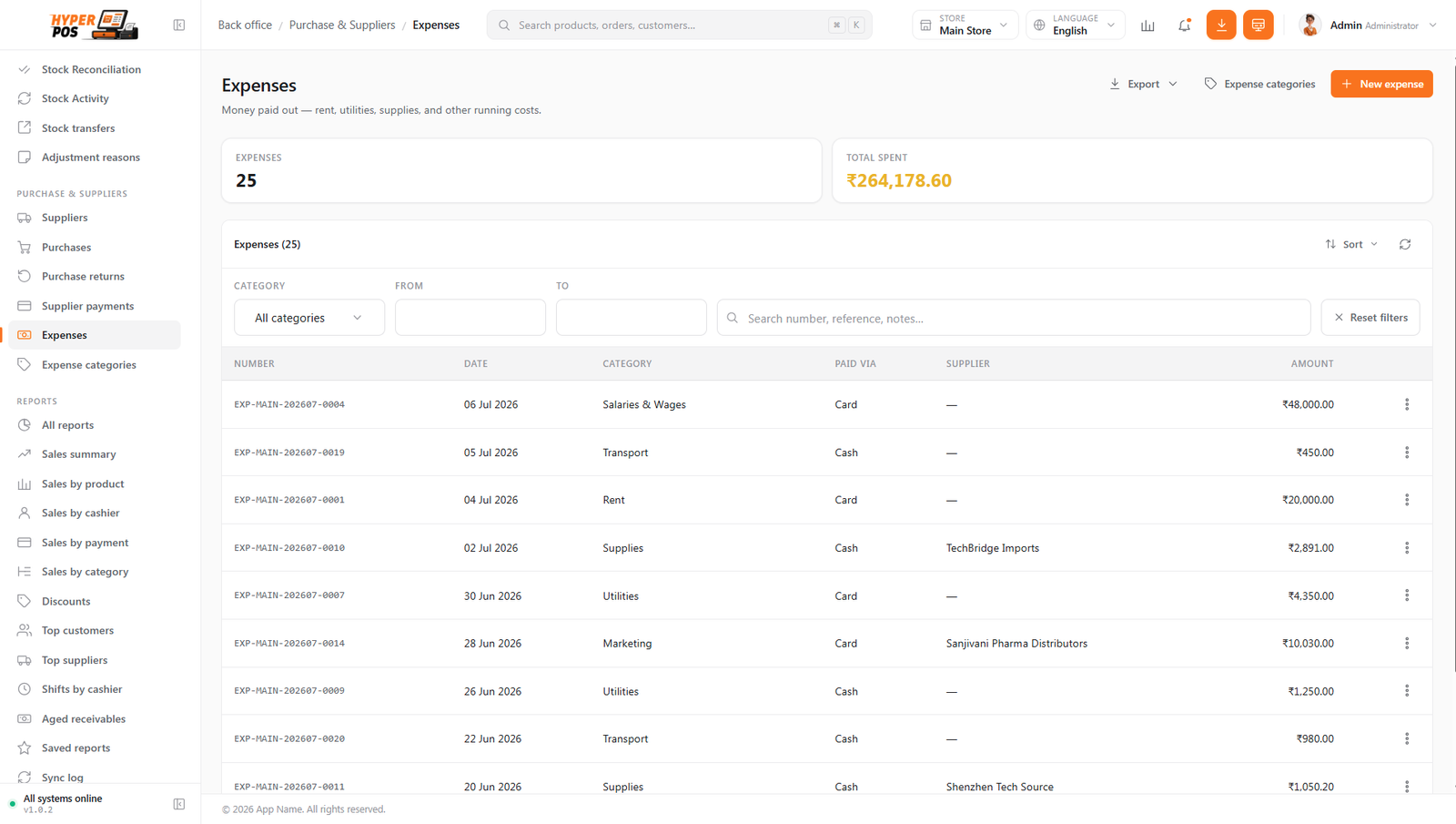
The Expenses list can be filtered by category and date range, or searched by number, reference or notes. A summary shows the count and the total spent for whatever you've filtered to. Use Export to download the list as CSV or Excel for your records or your accountant.
Tips & best practices
- Record it when it happens. Enter the expense as the cash leaves, so the drawer count at shift close is right.
- Keep the reference. Type the bill or invoice number in — future-you (and your accountant) will be glad it's there.
- Use a few clear categories. "Utilities" beats separate categories for electricity, water and internet.
- Paid in cash? Mark it so. Choosing the cash payment method is what ties the expense to the drawer.
Notes & warnings
Deleting an expense removes it from the books and can't be undone. Only delete genuine mistakes; for a real payment that was later refunded, record it as it happened rather than erasing history.
Expenses affect your cash reconciliation. A cash expense that isn't recorded will make the drawer look short at close — so record every cash-out.
Related: Purchases · Shifts & cash drawer · Accounting · Reports