Accounting
Your POS keeps a proper set of books for you — quietly, in the background. Every sale, refund, purchase and payment is turned into the correct accounting entry automatically, so you can read a Profit & Loss or a Balance Sheet without ever touching a ledger. This page explains, in plain English, what each part of the Accounting menu is for.
Overview
Traditionally, someone had to sit down after every sale and hand-write it into an accounts book — "cash went up, sales income went up, tax collected went up." For a busy shop that's impossible. So the POS does it for you. The moment you complete a sale, take a payment, receive stock or record an expense, the system writes the matching bookkeeping entry behind the scenes.
You mostly just read the results. The Accounting menu holds five things, and the finished reports (the statements) sit under Reports:
- Chart of accounts — the master list of "buckets" your money is sorted into.
- Business mappings — the rules that say which bucket each automatic entry uses.
- Fiscal periods — your accounting calendar (months and years) that you can lock when finished.
- Opening balances — the starting figures you enter once when you begin.
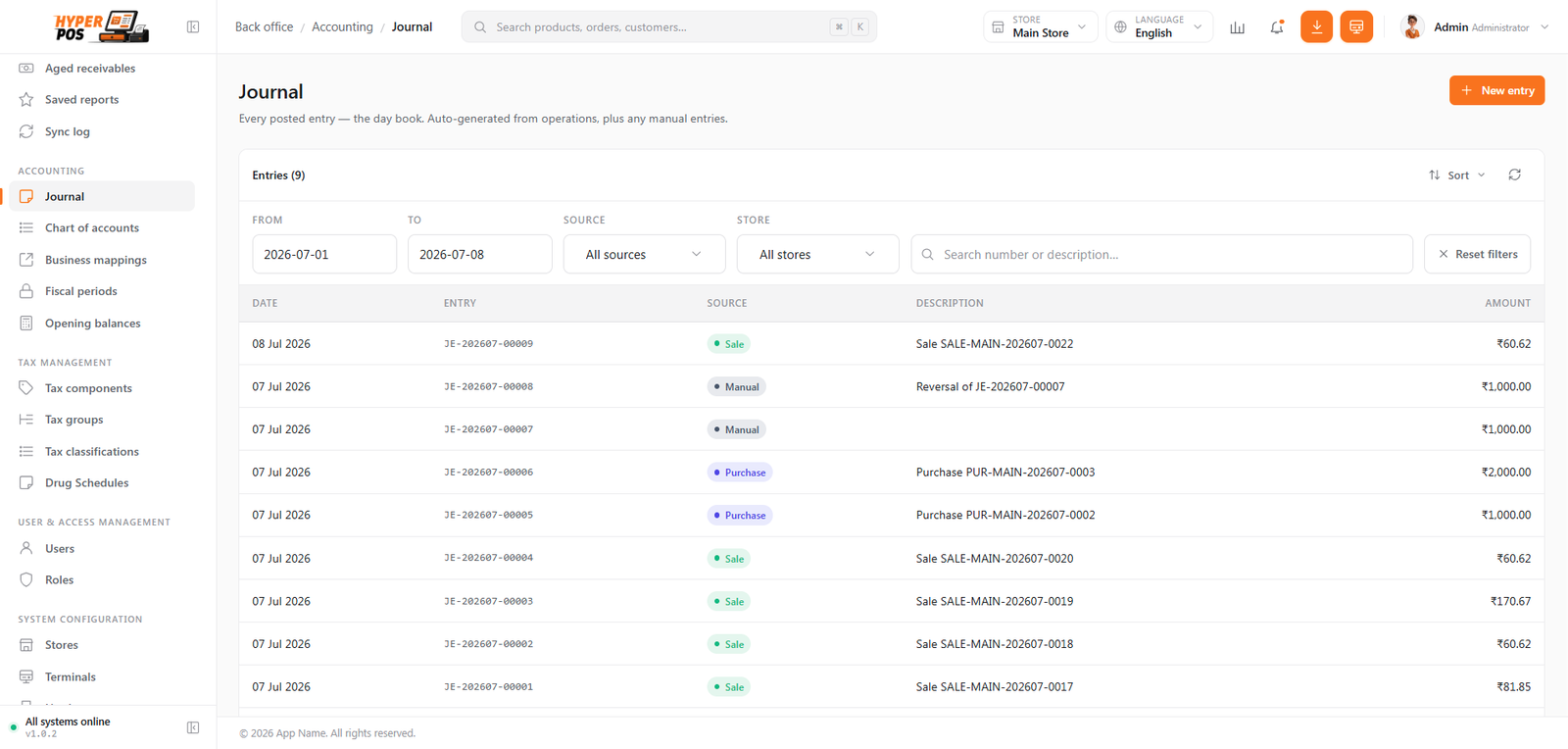
- Journal (day book) — the full diary of every entry, plus a place to post manual ones.
- Financial statements — Trial Balance, Profit & Loss, Balance Sheet and Cash Flow, built automatically.
The defaults are set up correctly for a normal retail shop. If you never open this menu, your books are still being kept. Come here to read your financial reports, enter your day-one balances, or make a correction your accountant asks for.
Why it's useful
- No manual bookkeeping. Sales, refunds, purchases, payments and stock changes all post themselves.
- Real financial reports, instantly. See your profit, what you own and owe, and where cash went — any time, with no data entry.
- Your accountant will thank you. Hand them a Trial Balance, P&L and Balance Sheet that already balance.
- Your history is protected. Lock a month or close a year and past figures can't be quietly changed.
Chart of accounts
The chart of accounts is simply the master list of "buckets" you sort your money into — like labelled folders in a filing cabinet. Every rupee (or dollar, or pound) that moves gets filed into one of these buckets.
Every account belongs to one of five types, and that's all the theory you need:
| Type | Plain meaning | Examples |
|---|---|---|
| Assets | What you own | Cash in hand, bank, stock, equipment |
| Liabilities | What you owe | Supplier dues, loans, tax payable |
| Equity | The owner's share | Owner's capital, retained profit |
| Income | Money coming in | Sales, interest earned |
| Expenses | Money going out | Rent, salaries, electricity |
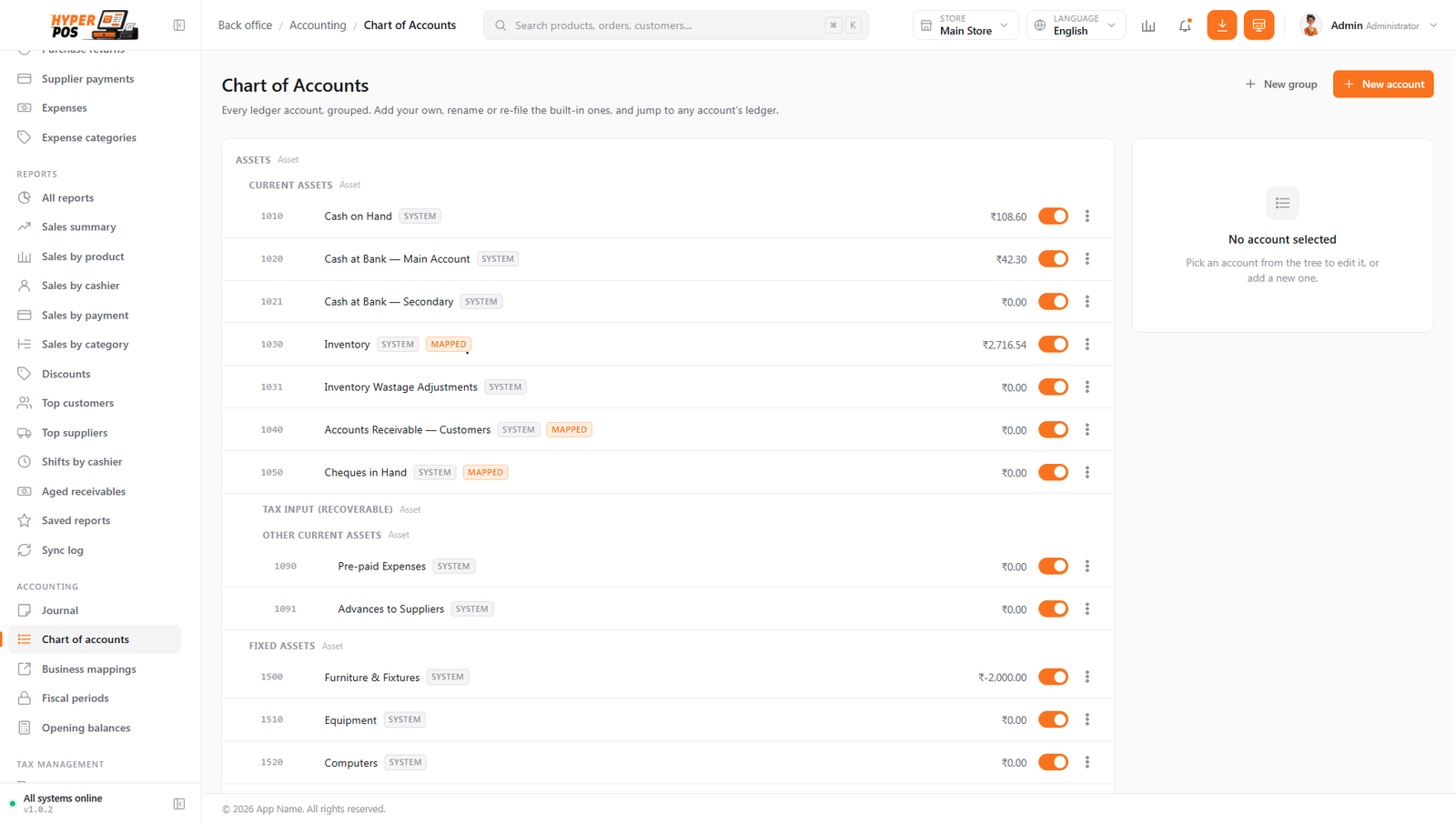
The list comes ready-made with a full standard set of accounts, so you rarely need to touch it. You can add your own accounts, organise them into groups, deactivate ones you don't use, or rename them — and every other screen (reports, journal, opening balances) updates to match, because they all read from this one list.
Business mappings
Business mappings answer one question: "when something happens in the shop, which account bucket should it post to?" They are the auto-pilot settings that let the POS keep your books without you lifting a finger.
You set the rule once and the system repeats it forever. For example:
| When this happens… | …post it to this bucket |
|---|---|
| A sale is made | Sales revenue |
| A sale is returned | Sales returns |
| Tax charged to a customer | Tax collected (output) |
| You receive stock | Inventory |
| A customer buys on credit | Accounts receivable |
| The cash drawer counts short | Cash shortage |
As the screen itself says: "The defaults suit most stores — change one only if your bookkeeper asks." For almost everyone, mappings are correct out of the box and never need touching.
Fiscal periods
Fiscal periods are your accounting calendar. They chop time into fixed blocks so you can measure how you did in each one and then "seal" it once it's finished.
- A fiscal year is your business's accounting year (12 months). It doesn't have to be January–December — in India it's usually 1 April → 31 March.
- A fiscal period is usually each month inside that year.
Every entry automatically lands in the period that matches its date, so "July's Profit & Loss" just means "everything filed in July." The important extra power is locking:
| Action | What it does | Why |
|---|---|---|
| Lock a period | Freezes a month so no new entries can be dated in it | Once you've reported July's numbers, they shouldn't change |
| Unlock a period | Temporarily reopens it | Only to fix a genuine mistake, then lock again |
| Close a year | Permanently seals the year and rolls its profit into equity (Retained Earnings) | Ends the year cleanly and starts the next one fresh |
If you ever try to record something dated inside a locked period, the POS stops you with "That date falls in a locked accounting period." — protecting your finished reports and tax filings.
Opening balances
Your business didn't start the day you installed the POS. You already had cash in the drawer, money in the bank, stock on the shelves, customers who owe you and suppliers you owe. Opening balances are where you type those starting amounts in, once, so day one reflects reality instead of zero.
Each row on the page is one account. You type a positive amount and the system files it on the correct side for you — that's what the small Dr (debit) or Cr (credit) tag next to each row means. Assets and expenses are debit-side (Dr); liabilities, equity and income are credit-side (Cr). Any difference is absorbed into an "Opening Balance Equity" account automatically, and the total will read Balanced when you've entered a complete set.
This is a one-time setup screen. The moment any real transaction is recorded (a sale, purchase, payment, etc.), the page locks itself — the boxes are disabled and the save button disappears — so your starting point can't be changed underneath figures that already build on it. If you need to correct a balance after that, post an adjusting entry in the Journal instead, exactly as the on-screen notice suggests.
The journal (day book)
The Journal is the complete diary of your books — every single accounting entry the system has made, newest first. Each entry shows its date, a description (like "Sale #1043" or "Payment to ABC Suppliers"), and the debit/credit lines that make it up. It's where your accountant looks to see exactly how anything was recorded.
You can also post a manual journal entry here for the rare things the POS can't know about on its own — a bank charge, depreciation, an owner's contribution, or a correction. And any entry can be reversed (the system posts an equal-and-opposite entry) so you never delete history — you cancel it out cleanly, the way real bookkeeping works.
Automatic posting safety
Automatic entries from sales, returns, voids, purchases, purchase returns, expenses, stock adjustments and shift variances carry their source document identity. If the same posting is requested again, Hyper POS recognizes the existing source entry instead of doubling the ledger.
If a required business-account mapping is missing or posting otherwise fails, the failure is recorded for investigation rather than creating a half-balanced journal. Correct the mapping and use the supported repost/recovery workflow; repeated recovery remains protected against duplicates.
Version 1.1.1 also keeps more complex money movements separate and balanced:
- Customer overpayments clear only the real receivable; the surplus is posted to customer advances/store credit until the customer spends it.
- Store-credit sales reduce that advance balance, while cash, card or other tenders post only their own share of a split payment.
- Supplier overpayments clear the payable first and record the surplus as a supplier advance.
- Cash drawer movements post once and avoid duplicating money already accounted for by their linked sale, expense or payment.
- Delayed recovery uses the original transaction-time payments and balances instead of pulling later settlements into an older sale.
Financial statements
These are the finished reports, built automatically by adding up everything in your books. You'll find them under Reports, and every one can be exported to CSV/Excel.
| Statement | Answers the question… |
|---|---|
| Trial Balance | "Do my books balance?" A list of every account's total, with debits equalling credits. |
| General Ledger | "Show me every movement in one account." The full history for a single bucket. |
| Profit & Loss | "Did I make money over this period?" Income minus expenses. |
| Balance Sheet | "What do I own and owe right now?" Assets, liabilities and equity at a point in time. |
| Cash Flow | "Where did my cash actually go?" Money in and out over a period. |
Getting started, step by step
-
Check your chart of accounts (optional)
Open Accounting → Chart of accounts. The standard set is already there. Add or rename accounts only if you have a specific reason — most shops leave it as-is.
-
Enter your opening balances — before selling
Go to Accounting → Opening balances and type your day-one figures (cash, bank, stock, who owes you, who you owe). Do this first, because the page locks once real transactions begin.
-
Just run your shop
Sell, refund, buy stock, take payments and record expenses as normal. Every one posts to the books automatically — there's nothing extra to do.
-
Read your reports whenever you like
Under Reports, open the Profit & Loss, Balance Sheet, Trial Balance or Cash Flow. Pick a date range and export if you need to send it on.
-
Lock periods as they finish
At the end of each month (once you've reviewed it), lock the period in Fiscal periods. At year-end, close the year to roll profit into equity and start fresh.
Tips & best practices
- Opening balances go in on day one. It's the single most important accounting step — and the only one with a deadline.
- Trust the defaults. Don't change business mappings or add accounts unless your accountant specifically asks.
- Lock each month after you review it. It keeps your reported history honest and stops accidental edits.
- Correct with a reversal, never a delete. Post an adjusting or reversing journal entry so the trail stays intact.
- Share reports straight from Reports. The P&L, Balance Sheet and Trial Balance export to Excel for your accountant.
Notes & warnings
Opening balances lock permanently once real transactions exist. Get them in before your first sale. Afterwards, corrections must be done as journal entries.
Locking a period blocks new entries dated inside it. If you need to post a genuine correction into a locked month, unlock it, post, then lock it again — and never unlock a month that belongs to a closed year.
This is basic business accounting, not a replacement for professional advice. The POS keeps accurate books and produces standard statements, but it doesn't file your taxes or know your local rules. For year-end accounts, tax returns and compliance, work with a qualified accountant.
Related: Reports · Taxes · Shifts & cash drawer · Glossary