Customer display
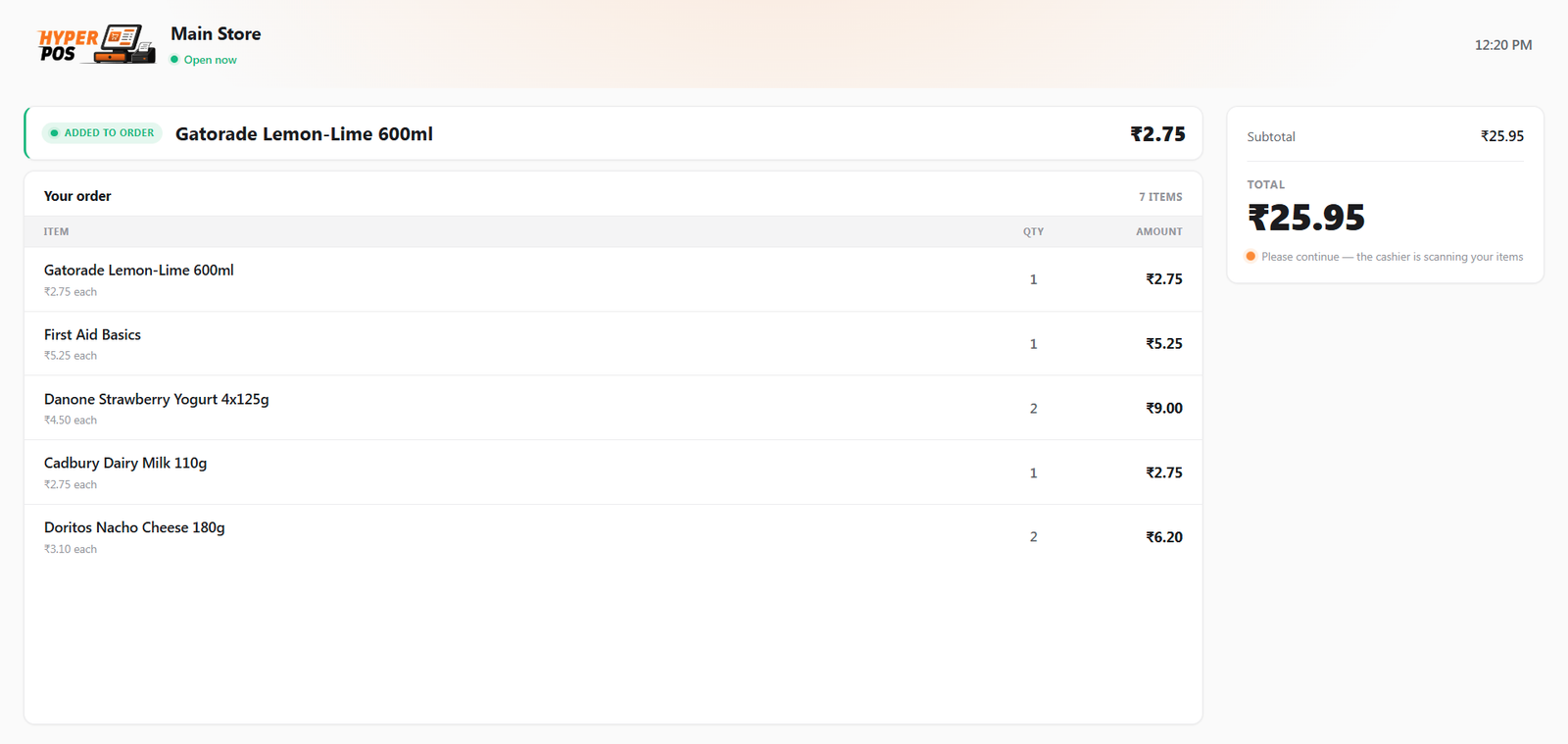
A second screen, turned to face the shopper, that mirrors their basket as you scan — item by item, price by price — then shows the amount and change at payment and a friendly thank-you at the end. It's the transparency touch that cuts "how much was that?" disputes at the till.
Overview
The customer display (sometimes called a customer-facing display or CFD) is a presentation-only screen. It doesn't take any input from the shopper — it simply shows them what's happening at the till, in big, clear type they can read from across the counter. As you ring up a sale on your screen, theirs updates instantly to match.
It's designed to need almost no setup and to keep working even when the internet is down, because the everyday version runs as a second window on the very same till computer.
The customer only watches — they don't tap, browse or check themselves out. The cashier still runs the sale. It's about transparency and a nicer checkout, not self-service. If you want shoppers to serve themselves, that's the self-ordering kiosk.
Why it's useful
- Fewer price disputes. The shopper sees each item scan at the right price, so there are no surprises at the total.
- Clear change. At payment, the amount due and change are shown large — reassuring for cash customers.
- Easy digital receipts. The thank-you screen shows a QR code the customer scans to get their receipt on their phone — no paper needed.
- A more professional counter. Your logo, a welcome message and rotating offers make the till feel polished.
- Works offline. On the usual two-screen setup it keeps running with no internet at all.
What the shopper sees
The display moves through four simple screens, following whatever you're doing at the till:
| Screen | When it shows | What's on it |
|---|---|---|
| Welcome | Between sales | Your logo, a welcome message, a clock, and any promo images you've added. |
| Sale | While you scan | The list of items with prices, the last item scanned shown large, and a running total. |
| Payment | When you take payment | Amount due and change (for cash), or a QR code to pay by phone (for card/QR). |
| Thank you | Just after the sale | A thank-you message, change restated, and a QR code for a digital receipt. |
Setting it up
-
Plug in the second screen
The typical counter is one computer with two monitors — yours and one facing the customer. Connect the second monitor as you normally would in Windows/macOS.
-
Turn the display on for that till
A manager opens Settings → Hardware, finds the terminal (till), and enables the customer display. Here you can also set a custom welcome and thank-you message, and upload promo images to rotate on the welcome screen.
-
Open it from the cashier screen
On the POS screen, open the ⋮ menu and choose Open customer display. A new window opens — drag it to the second monitor and press F11 for fullscreen.
-
Start selling
That's it. As you scan, the customer's screen mirrors the basket automatically. There's nothing extra to do during a sale.
Using a separate tablet instead
If you'd rather put the display on its own tablet (not the till's second monitor), that's supported too. In the terminal's settings, set "Where is the display?" to "A separate device (tablet)", then open the customer display on the tablet while it's signed in to the same till. The till will start sending updates to it automatically.
The separate-tablet mode sends updates over your local network, so both devices need to be online for it to stay in sync. The standard same-computer setup, by contrast, needs no network at all.
Let shoppers pay by UPI from the display
If you take UPI payments, you can mirror the same scan-to-pay QR code from your till onto the customer display. When it's on and you choose a UPI payment method at the till, the shopper's screen shows the QR alongside the amount due — so they can scan and pay with any UPI app right from their own screen, instead of leaning over the counter to look at yours.
Turn it on per till: a manager opens the terminal's settings (Settings → Hardware) and enables Show UPI QR on customer display. It's off by default, and you set it separately for each till, so you can enable it only where it makes sense. On the payment screen the UPI QR sits as its own pane beside the regular pay-by-phone QR.
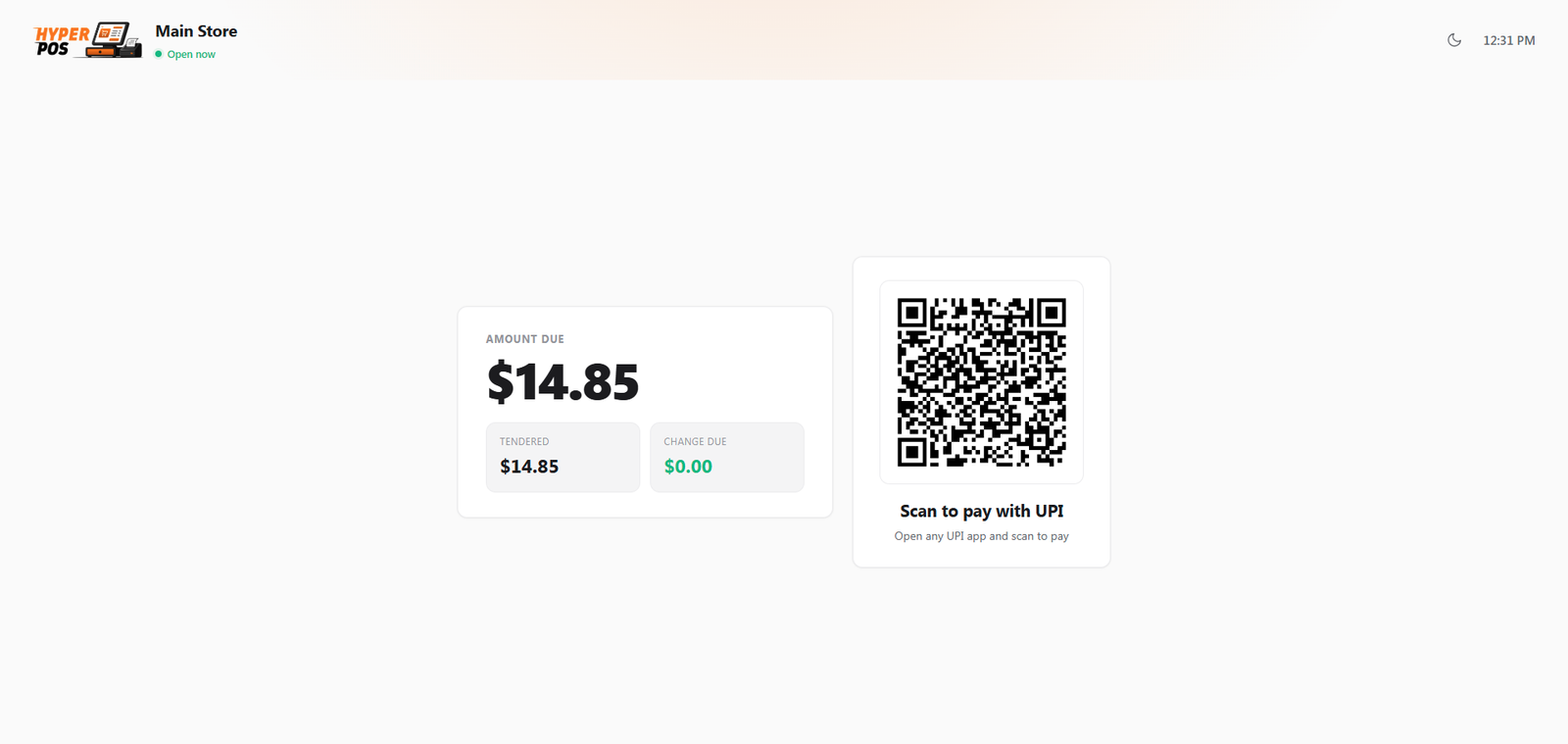
This is the same QR you'd normally show the customer at the till — the display just puts a copy on their side of the counter. Payment still works the way it always has: you confirm the money has arrived and complete the sale as usual. The QR only appears while a UPI payment method is selected.
Tips & best practices
- Go fullscreen. Press F11 on the display window so the customer sees a clean screen, not browser tabs.
- Add a couple of promo images. The welcome screen is free advertising space between sales — use it for offers.
- Keep messages short. "Welcome to Green Grocers" reads better from a distance than a paragraph.
- Point out the receipt QR. Tell cash customers they can scan for a digital receipt — it saves paper and looks modern.
Notes & warnings
The display shows only customer-safe information — item names, quantities and prices. It never shows your costs, margins or any private data.
The receipt QR needs internet to open. For a sale made while offline, the thank-you screen won't show a receipt QR (there's no online link yet) — the paper receipt still prints as normal.
Related: The POS screen · Hardware & printing · Taking payments · Digital receipts