Channel orders
Paid Shopify and WooCommerce orders arrive here for stock reservation, automatic store allocation and fulfilment. Hyper POS preserves the original order, customer, address, items, payment state, totals and provider reference.
/admin/commerce/orders.Order lifecycle
- The customer pays online
Only paid orders enter the normal allocation workflow. Signed Shopify or WooCommerce webhooks are recorded once even if the provider sends the same event again.
- POS imports and matches each line
Hyper POS first uses a saved remote mapping, then variant SKU, then product SKU. Unknown SKUs are never guessed; the order is shown with an allocation error for correction.
- Stock is reserved across eligible stores
Mappings with Orders enabled are considered in priority order. A large order can be split across multiple POS stores. Reservation reduces online availability immediately but does not change on-hand stock.
- Staff fulfil each allocation
Hyper POS rechecks store access, stock, mappings and eligible batches, then creates one normal store-scoped POS sale using the connection's online-order payment method.
- The provider is updated
Shopify receives fulfilment for the correct lines and mapped location. WooCommerce is marked completed after every local allocation is fulfilled.
For 10 on hand and an online order of 2: on hand stays 10, reserved becomes 2 and available becomes 8. After fulfilment: on hand is 8, reserved returns to 0 and available stays 8.
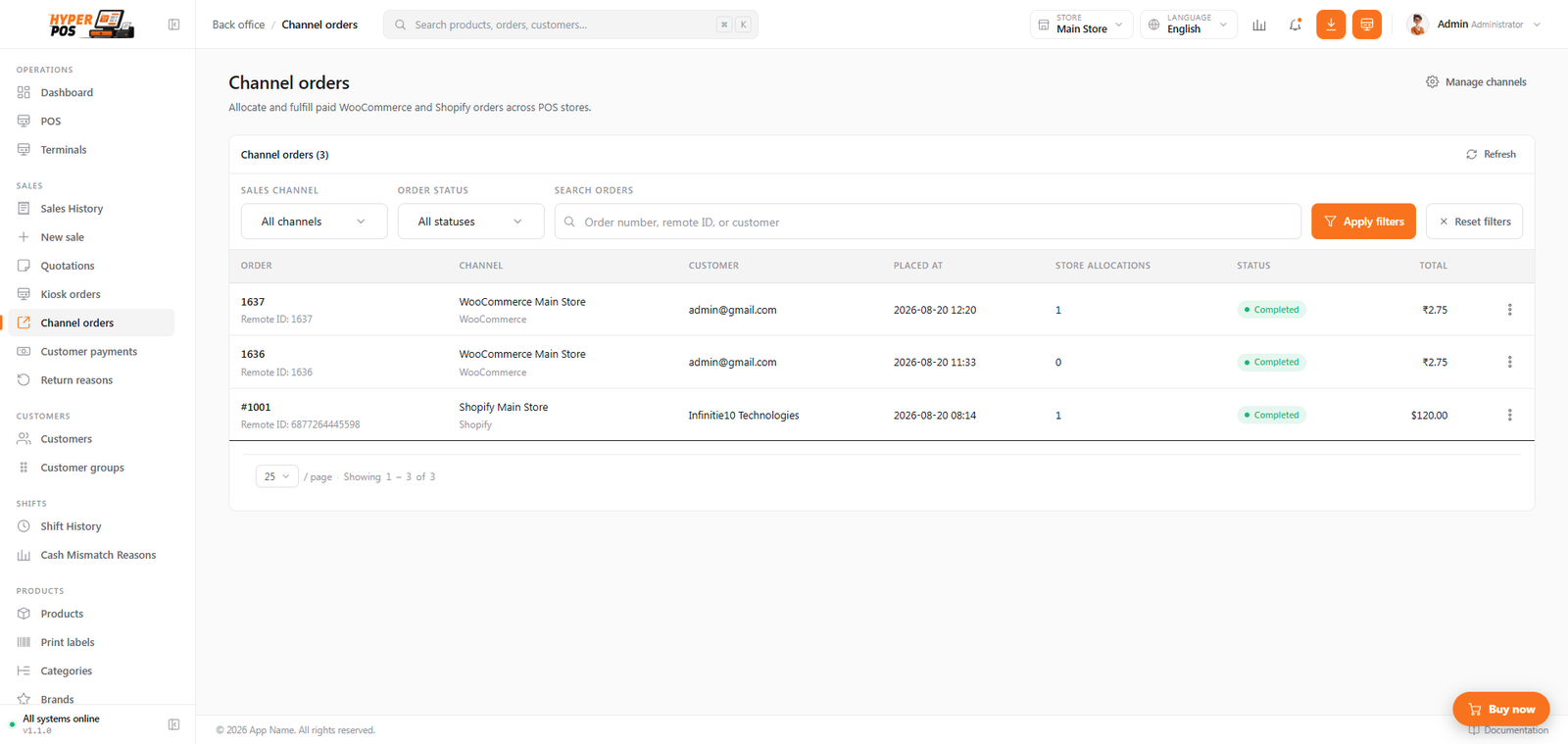
Review an imported order
Open an order to check:
- Provider, connection name, remote order number and financial/fulfilment state.
- Customer, email, phone, billing and shipping address.
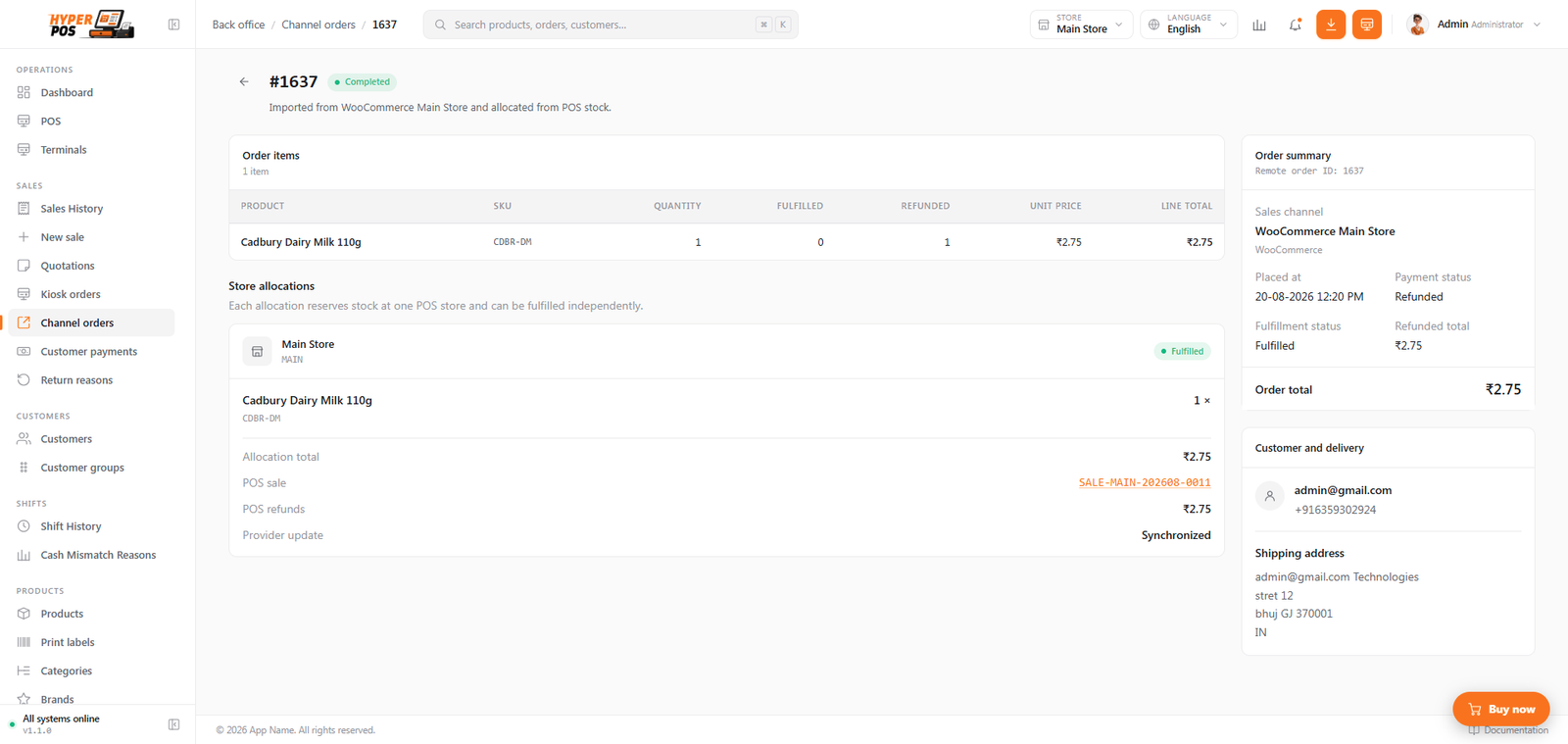
- Every product line, SKU, ordered, fulfilled and refunded quantity, unit price and total.
- Subtotal, discount, shipping, tax, grand total and refunded total.
- Store allocations, reserved quantities, generated POS sale and remote-sync status.
- Any actionable allocation or provider error.
Fulfil an allocation
- Pick and check the stock
Use the allocation's POS store and exact lines. For batch-tracked items, make sure an eligible positive-quantity batch is available in that store.
- Open the allocation
Confirm the store, quantities and total. If an allocation was split, fulfil only the portion that store is actually shipping or handing over.
- Click "Mark fulfilled"
Read the store name in the confirmation and continue once. Hyper POS protects against repeat submissions.
- Verify the result
The allocation links to its POS sale. The reservation is released, on-hand stock is deducted once, accounting/payment are recorded once, and remote fulfilment work is queued.
Split orders and provider differences
| Shopify | WooCommerce | |
|---|---|---|
| Inventory | Can map POS stores to distinct Shopify locations or an aggregate location. | Core WooCommerce has one stock quantity per product/variation, so enabled POS mappings contribute to one online pool. |
| Split fulfilment | Fulfilment is sent by line quantity and mapped location; eligible lines can be moved to the correct merchant-managed location. | Partial POS allocations remain local; the remote order becomes completed only after all allocations are fulfilled. |
| Remote order | Imported Shopify order remains the remote source of truth. | Imported WooCommerce order remains the remote source of truth. |
Cancellations and refunds
- Cancelled before fulfilment: open reservations are released and the increased availability is synchronized. POS does not invent a sale return because no sale was created.
- Refunded before fulfilment: the matching reserved quantity is released.
- Refunded after fulfilment: Hyper POS can create the matching POS sale return and restock, using the original fulfilled sale lines and an active return reason.
- Repeated provider event: the same cancellation or refund is not applied twice.
- The provider already handled the shopper's refund. POS mirrors the local financial/stock effect and does not call the payment gateway to refund the same money again.
Fix and retry a failed order
| Error | Correct it before retry |
|---|---|
| Product not mapped / unknown SKU | Give the exact POS product or variant the matching unique SKU, synchronize the product, then use Retry allocation. |
| Not enough available stock | Receive or transfer stock, reduce another reservation, or correct the eligible store mappings. |
| No eligible store | Enable an accessible active mapping with Orders selected and a suitable priority. |
| No eligible batch | Add/receive a positive-quantity, unexpired batch for that product/variant in the allocation store. |
| Provider fulfilment failed | Correct credentials, API scopes, remote location or provider availability, then use Retry provider sync. Do not fulfil the allocation again. |
A provider showing Completed does not prove POS stock was posted. Confirm the local allocation is fulfilled, a POS sale exists and the stock movement is present.
Access and safety
- Users need channel-order viewing permission to open the list/detail and management permission to allocate, fulfil or retry.
- Store access is rechecked on fulfilment. A user cannot fulfil through a store they cannot access.
- Double-clicks and repeated webhooks are idempotent: they must not create a second sale, stock movement, return or provider fulfilment.
- Do not delete pending commerce records to make a health count disappear. Fix the cause and use the supported retry action.
Related: Shopify & WooCommerce setup · Inventory · Returns & refunds · Sales history