Updates & license
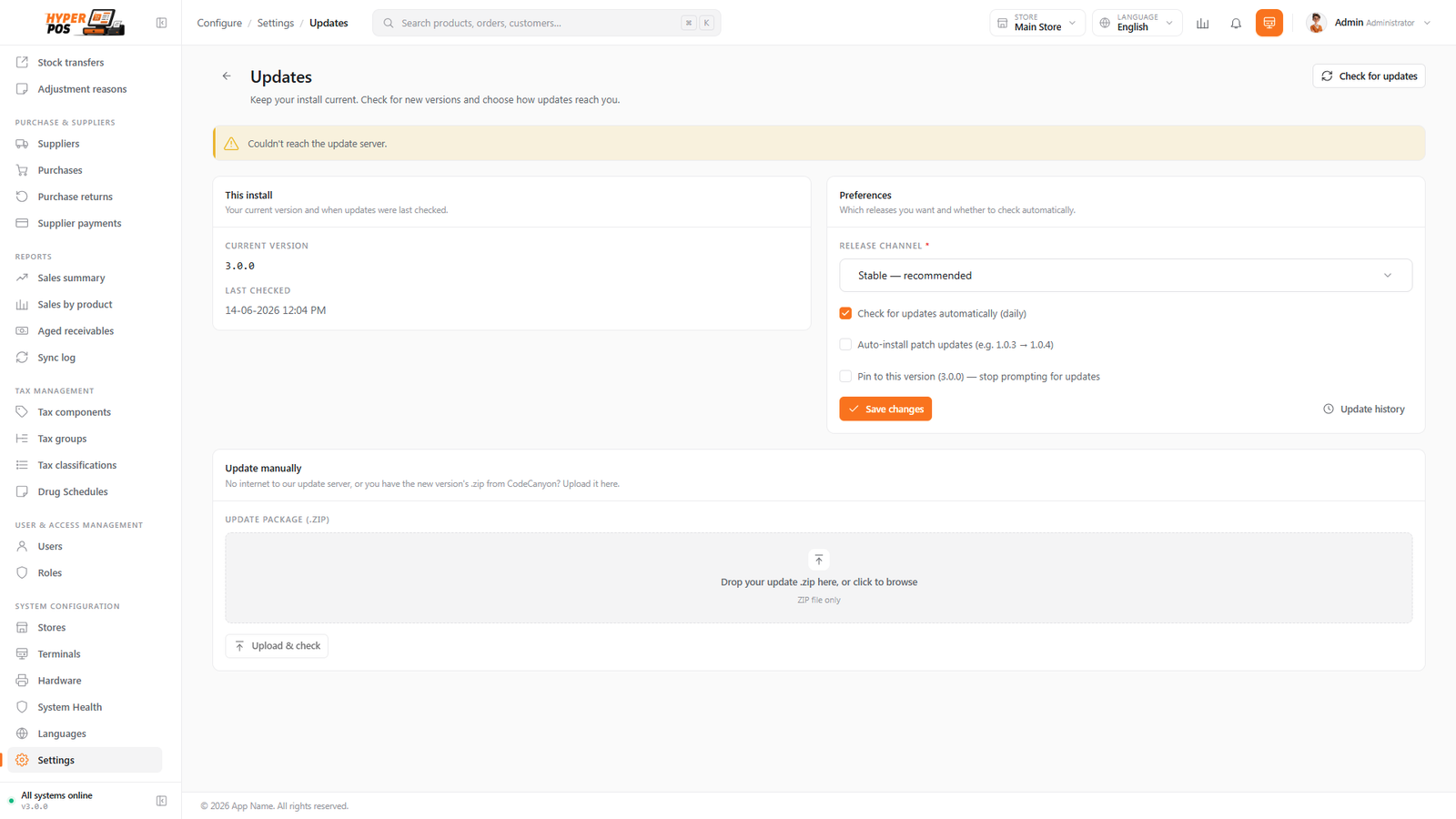
From time to time we release a new version of the app with fixes and improvements. The system checks for these for you and lets you install them safely, with an automatic backup so an update can always be undone. This page also covers your license — the purchase code that activates your copy.
Overview
The app is yours — it runs on your own server with no monthly fees. Even so, we keep improving it, and you can choose to install those improvements when they're ready. The system quietly checks once a day whether a newer version exists. When one does, a small notice appears in the admin area: "An update is available."
Installing is a guided, one-click process. Crucially, the system takes a safety backup before it touches anything, so if an update ever runs into trouble it can roll your shop straight back to how it was — you're never left stranded on a broken version.
Separately, your copy is activated with a license — the purchase code you got when you bought the app. You enter it once during setup. The system re-checks it occasionally to confirm it's valid, but a failed check never locks you out of your own data.
Why it's useful
- You stay current effortlessly. The system watches for new versions so you don't have to check a website.
- Updates are safe. A full backup is taken first, and the system can roll back automatically if anything goes wrong.
- You're in control. Nothing installs without you clicking — you can read what's changed and update when it suits you.
- Activation is one-and-done. Enter your purchase code once and you're set; there are no recurring fees.
- Your data is never held hostage. If a license check can't reach our server, the app keeps working as normal.
How to install an update, step by step
-
Open the Updates page
Go to Settings → Updates. It shows your current version and, if there's a newer one, a panel headed Update available with a short list of what's new.
-
Read what's changed
Skim the highlights so you know what you're getting. You can click through to the full release notes if you'd like more detail.
-
Click "Install update"
When you're ready, press Install update. The system first runs a few quick checks (enough disk space, your server meets the requirements) before going ahead.
-
Let it take a safety backup
Before changing a single file, the system makes a complete backup of your shop. This is automatic and is what makes the whole process reversible.
-
Watch the progress
A progress screen shows each step — backup, download, apply, finish — with a tick as each completes. The shop is briefly in "please wait" mode for other users. Don't close the tab until it's done.
-
Done
When it finishes, you'll see "Update complete" and the new version number. That's it — you're up to date.
Because a full backup is taken before anything changes, a failed update rolls your shop back to the previous version on its own. You can update with confidence.
Your license & activation
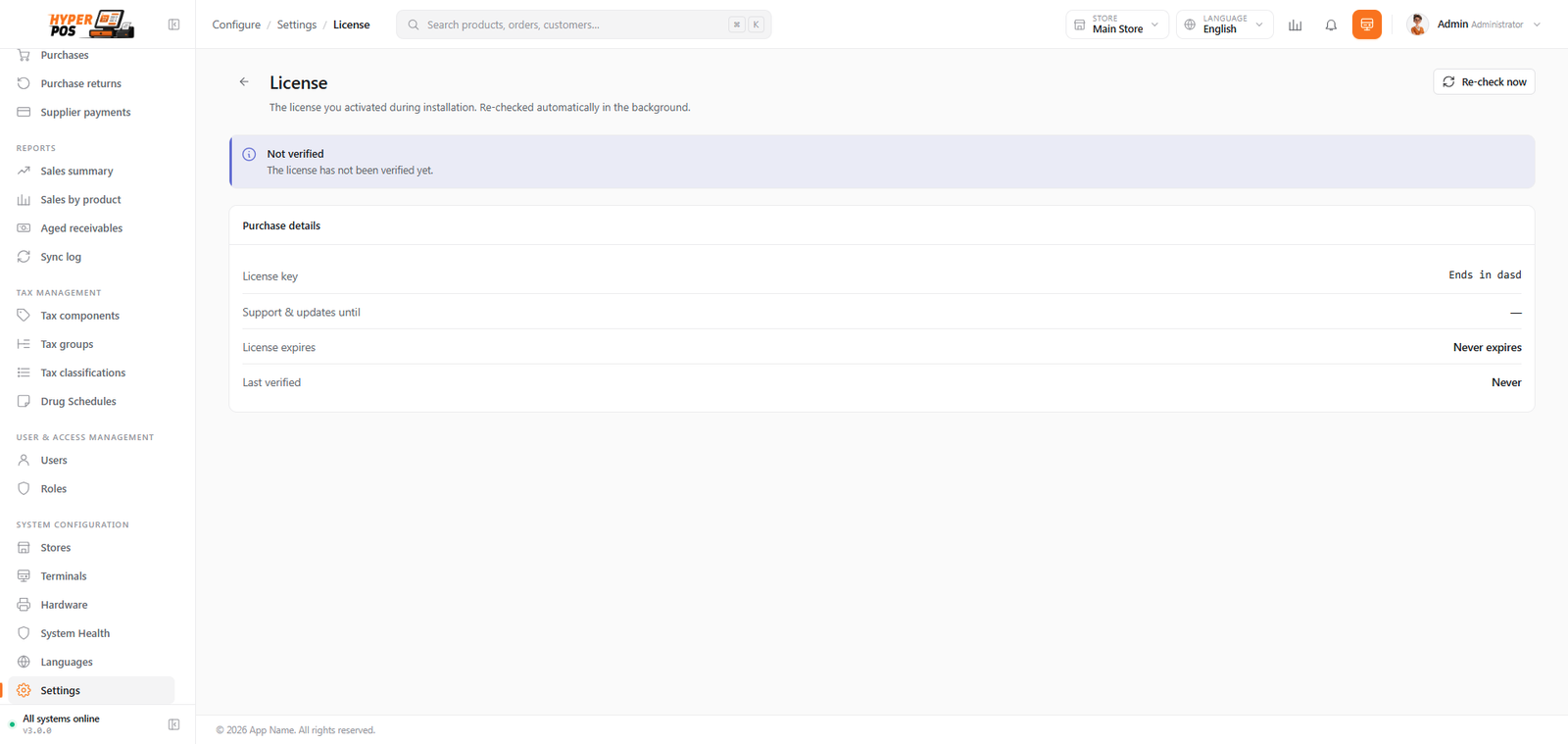
Your license is what activates this copy of the app. You enter your purchase code (the one you received when you bought the app) once, and the system confirms it's valid. After that, there's nothing more to do — there are no subscriptions or recurring charges.
Online activation
This is the normal way and the simplest. You paste your purchase code into the activation field and click Activate. The system checks it with us over the internet and, once confirmed, your copy is activated. This usually happens during first-time setup, but you can review your license any time from Settings → License.
Offline activation
If your server sits behind a firewall or has no internet access, you can still activate. Choose Activate offline: the screen gives you a way to obtain a small signed "activation file" from a self-service page, which you then paste back in. The app confirms it on its own, with no live connection needed.
Periodic re-checks
Every so often (roughly once a month) the system quietly re-confirms your license in the background. This is just a routine check. Importantly, if a re-check can't reach our server, nothing stops — your shop keeps running exactly as before. At most you'll see a gentle banner suggesting you check your internet connection. We never lock your data behind a network call.
Update package safety
Before extraction, Hyper POS validates update archives and rejects unsafe entries such as path traversal, absolute paths or links that could write outside the intended installation area. If preflight rejects a package, obtain a fresh official package—do not manually bypass the safety check.
Tips & best practices
- Update when the shop is quiet. An update pauses the app for a moment, so pick a closing-time or a lull rather than mid-rush.
- Read the highlights first. A quick glance tells you what's fixed or improved — and warns you of anything notable.
- Keep your own backups too. The update makes one automatically, but your regular downloaded backups are still your best safety net. See Backup & restore.
- Store your purchase code somewhere safe. You'll want it if you ever move to a new server and need to activate again.
Notes & warnings
Don't close the tab during an update. Let the progress screen run to the end. Closing it partway won't lose your data — the safety backup protects you — but it can leave the update half-finished and needing a retry.
A license re-check warning is not an emergency. If you see a banner saying the license couldn't be verified, it usually just means your server briefly couldn't reach the internet. The app keeps working; check the connection when convenient.
Always have a recent downloaded backup before a major upgrade. The automatic safety backup covers most cases, but for a big jump between versions, a copy you've saved off the server is your ultimate fallback. See Backup & restore.
Related: Backup & restore · General settings