Backup & restore
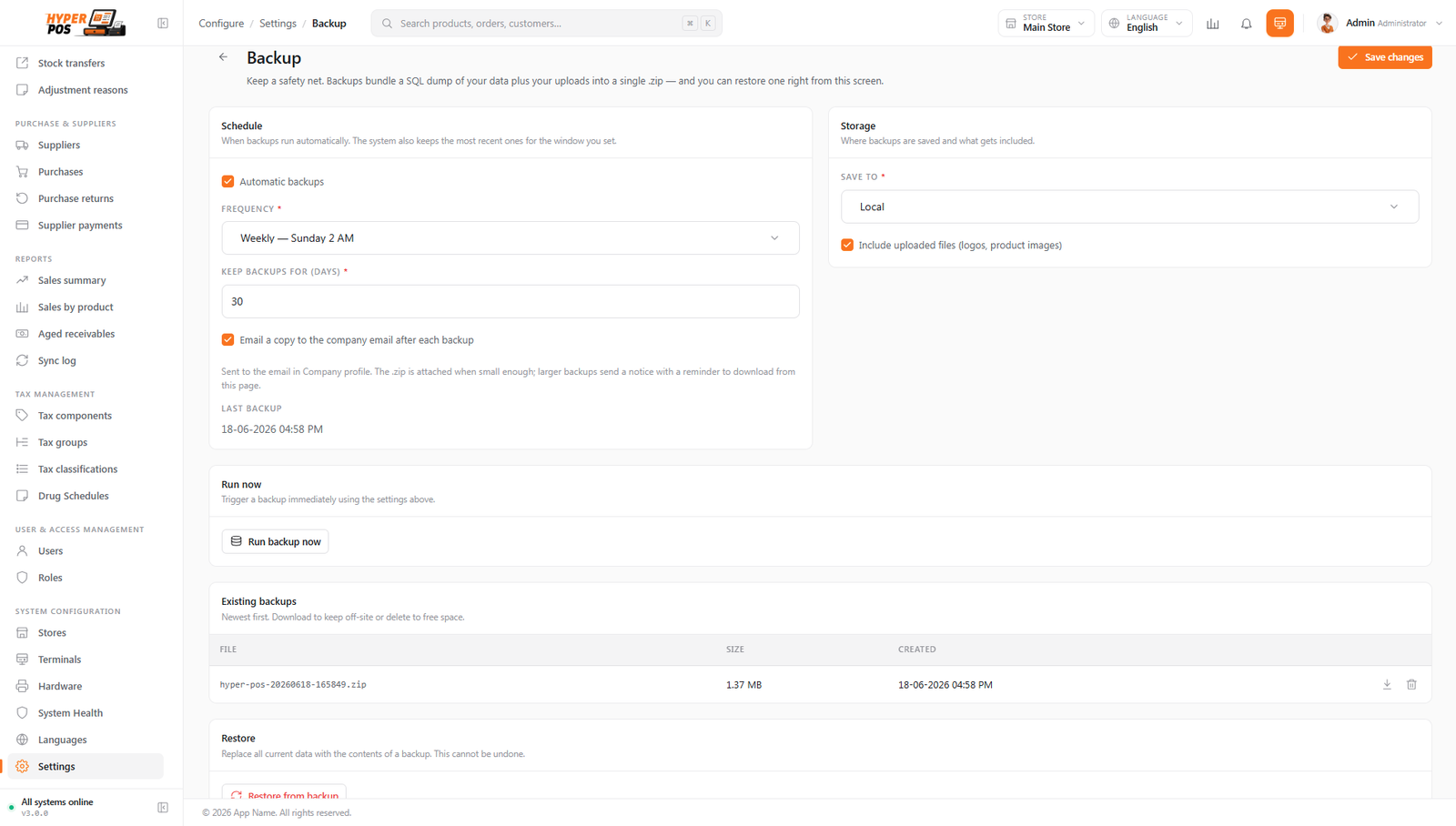
A backup is a safe, downloadable copy of everything in your shop — your products, sales, customers and settings. If a hard drive fails, a server is moved, or something simply goes wrong, a recent backup is what lets you pick up exactly where you left off. This page shows you how to make one and how to restore from it.
Overview
A backup bundles your entire shop into a single file (a "zip" — a compressed archive). Inside it is a copy of your database (all your products, sales, customers, stock and settings) plus your uploaded images, such as product photos and your logo. One file holds the lot.
A restore is the reverse: you take a backup file and load it back in, returning your shop to exactly the state it was in when that backup was made. Backup and restore together are your safety net.
You can make a backup whenever you like with one click, and you can download it to your own computer. Keeping a copy somewhere other than the server — your laptop, a USB stick, or cloud storage — is the single most important habit on this page.
Why it's useful
- It protects against the worst day. Servers fail, hosting accounts get closed, files get deleted by mistake. A backup means none of that loses your shop's records.
- It's one click. Making a backup is quick and needs no technical know-how.
- It travels. You can download the file and keep it safely away from the server — so even if the whole server is gone, your data isn't.
- It's your undo button for big changes. Before a risky import or a major change, a fresh backup means you can roll back if needed.
- It powers safe updates. The system automatically backs up before installing an update, so an upgrade can always be reversed. See Updates & license.
How to make a backup, step by step
-
Open the Backups page
Go to Settings → Backup & restore. You'll see a list of any backups you've made before, newest first.
-
Click "Backup now"
Press the Backup now button. The system gathers your database and uploaded files into a single file. A small progress indicator shows it working — you don't need to wait on the page; it carries on by itself.
-
Wait for it to finish
When it's done, a new row appears at the top of the list marked Success, with the date, the file size, and where it was saved.
-
Download a copy
Click Download on that row to save the backup file to your own computer. This is the important bit — a backup that lives only on the same server it's protecting won't help if that server is lost.
-
Keep it somewhere safe
Move the downloaded file to a safe place that's not the server: a personal laptop, an external drive, or cloud storage like Google Drive or Dropbox. Keep the last few backups, not just the newest.
A backup you've never downloaded isn't really a backup. Make one regularly, download it, and keep a copy off the server. Five minutes a week is the cheapest insurance your business will ever buy.
Scheduled backups
Configure automatic backups under Settings → Backup & restore and keep the Laravel scheduler running. Daily backup windows use your company/store timezone rather than the server's UTC clock.
- If cron misses the exact opening minute but returns later in the day's allowed window, the backup catches up once.
- The window is claimed so repeated scheduler ticks cannot start overlapping duplicate backups.
- Scheduled success, failure and last-run evidence is recorded separately from manual or pre-update backups.
- Retention removes eligible old backups according to your settings while keeping the newest valid copies.
- An irregular shared-host cron can still catch up, although Settings → Scheduler will honestly report a delayed or stale heartbeat.
Where backups are stored
By default, each backup is saved on your own server, and listed on the Backups page where you can download it any time. Because they sit on the same server as your live data, you should always download an extra copy to keep elsewhere — that way a single server problem can't take both your data and your backups at once.
Older backups can be removed from the list with the Delete action when you no longer need them, which also frees up space on the server.
Restoring from a backup
Restoring loads a backup back in and returns your shop to how it was when that backup was made. You'd do this to recover after a problem, or to move your shop to a new server.
-
Start the restore
On the Backups page, find the backup you want and click Restore — or, if your backup file is on your computer, choose the upload option and select it.
-
Review what's in it
The system reads the file and shows you a summary: the date it was made, the app version at the time, and counts of products, customers and sales. Check this is the backup you meant to use.
-
Confirm — carefully
Restoring replaces all current data with the backup's contents, so the system asks you to confirm deliberately (you'll type a confirmation word). You can also tick the box to make a quick backup of the current state first, in case you change your mind.
-
Let it run
The shop goes into a brief "please wait" mode while the restore happens. When it's finished, you'll be logged out and asked to sign in again — and your shop is back to the state in that backup.
Hyper POS validates the backup manifest and archive before replacing data. A tampered or unverifiable archive is blocked unless it qualifies for an explicitly trusted legacy path. Never weaken validation to force an unknown file through.
Tips & best practices
- Back up on a schedule. Pick a rhythm — daily for a busy shop, weekly for a quiet one — and stick to it. Scheduled backups only run if your server's cron job is set up.
- Always download a copy. Keep it off the server: a laptop, a USB stick, or cloud storage.
- Keep more than one. Hold on to the last few backups, not just today's, so you can go further back if a problem went unnoticed.
- Back up before anything big. Before a large import, a major settings change, or an update, make a fresh backup first.
- Keep your install details too. When you first set up the shop, you were offered a small settings file to save — keep it with your backups. It's needed for a full recovery onto a brand-new server.
Notes & warnings
A backup stored only on the server isn't fully safe. If the server is lost, the backup is lost with it. Downloading a copy elsewhere is what makes it a real safety net.
Restoring takes the whole shop offline for a moment. Don't run a restore mid-trade — do it when the counter is quiet. Everyone will be signed out and asked to log in again afterwards.
Restoring replaces everything and cannot be undone. It overwrites all current data with the backup's contents. Always tick the "back up current data first" option before you start, and be certain you've chosen the right file.
Related: Updates & license · General settings · Cron job setup